
How to Replace a CPU Cooler Fan
 By Theo LangUpdated
To replace a CPU cooler fan, shut the PC down, unplug it, and open the case. Unplug the old fan from the motherboard, remove the fan from the heatsink or take the whole cooler off, then fit the new fan or cooler in its place and plug it in. Check that the new fan matches your cooler and socket before you start.
Shut down and open the case
Shut the PC down and unplug it from the wall before you touch anything inside. Follow the manual for your case to remove the side panel, and touch a bare metal part of the case to discharge static. Work on a clear table with good light, and keep the screws from the panel in a small dish so they do not roll away. Do not open a power supply, and do not work inside a PC that is still plugged in.
Unplug the old fan
Find the fan cable on the motherboard and note which header it uses before you pull it out. Squeeze the plug, not the wires, and pull it straight up from the header. If the fan is clipped or screwed to the heatsink, undo those clips or screws and lift the fan clear. If the fan is part of a cooler that must come off as one piece, undo the cooler mounts by hand and lift the cooler away from the CPU.
Fit the new fan or cooler
Check that the new fan or cooler fits your socket and your case before you mount it. Seat the fan on the heatsink the same way the old one sat, so air flows in the same direction as before, and fasten its clips or screws. If you fit a whole new cooler, follow its manual for the mounting bracket and for the thermal paste. Plug the fan cable into the same motherboard header the old fan used.
Check the new fan spins
Plug the PC back in and switch it on with the case panel still off. Watch the new fan to confirm it spins, and listen for a rattle or a scraping sound that means a cable or a clip is touching the blades. Open your system monitor or BIOS screen and check that the fan shows a speed reading and the CPU temperature stays in its normal range. If the fan does not spin, shut the PC down, unplug it, and reseat the fan plug.
What you need
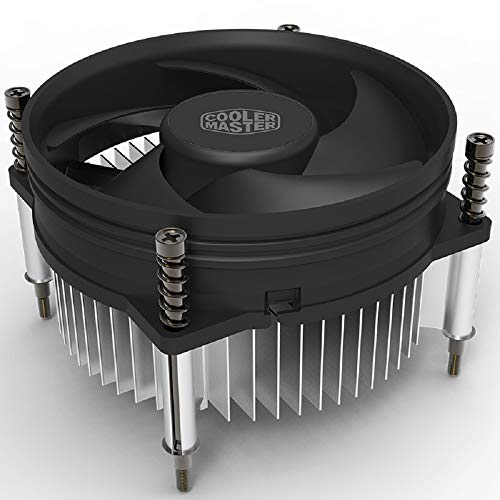
Cooler Master i30 CPU Cooler
A 92mm cooler with a 2200 RPM fan and a 3-pin plug for Intel LGA 1150, 1151, 1155 and 1156 sockets.
View on Amazon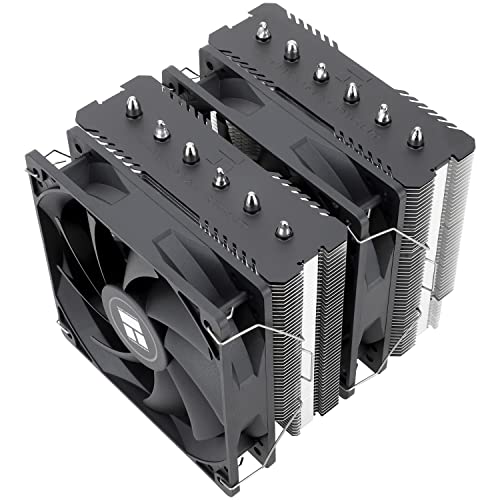
Thermalright Peerless Assassin 120 SE CPU Cooler
Two 120mm PWM fans at 1550 RPM with six heat pipes for AMD AM4 and AM5 and Intel LGA 1700, 1150, 1151, 1200 and 1851 sockets.
View on Amazon
Thermalright Assassin X120 Refined SE CPU Air Cooler
A 120mm PWM fan at 1550 RPM with four heat pipes for AMD AM4 and AM5 and Intel LGA 1150, 1151, 1155, 1200, 1700 and 1851 sockets.
View on Amazon
Cooler Master Hyper 212 Black II CPU Air Cooler
A 120mm PWM fan at up to 1750 RPM with four heat pipes and a 152mm height for AMD AM5 and AM4 and Intel LGA 1851 and 1700 sockets.
View on AmazonThese come from our ranked list Best CPU Fan Cooler, which compares them spec by spec.
FAQ
Can I replace only the fan and keep the heatsink?
Yes, if the new fan matches the heatsink size and mounting points and plugs into the same motherboard header. If the fan is glued or riveted to the heatsink, or the mount does not fit, fit a whole new cooler instead.
Do I need new thermal paste when I refit a cooler?
Only if the paste seal breaks. If you lift the cooler off the CPU, clean the old paste from the CPU and the cooler base and apply fresh paste as the cooler manual shows. If you only swap the fan and leave the cooler mounted, the paste stays in place.
Why does my new fan not spin after fitting?
Check first that the fan plug is pushed fully into the motherboard header and that no cable touches the blades. If it still does not spin, shut the PC down, unplug it, and try the fan on a different header to find whether the fan or the header is at fault.


