How to Put a Backplate on a Motherboard
 By Theo LangUpdated
To put a backplate on a motherboard, shut the PC down and unplug it, place the plate behind the CPU socket with its holes lined up, then thread the cooler standoffs or screws through the board into the plate. Follow the cooler manual for your socket, since the mounting parts differ between Intel and AMD boards.
Shut down and prepare the board
Shut the PC down and unplug it first, and follow the maker manual for the motherboard and the cooler. Lay the motherboard flat with the back facing up so you can reach the area behind the CPU socket. If the board is still in the case and you cannot reach the back of the board behind the CPU socket, remove the board from the case before you start.
Check which backplate your cooler uses
Read the cooler manual for your socket and lay out the backplate, standoffs and screws it lists for that socket. Some coolers supply their own backplate, and some reuse the plate already fitted to the board. The Thermalright Peerless Assassin 120 SE states that AMD installation uses the original motherboard built-in backplane, which is not included with that cooler.
Line up the backplate behind the socket
Place the backplate on the back of the motherboard, centered behind the CPU socket. Turn it so each hole in the plate lines up with a hole in the board around the socket. Follow the diagram in the cooler manual for which face of the plate sits against the board, and hold the plate in place with one hand while you fit the first screws.
Fit the standoffs from the front
Turn the board over while holding the backplate in place, then thread the standoffs or mounting screws through the holes around the socket and into the backplate. Tighten them by hand a little at a time, working from one side to the other, so the plate pulls up flat against the board. Stop when each standoff sits firm and flat, and do not force a screw that will not turn.
Mount the bracket and cooler
Attach the cooler mounting bracket to the standoffs in the order the cooler manual shows, then fit the cooler onto the bracket and tighten its screws a little at a time in turn. Check that the cooler sits flat on the CPU and that no cable is trapped under the bracket. Refit the board in the case if you removed it, reconnect the cables, then plug the PC in again.
What you need

ARCTIC Liquid Freezer III Pro 360 A-RGB
An AIO CPU cooler for LGA1851, LGA1700, AM4 and AM5, with a contact frame for Intel LGA1851 and LGA1700.
View on Amazon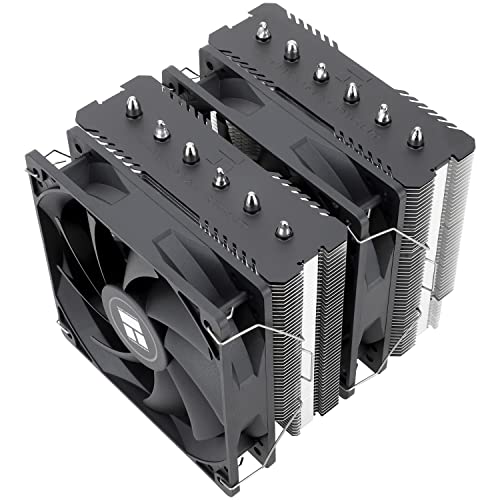
Thermalright Peerless Assassin 120 SE CPU Cooler
An air CPU cooler with dual 120mm PWM fans and metal fasteners for Intel and AMD platforms, using the motherboard backplane on AMD.
View on Amazon
ARCTIC Liquid Freezer III Pro 360
An AIO CPU cooler with 3 x 120 mm fans for LGA1851, LGA1700, AM4 and AM5, with native offset mounting.
View on Amazon
LIAN LI HydroShift II Curved 360 TL Flex AIO Cooler-Black-HS2OLDC36TB
A 360mm AIO cooler with 3x120mm TL Flex fans and a motorized pump head, for Intel LGA 1851/1700 and AMD AM5/4.
View on AmazonThese come from our ranked list Best Cooler for PC, which compares them spec by spec.
FAQ
Do I need to take the motherboard out of the case?
Only if you cannot reach the back of the board behind the CPU socket. If the case has an opening there and the holes are clear, you can fit the backplate with the board in place. Shut the PC down and unplug it first either way.
Can I reuse the backplate already on the motherboard?
It depends on the cooler and the socket. The Thermalright Peerless Assassin 120 SE states that AMD installation uses the original motherboard built-in backplane. For other coolers, use the backplate and standoffs the cooler manual lists for your socket.
Which way round does the backplate go?
Follow the diagram in the cooler manual for your socket. Line the holes in the plate up with the holes around the CPU socket, with the face shown in the diagram against the board, and check that the plate sits flat before you tighten the standoffs.