
How to Install a Cooling System in a PC
 By Theo LangUpdated
To install a cooling system in a PC, shut the PC down, unplug it, open the case, fit the cooler mount to the motherboard socket, apply thermal paste to the CPU, seat the cooler on the CPU, secure it evenly, connect its fan cable to the motherboard header, mount the radiator or fans in the case, then close the case and check that the fans spin on startup.
Shut down and prepare the case
Shut the PC down and unplug the power cable before you open the case, and follow the instructions in the manual for your case and motherboard. Remove the side panel and set the screws aside where they will not roll away. Clear space around the CPU socket and remove any parts that get in the way, such as a graphics card or memory sticks that sit close to the socket. Keep the cooler parts and mounting hardware together on a clean surface.
Fit the mount for your socket
Check the socket type listed in your motherboard manual and pick the bracket and backplate that match it from the cooler box. Fit the backplate behind the motherboard and hold it in place while you attach the mounting posts or standoffs from the front. Tighten the posts by hand until they sit firm, and check that the bracket lines up with the holes around the CPU socket. Do not force a bracket that does not fit, and check the manual for the correct orientation for your socket.
Apply paste and seat the cooler
Clean old thermal paste from the CPU with a lint-free cloth and a cleaner made for that job, if paste is already there. Place a small dot of thermal paste in the centre of the CPU, then lower the cooler straight down so the cold plate meets the CPU without sliding it across the surface. Tighten the screws in a cross pattern, a little at a time on each side, until the cooler sits flat and firm. Wipe away any paste that squeezes out at the edges.
Mount the radiator and fans
For an air cooler, check that its fans face the airflow path through the case and that tall memory sticks clear the fan. For a liquid cooler, fit the radiator to a fan mount inside the case and secure it with the screws from the cooler box. Route the tubes so they do not press against fan blades or sharp edges, and keep the pump head lower than the top of the radiator where the case layout allows it. Check that no cable touches a fan blade.
Connect power and check the fans
Connect the cooler fan cable to the fan header on the motherboard named for the CPU fan in the manual, and connect a pump cable to its own header when the cooler has one. Tidy the cables away from fan blades, replace the side panel and plug the power cable back in. Switch the PC on and check that the cooler fans spin and that air moves through the case. If a fan does not spin, shut the PC down, unplug it and check the cable connection again.
What you need

ARCTIC Liquid Freezer III Pro 360 A-RGB
An AIO cooler for LGA1851, LGA1700, AM4 and AM5 with P12 PRO fans, an integrated VRM fan and offset mounting for the CPU hotspot.
View on Amazon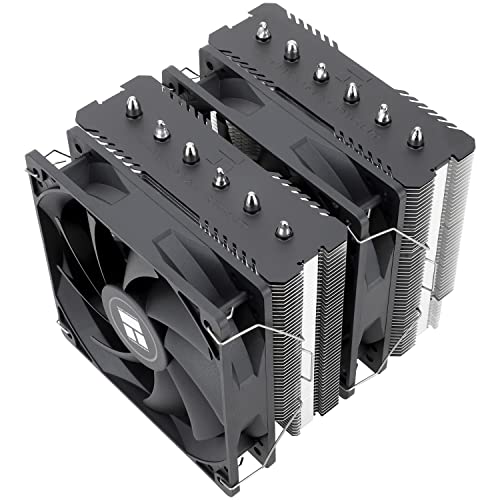
Thermalright Peerless Assassin 120 SE CPU Cooler
A dual-tower air cooler with two 120 mm PWM fans and six heat pipes, with mounting hardware for Intel and AMD sockets.
View on Amazon
ARCTIC Liquid Freezer III Pro 360
An AIO cooler with three 120 mm fans, an integrated VRM fan and offset mounting, for LGA1851, LGA1700, AM4 and AM5.
View on Amazon
LIAN LI HydroShift II Curved 360 TL Flex AIO Cooler-Black-HS2OLDC36TB
An AIO cooler with three 120 mm TL Flex fans and a motorized curved OLED display on the pump head.
View on AmazonThese come from our ranked list Best Cooler for PC, which compares them spec by spec.
FAQ
Do I need to remove the motherboard to install a cooler?
Not always. Many mounts fit with the motherboard in the case, using a backplate reached through a cutout behind the board. Check your case and cooler manual first, and remove the board only when the mount cannot be fitted with it in place.
How much thermal paste should I use?
A small dot in the centre of the CPU is enough, since the pressure of the cooler spreads it across the surface. Too much paste can squeeze out at the edges, so wipe away any excess and do not add a second layer.
Can I reuse an old cooler on a new CPU?
You can reuse it only when the cooler lists support for the new socket and fits inside the case with room for memory and other parts. Clean off the old paste, apply fresh paste and fit the correct bracket for the new socket before you install it.


