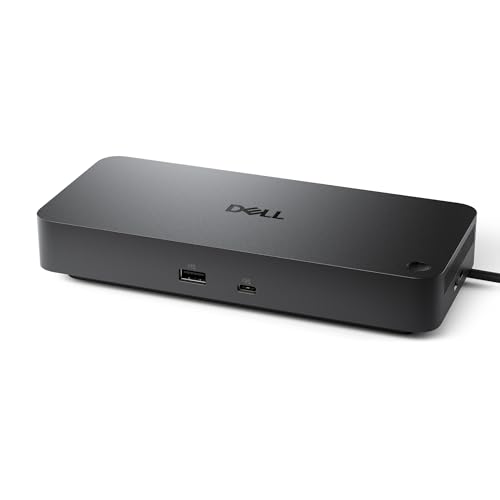
How to Connect Four Monitors to a Dock
 By Theo LangUpdated
Connect the dock to your laptop with its USB-C or Thunderbolt cable, plug four monitors into the dock's HDMI or DisplayPort outputs, and set the displays to extend in your operating system. Check first that your laptop's port carries video and that the dock lists four-monitor support, since not all docks extend four separate pictures.
Check what your laptop's port supports
A USB-C port does not always carry video, so check your laptop's manual or spec sheet for DisplayPort Alt Mode, Thunderbolt or USB4 on that port. A port that only carries data still runs the dock's USB ports and Ethernet, but monitors attached to the dock stay blank. If your laptop has a Thunderbolt port, use it for the dock, since it carries video and data on one cable.
Pick a dock that lists four displays
Look for a dock that lists four video outputs and states the resolution for four monitors at once, such as 4K at 60 Hz. Some docks give you a choice of HDMI or DisplayPort for the same output, so count the outputs you can use at the same time rather than the total ports on the box. On macOS, read the dock's notes first, since some docks extend fewer monitors on a Mac than on Windows.
Connect the dock and the monitors
Plug the dock into power, then connect it to your laptop with the cable that came with the dock. Connect one monitor to a video output on the dock, then the next, until all four are attached, using HDMI or DisplayPort cables that match the ports. If the dock's maker provides a driver, install it before you connect the monitors, and restart the laptop if the maker tells you to.
Set the displays to extend
Open the display settings on your laptop and set the monitors to extend your desktop instead of mirroring the same picture. Arrange the four screens in the order they sit on your desk, then set the resolution and refresh rate for each one. If a monitor stays blank, check its cable, its input setting and the dock's power, then try a different port on the dock.
Check the charging and the network
Compare the power delivery figure on the dock with the charger that came with your laptop. A dock that passes through less power than the laptop's own charger still charges it, but more slowly under load, so keep the laptop's own charger nearby for heavy work. If the dock has an Ethernet port, plug in a network cable for a wired connection and check that your laptop sees the network.
What you need
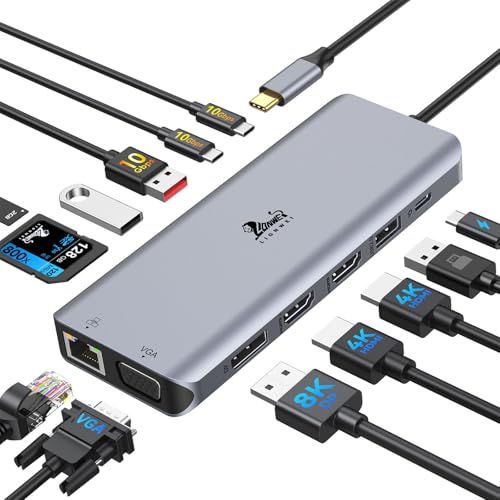
USB C Docking Station 4 Monitors
A 13-in-1 USB-C dock with two 4K HDMI ports, DisplayPort and VGA, 100W power delivery with 87W for the laptop, Ethernet and a 2-year warranty.
View on Amazon
TobenONE DisplayLink Docking Station 4 Monitor 20-in-1 Quad 4K@ Display
A 20-in-1 DisplayLink dock with 4 HDMI outputs for quad 4K at 60 Hz, 100W laptop charging, Thunderbolt 5, 4 and 3 support and a 2-year warranty.
View on Amazon
WAVLINK DisplayLink Laptop Docking Station Quad Monitor 4K@ for MacBook M1-M5
A DisplayLink dock with 4 HDMI and 4 DisplayPort outputs for quad 5K and 4K at 60 Hz, 100W power delivery, 2.5Gbps Ethernet and an 18-month warranty.
View on Amazon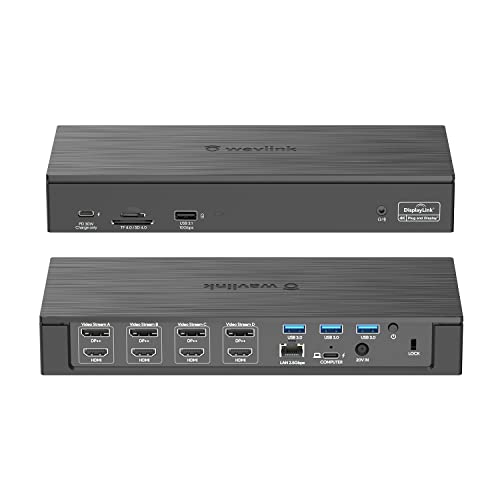
WAVLINK DisplayLink Laptop Docking Station
A DisplayLink dock with 4 HDMI and 4 DisplayPort outputs for quad 5K and 4K at 60 Hz, 100W charging from a 180W adapter, 2.5Gbps Ethernet and a 1-year warranty.
View on AmazonThese come from our ranked list Best Docking Station for 4 Monitors, which compares them spec by spec.
FAQ
Can I connect four monitors to any docking station?
No. Only docks that list four video outputs and four-monitor support extend four separate pictures. Check the dock's notes for the resolution it gives with four monitors attached.
Why do my monitors show the same picture?
They are set to mirror instead of extend. Open the display settings and change each monitor to extend the desktop, then arrange the screens in the order they sit on your desk.
Does a dock charge my laptop?
Many docks pass power through the same cable that carries video and data, but the wattage varies by dock. Compare the dock's power delivery figure with your laptop's own charger.