How to Connect Three Monitors to a Chromebook
 By Theo LangUpdated
Connect three monitors to a Chromebook with a USB-C docking station that has three video outputs, such as three HDMI ports. Plug the dock into a USB-C port that supports video output, connect one monitor to each output, and arrange the screens in the Chromebook display settings. If your Chromebook only drives one display through USB-C, a DisplayLink dock is the route that adds the second and third screens.
Check your Chromebook USB-C port
A USB-C port does not always carry video. Look in your Chromebook manual or spec sheet for DisplayPort Alt Mode, Thunderbolt or USB4 on that port. If the port only carries data, monitors attached to the dock stay blank even though the USB ports work.
Pick a dock with three video outputs
Count the monitors and their inputs, then match them to the dock. The Plugable UD-3900PDZ has three HDMI ports, one at 4K 30Hz and two at 1080p 60Hz. The WAVLINK dock has three HDMI and two DisplayPort outputs, with 4K 60Hz on HDMI and 2K 60Hz on the other two. The Dell WD25 lists support for up to four displays.
Connect the dock and the monitors
Connect the dock to the Chromebook with its USB-C cable, then connect one monitor to each video output on the dock. Use the dock power adapter so the dock can charge the Chromebook while it drives the screens. The docks here all list 100 W power delivery.
Arrange the screens in settings
Open the Chromebook display settings and check that all three monitors appear. Set the arrangement so the screens sit in the same order as on your desk, and set one monitor as the main display if you want the shelf and launcher there. If a monitor stays blank, check its input and the cable, then check that the dock driver is installed if the dock needs one.
What you need
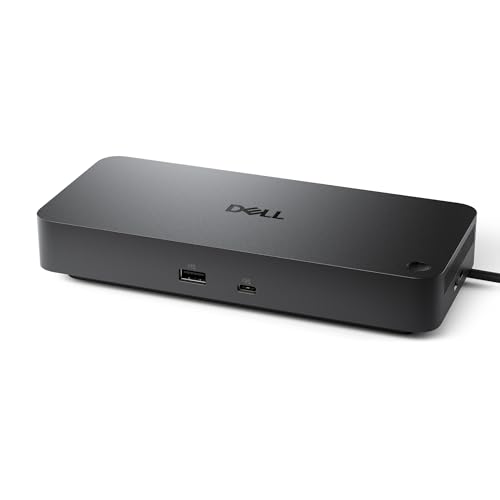
Dell Pro Laptop Docking Station WD25
A USB-C dock with HDMI and DisplayPort outputs, Ethernet and 100 W power delivery, listed with support for up to four displays.
View on Amazon
Plugable USB C Triple Display Docking Station
A USB-C triple display dock with three HDMI ports, 100 W charging and Gigabit Ethernet, listed as compatible with ChromeOS.
View on Amazon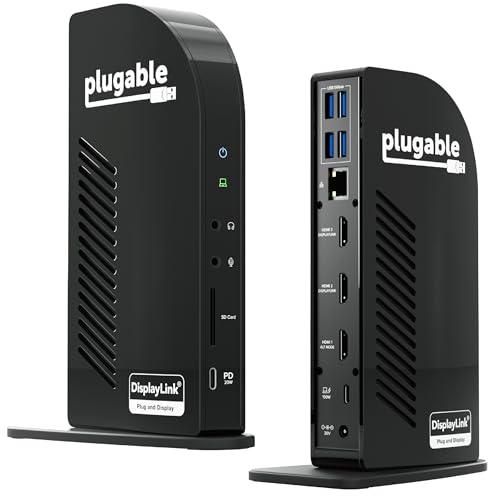
Plugable USB-C Triple Monitor Docking Station
A 13-in-1 USB-C dock with three HDMI ports, 100 W laptop charging, 20 W device charging and Gigabit Ethernet.
View on Amazon
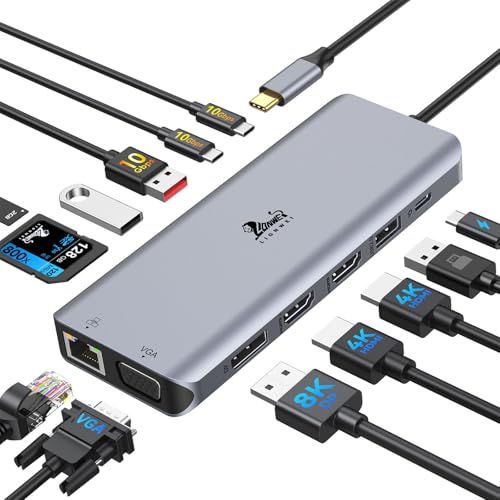
WAVLINK Displaylink Docking Station 3 Monitors for Mac(M1-M5/Neo) &
A USB-C dock with three HDMI and two DisplayPort outputs, 100 W charging and 6 USB ports at 10Gbps, listed for Chromebook use.
View on AmazonThese come from our ranked list Best Docking Station for 3 Monitors, which compares them spec by spec.
FAQ
Can a Chromebook run three monitors at once?
Yes, with the right dock. A Chromebook that only drives one display through USB-C needs a DisplayLink dock, such as the Plugable UD-3900PDZ, which is listed as compatible with ChromeOS and has three HDMI ports.
Do I need a driver for a triple display dock?
It depends on the dock. The Plugable UD-ULTCDL needs a DisplayLink driver install for its second and third HDMI ports on Mac, while the Plugable UD-3900PDZ is listed as compatible with ChromeOS. Check the dock notes for your system before you buy.
Will the dock charge my Chromebook?
The four docks here all list 100 W power delivery through USB-C, so each can charge the Chromebook while it drives the monitors. Check that your Chromebook charges through USB-C and that the dock power adapter is connected.