How to Apply a Thermal Pad to a CPU
 By Theo LangUpdated
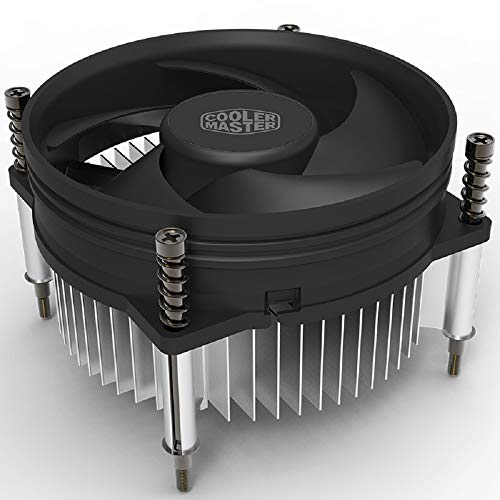
A thermal pad sits between the CPU and the cooler and carries heat from the chip to the cooler. To apply one, clean both surfaces, cut the pad to cover the CPU heat spreader, peel off the backing, press it flat onto the CPU, then mount the cooler evenly. The pad only works when it makes full contact on both sides.
Shut down and open the case
Shut the computer down, switch it off at the wall and unplug the power cable before you touch anything inside. Open the case by following the maker's manual for your case, and keep the screws in a small tray so you keep track of them. Wear an anti-static wrist strap clipped to an earthed metal object to discharge static, and work on a clear, dry surface with good light so you can see the CPU area.
Clean the CPU and cooler surfaces
Remove the cooler from the CPU and lift off any old thermal pad or paste. Wipe both surfaces with a soft, lint-free cloth until no residue is left, and let them dry before you go on. A clean, dry surface is what lets the new pad sit flat and make full contact, so do not rush this step or leave bits of old material behind.
Cut the pad to cover the CPU
Hold the pad over the CPU heat spreader and mark where it needs to be cut so it covers the whole flat top without hanging over the edges. Cut it with clean scissors or a sharp blade on a flat surface. Do not stretch the pad while you cut it, since a stretched pad pulls back and leaves part of the CPU uncovered.
Place the pad on the CPU
Peel the backing film off one side of the pad and lay that side down on the center of the CPU. Line the pad up with the edges of the heat spreader, then press it down gently from the center outward so no air is trapped underneath. Peel off the backing on the top side last, and do not lift the pad again once it is in place.
Mount the cooler and check the fit
Lower the cooler straight down onto the pad without sliding it, since sliding can push the pad out of place. Tighten the mounting screws a little at a time in a cross pattern, following the cooler manual, until the cooler sits flat and firm. Close the case, plug the power back in and start the computer, then check that the cooler fan spins and the system starts as normal.
What you need

ARCTIC Liquid Freezer III Pro 360 A-RGB
An AIO cooler with a contact frame for Intel LGA1851 and LGA1700 sockets, an integrated VRM fan and a 6-year warranty.
View on Amazon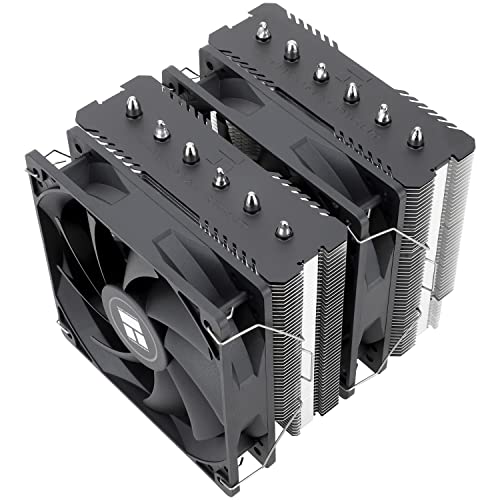
Thermalright Peerless Assassin 120 SE CPU Cooler
A dual-tower air cooler with 6 heat pipes and two 120 mm PWM fans, listed for AMD AM4 and AM5 and Intel LGA 1700 sockets.
View on Amazon
ARCTIC Liquid Freezer III Pro 360
An AIO cooler with 3 x 120 mm fans, a contact frame for Intel LGA1851 and LGA1700 sockets and a 6-year warranty.
View on Amazon
LIAN LI HydroShift II Curved 360 TL Flex AIO Cooler-Black-HS2OLDC36TB
A 360 mm AIO with 3 x 120 mm TL Flex fans and a 6.67-inch 2K OLED display, listed for Intel LGA 1851 and AMD AM5.
View on AmazonThese come from our ranked list Best Cooler for PC, which compares them spec by spec.
FAQ
Do I need to replace the thermal pad when I remove the cooler?
Yes. Once the cooler comes off, the pad has been compressed and may not sit flat again. Fit a fresh pad of the same size so the contact between the CPU and the cooler stays even.
Can I use thermal paste instead of a thermal pad?
Thermal paste and thermal pads do different jobs in different gaps. A pad suits a set gap between the CPU and the cooler, while paste suits a thin layer on a flat heat spreader. Follow what your cooler manual calls for.
What if the pad is thicker than the gap?
A pad that is too thick stops the cooler from sitting flat and can put pressure on the socket. Use a pad that matches the gap the cooler manual states, and trim it to the size of the heat spreader.