Which Graphics Card Fits My PC?
 By Theo LangUpdated
A graphics card fits your PC when it matches the PCIe slot on your motherboard, the space inside your case, the power connectors from your power supply, and the ports on your monitor. Check those four points before you choose a card, and check the software requirements published for the programs and games you run.
Check the PCIe slot on your motherboard
Open your PC manual or motherboard manual and find the PCIe slot for a graphics card. Your board lists a PCIe 4.0 or PCIe 5.0 slot in that position, and a card made for one of those slots fits the other, so note which version your board lists. Also check that no other card or cable sits in front of the slot, and that the slot latch is free to move when you fit the card.
Measure the space inside your case
Measure the length from the back of the case to the first obstruction, such as a drive cage or a fan, and measure the height from the slot to the side panel. Then count how many expansion slots the card needs at the back of the case, since a wider card covers the slot below it. Leave room for air to move around the card, and check that the side panel closes with the card fitted.
Check the power connectors and supply
Shut the PC down and unplug it first, then follow the maker's manual. Look at the power connectors that come from your power supply and compare them with the connectors on the card, since a card needs the matching connectors to run. Also check that the cables reach the card without pulling tight, and that the connectors click fully into place before you switch the PC on.
Match the card to your monitor
Look at the ports on your monitor and the ports on the card, and choose a card with a matching HDMI or DisplayPort output for each monitor you plan to use. Then check the resolution you use, such as 1080p, 1440p or 4K, and the refresh rate, such as 60 Hz or 144 Hz, against what the card lists for that output. If your monitor needs a port the card does not have, that monitor stays blank.
Fit the card and set up the drivers
Shut the PC down and unplug it first, then follow the maker's manual. Seat the card fully in the PCIe slot until the latch clicks, fix it to the case with the screws from the slot cover, and connect the power cables and the monitor cable. Then switch the PC on, install the driver from the card maker for your system, and check that the monitor shows a picture at the resolution you set.
What you need

ASUS PRIME GeForce RTX 5060 Ti 16GB
An ASUS PRIME GeForce RTX 5060 Ti card with 16 GB GDDR7 memory, PCIe 5.0, HDMI, and a 2.5-slot SFF-Ready design.
View on Amazon
ASUS Prime GeForce RTX 5060 Ti 8GB
An ASUS Prime GeForce RTX 5060 Ti card with 8 GB GDDR7 memory, PCIe 5.0, HDMI, and a 2.5-slot SFF-Ready design.
View on Amazon
MSI Gaming RTX 3050 LP 6G OC Graphics Card
An msi GeForce RTX 3050 card with 6 GB GDDR6 memory, HDMI 2.1a and DisplayPort outputs, in a low-profile design.
View on Amazon
NVIDIA RTX 4000 SFF Ada Generation Workstation Ada Lovelace Architecture Dual Slot Low Profile Professional Graphics Board 900-5G192-2571-000 VD8465
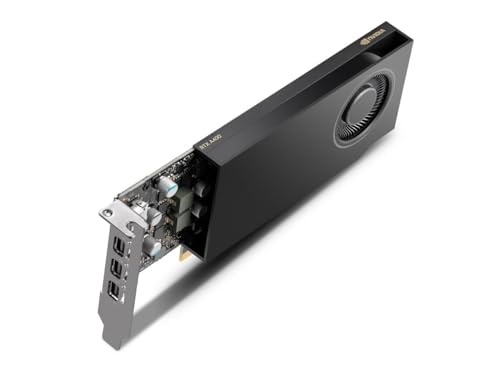
An NVIDIA RTX 4000 SFF Ada Generation workstation card with a dual-slot low-profile design for small-form-factor professional builds.
View on AmazonThese come from our ranked list Best Sff GPU, which compares them spec by spec.
FAQ
Will any graphics card fit any PC?
No. The card has to match the PCIe slot, the space in the case, the power connectors, and the monitor ports. Check each point in your PC and motherboard manuals before you choose.
Does a PCIe 5.0 card work in a PCIe 4.0 slot?
Yes, a card made for PCIe 5.0 fits a PCIe 4.0 slot, and a card made for PCIe 4.0 fits a PCIe 5.0 slot. The card runs at the speed of the slower part, so check the manuals for both parts.
How do I know if a card is too long for my case?
Measure from the back of the case to the first obstruction inside it, then compare that length with the length the card lists. If the card is longer than that space, it will not fit.