How to Replace a Video Card in a Laptop
 By Theo LangUpdated
Most laptops do not let you swap the video card the way a desktop does, because the graphics chip is soldered to the main board. A small number of laptops use a removable MXM module, and some laptops can use an external graphics card through a supported port. Check your laptop manual first to find out which of these applies to your model.
Check if your laptop allows a swap
Start with the manual and the support pages for your exact laptop model. Look for a removable graphics module, often called MXM, and for instructions from the maker on opening the laptop. If the manual shows a soldered graphics chip and no removable module, there is no part to swap. If the laptop is still under warranty, contact the maker before you open it.
Find the right replacement module
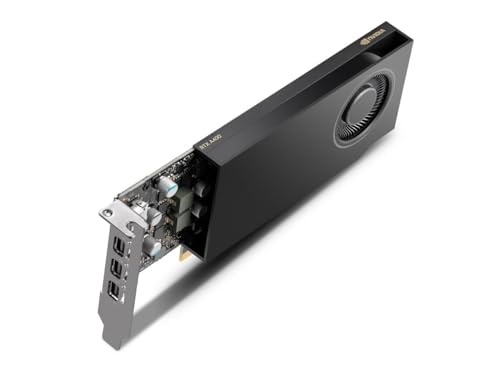
For a laptop with a removable module, match the module type, size, power connector and cooling design listed for your model. A replacement that does not match the maker's list may not fit, may not cool correctly, or may not be recognised. The graphics cards shown with this article are desktop cards with PCIe connectors, so they do not fit inside a laptop. Buy only a module the maker lists for your laptop.
Shut down and open the laptop
Shut the laptop down and unplug it, then follow the maker manual for opening the base. Work on a clean, flat surface and keep the screws and small parts in order so each one goes back in the same place. Do not force a cover or a connector. If you reach a battery or a power supply part and the manual does not cover it, stop and contact the maker.
Remove the old card and fit the new one
With the base open, find the graphics module and note how it is held in place, including its screws, bracket and any fan or power cables. Unplug the cables, remove the screws, and lift the module straight out. Seat the new module in the same connector, refit the screws and bracket, reconnect the cables, and check that the cooling parts sit flat against the module.
Reassemble and check the display
Close the base, refit the screws, and plug the laptop in. Switch it on and check that the screen shows the startup display. Then install the drivers for the new graphics card from the laptop maker or the graphics card maker, and restart the laptop. If the screen stays blank or the card is not recognised, shut the laptop down, unplug it, and check the seating and cables again.
What you need

ASRock Radeon RX 9070 Challenger
An ASRock Radeon RX 9070 graphics card with 16 GB GDDR6, PCIe 5.0, triple fans and a 2.5-slot design.
View on Amazon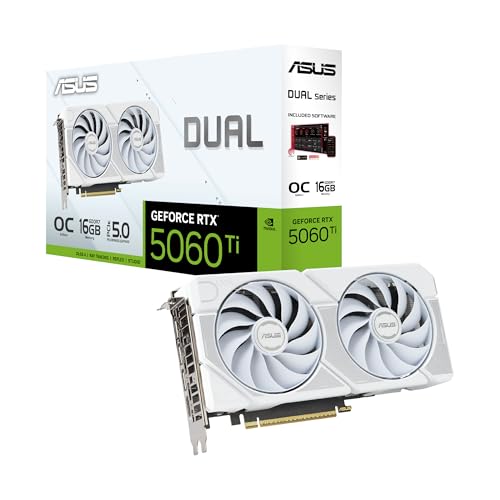
ASUS Dual
An ASUS GeForce RTX 5060 Ti with 16 GB GDDR7, PCIe 5.0, HDMI 2.1b, DisplayPort 2.1b and Axial-tech fans.
View on Amazon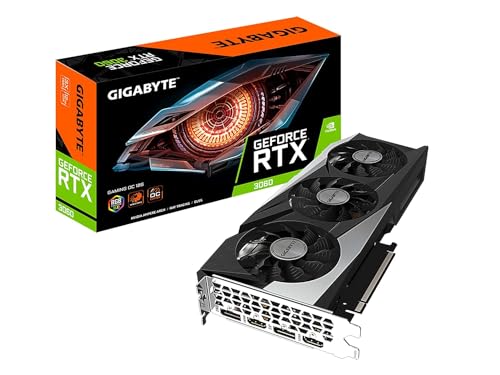
GIGABYTE GeForce RTX 3060 Gaming OC 12G
A GIGABYTE GeForce RTX 3060 with 12 GB GDDR6, three WINDFORCE fans and a 192-bit memory interface.
View on Amazon
MSI Gaming
An MSI GeForce RTX 3060 with 12 GB GDDR6, HDMI 2.1, DisplayPort outputs and Torx twin fans.
View on AmazonThese come from our ranked list Best Video Graphics Card, which compares them spec by spec.
FAQ
Can I put a desktop graphics card inside my laptop?
No. Desktop graphics cards use a PCIe slot and separate power connectors, and they need space and cooling that a laptop does not have. If you want desktop graphics with a laptop, look for an external graphics enclosure that matches a port your laptop supports.
Can a soldered video card be replaced?
No, not as a part swap. The chip is fixed to the main board, so a fault needs a board repair or a board replacement. Contact the laptop maker for the service options for your model.
Do I need new drivers after a swap?
Yes. After fitting a replacement module, install the drivers for that graphics card from the laptop maker or the graphics card maker, then restart the laptop and check that the display works.