What You Need to Upgrade a Graphics Card
 By Theo LangUpdated
To upgrade a graphics card you need a card that fits the case, a free PCIe slot on the motherboard, power connectors the card asks for, and a monitor cable that matches the card's outputs. Check the case space, the slot, the power supply and the monitor inputs before buying. Then shut the PC down, unplug it, swap the card, and install the drivers the maker provides.
Check what fits in your case
Open the case specs and the card specs side by side. Note the card length and the slot width the case allows, then compare them with the card you plan to buy. The ASUS cards in the picks are 2.5-slot SFF-Ready designs, and the MSI card is a low-profile card, so each suits a different size of case. A card that is too long or too wide for the case will not seat, so measure before you buy.
Check the slot and the monitor ports
Look for a free PCIe slot on the motherboard for the new card. The ASUS cards use PCIe 5.0, and a PCIe slot on the board is where the card seats. Then check the monitor: the card's video outputs must match an input on the monitor. The ASUS cards list HDMI and DisplayPort 2.1, and the MSI card lists DisplayPort and HDMI 2.1a outputs, so pick a cable that matches both ends.
Check the power supply
A new card may ask for power connectors the old card did not use. Read the card maker's notes for the connectors and the power supply it lists for that model, then open the case and check that the supply has those connectors free. If it does not, a different supply or a different card is the fix. Never force a connector that does not fit.
Shut down, unplug and swap the card
Shut the PC down and unplug it before you touch anything inside. Follow the maker's manual for the case and the card. Remove the old card from its PCIe slot, seat the new card firmly in the same slot, fasten the bracket, and connect the display cable to the monitor. Keep the screws and the slot cover somewhere you can find them.
Install drivers and check the display
After the swap, install the drivers the card maker provides for that model, following the maker's manual. Then check that the monitor lights up and shows the picture at the resolution you expect, such as 1080p, 1440p or 4K. If the screen stays blank, check the cable, the monitor input, and that the card is seated in its slot.
What you need

ASUS PRIME GeForce RTX 5060 Ti 16GB
An SFF-Ready GeForce RTX 5060 Ti with 16 GB of GDDR7 memory, PCIe 5.0, HDMI output, Axial-tech fans and a 3 year warranty.
View on Amazon
ASUS Prime GeForce RTX 5060 Ti 8GB
An SFF-Ready GeForce RTX 5060 Ti with 8 GB of GDDR7 memory, PCIe 5.0, HDMI output, Axial-tech fans and a 3 year warranty.
View on Amazon
MSI Gaming RTX 3050 LP 6G OC Graphics Card
A low-profile GeForce RTX 3050 with 6 GB of GDDR6 memory, one DisplayPort and two HDMI 2.1a outputs, and a 3 year warranty.
View on Amazon
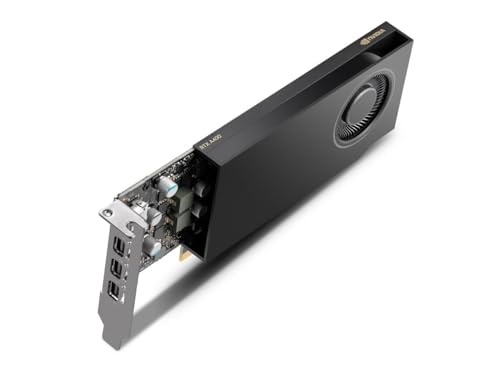
NVIDIA RTX 4000 SFF Ada Generation Workstation Ada Lovelace Architecture Dual Slot Low Profile Professional Graphics Board 900-5G192-2571-000 VD8465
A dual-slot low-profile workstation card built on the Ada Lovelace architecture for rendering, design and simulation work.
View on AmazonThese come from our ranked list Best Sff GPU, which compares them spec by spec.
FAQ
Do I need a new power supply for a new graphics card?
Check the power connectors and the power supply the card's maker lists for that model. Use a supply that has those connectors free, or choose a different supply or a different card.
Will any graphics card fit in my PC?
No. Check the card's length and slot width against the space in the case, and check that the motherboard has a free PCIe slot. SFF-Ready cards suit small cases, and low-profile cards suit slim cases.
Do I need to remove the old graphics card first?
Yes. Shut the PC down and unplug it, then remove the old card from its PCIe slot before seating the new one. Follow the maker's manual for the clips and screws on the case.
What cables do I need after the swap?
A display cable that matches the card's outputs and the monitor's inputs, such as HDMI or DisplayPort. The ASUS cards list HDMI and DisplayPort 2.1, and the MSI card lists one DisplayPort and two HDMI 2.1a outputs.