
How to Use a Headset With a Computer
 By Theo LangUpdated
To use a headset with a computer, plug it into the 3.5 mm audio jack or a USB port, then select it as the sound output and microphone input in your system settings. A headset with a 3.5 mm jack works through the headphone port, while a USB headset connects through USB. Once it is selected, check the speakers and microphone before a call or game.
Plug the headset into the right port
A headset with a 3.5 mm plug goes into the headphone jack on your laptop or desktop, often marked with a headphone icon. Some computers have separate jacks for headphones and a microphone, so check which jack the plug fits and push it in fully. A headset with a USB plug goes into any free USB port. If the headset also has a USB cable for power, plug that in too.
Set the headset as the sound output
Open the sound settings on your computer and look for the output device list. On Windows, open Settings, then Sound, and pick the headset under Output. On a Mac, open System Settings, then Sound, and pick the headset under Output. Play a video or a song to check that sound comes through the headset earcups and not the computer speakers.
Set the headset microphone as the input
In the same sound settings, look for the input device list and pick the headset microphone. On Windows, it appears under Input in the Sound settings. On a Mac, it appears under Input in the Sound settings. Speak at your normal volume and watch the input level move. If the level does not move, check that the microphone is not muted and that the headset plug is fully seated.
Check the microphone and set the volume
Record a short voice note or join a call in your chat app and play it back to hear your own voice. Turn the volume up or down in the sound settings or with the volume control on the headset cable. If your voice sounds faint, move the microphone closer to your mouth. If others hear an echo, turn the speaker volume down.
Adjust the fit and microphone position
Slide the headband until the earcups sit fully over your ears and the headband rests evenly on your head. Bend the microphone boom so the tip sits near the corner of your mouth, a short distance away, so your breath does not hit it directly. When you finish, unplug the headset or switch the output back to your speakers.
What you need

Razer BlackShark V2 X Gaming Headset
A Razer headset with 50 mm drivers, software-enabled 7.1 surround sound, a cardioid mic and memory foam ear cushions, connecting through a 3.5 mm audio jack.
View on Amazon
Razer BlackShark V2 X Gaming Headset for PC
A white Razer headset with 50 mm drivers, 7.1 surround sound, a bendable cardioid mic and memory foam ear cushions, connecting through a 3.5 mm audio jack.
View on Amazon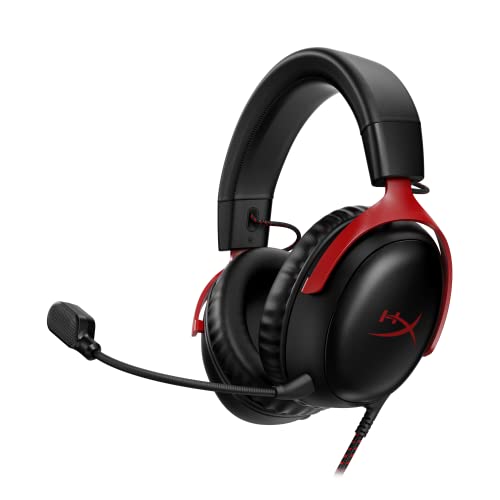
HyperX Cloud III Wired Gaming Headset for PC
A HyperX headset with 53 mm drivers, USB-C, USB-A and 3.5 mm connections, a 10 mm mic with an LED mute indicator and an aluminum frame.
View on Amazon
BENGOO G9000 Stereo Gaming Headset for PS4 PC Xbox One PS5 Controller
A BENGOO headset with 40 mm drivers, 7.1 surround sound, a noise-isolating microphone and LED lights, connecting through USB with a volume control on the cable.
View on AmazonThese come from our ranked list Best PC Headset, which compares them spec by spec.
FAQ
Why is there no sound from my headset?
Check that the headset is plugged in fully and selected as the output device in your sound settings. Turn the volume up and check that the headset is not muted. Try another port if the sound still comes from the speakers.
Why does my headset microphone not work?
Check that the headset microphone is selected as the input device in your sound settings and that it is not muted. Move the microphone closer to your mouth and speak at your normal volume. If the input level still does not move, unplug the headset and plug it in again.
Can I use a headset with a laptop?
Yes. A headset with a 3.5 mm plug connects to the headphone jack on a laptop, and a USB headset connects to a USB port. After you plug it in, select it as the output and input device in the sound settings.


