
How to Connect Bluetooth Headphones to a PC
 By Theo LangUpdated
To connect Bluetooth headphones to a PC, turn on Bluetooth in Windows Settings, put the headphones in pairing mode, then add them under Bluetooth and devices and set them as the sound output. The sections below walk through each step.
Turn on Bluetooth on the PC
Open Windows Settings and go to Bluetooth and devices. Turn the Bluetooth switch on. Check the PC's manual or spec sheet to confirm the PC has Bluetooth built in before you go on, and check that the headphones are charged and in pairing mode before you add them.
Put the headphones in pairing mode
Turn the headphones on and hold the power or pairing button until the light flashes or the headphones say they are ready to pair. The button and the light differ by model, so check the manual that came with the headphones. Keep the headphones near the PC while they are in pairing mode.
Add the headphones in Windows Settings
In Bluetooth and devices, choose Add device and then Bluetooth. Pick the headphones from the list of devices and wait for Windows to connect them. If the headphones do not appear, put them in pairing mode again and check that they are not already connected to a phone.
Set the headphones as the sound output
Open Settings, go to System and then Sound, and choose the headphones as the output device. Play something and check that the sound comes through the headphones. If the sound still comes from the speakers, remove the headphones from the Bluetooth list and pair them again.
If the headphones will not pair
Move the headphones closer to the PC and turn Bluetooth off and on again. Remove the headphones from the Bluetooth list, put them in pairing mode again and add them once more. Check the PC's manual or spec sheet to confirm the PC has Bluetooth, and check that the headphones are charged before you try again.
What you need

Razer BlackShark V2 X Gaming Headset
A wired headset with 50mm drivers, a cardioid mic and memory foam cushions that plugs into a PC through a 3.5mm jack.
View on Amazon
Razer BlackShark V2 X Gaming Headset for PC
A white wired headset with 50mm drivers and a bendable cardioid mic that plugs into a PC through a 3.5mm jack.
View on Amazon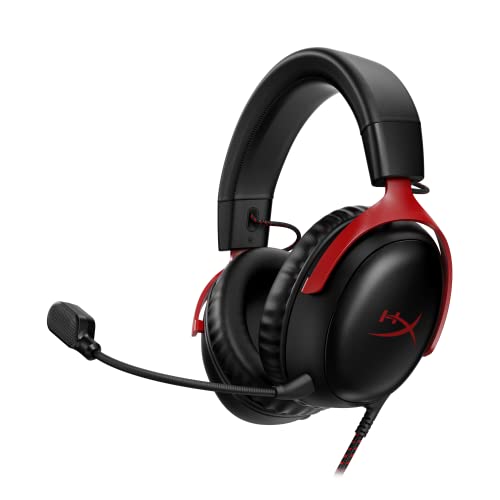
HyperX Cloud III Wired Gaming Headset for PC
A wired headset with 53mm drivers and a noise-cancelling mic that connects through USB-C, USB-A or a 3.5mm jack.
View on Amazon
BENGOO G9000 Stereo Gaming Headset for PS4 PC Xbox One PS5 Controller
A wired headset with 40mm drivers, a noise-cancelling mic and LED lights that connects to a PC through USB.
View on AmazonThese come from our ranked list Best PC Headset, which compares them spec by spec.
FAQ
Why do my headphones not show up in Bluetooth settings?
Put the headphones in pairing mode first and keep them near the PC. If they still do not show up, turn Bluetooth off and on again, then remove the headphones from the list and add them again.
Can I use a wired headset instead?
Yes. Plug the cable into the PC's jack or USB port, then set the headset as the sound output in Windows Settings. A wired headset does not pair over Bluetooth.
Why is there no sound after the headphones connect?
Set the headphones as the sound output in Windows Settings under System and Sound. If the sound still comes from the speakers, remove the headphones and pair them again.


