How to Use a Bluetooth Headset
 By Theo LangUpdated
To use a Bluetooth headset, charge it, turn it on, and put it in pairing mode. Open the Bluetooth settings on your phone, laptop or tablet, select the headset, and set it as the sound output and input. For a console or a PC, use the 2.4GHz USB dongle when the headset's notes say Bluetooth does not work there.
Charge the headset and turn it on
Plug the charging cable into the headset and a USB port, and let it charge before use. Press the power button to turn the headset on, and wait for the light or voice prompt that says it is on. If the headset does not turn on, charge it longer and check that the cable sits fully in the port. Keep the charging cable with the headset so it is ready when the battery runs low.
Put the headset in pairing mode
Hold the Bluetooth or pairing button until the light flashes or the headset says it is ready to pair. On a headset with a mode button, press it to switch to Bluetooth mode. The headset stays in pairing mode for a short time, so open the Bluetooth settings on your device right away. If the headset pairs with another device instead, turn that device's Bluetooth off and try again.
Pair it with a phone or laptop
Open the Bluetooth settings on your phone, laptop or tablet and turn Bluetooth on. Select the headset's name from the list of devices and confirm the pairing when asked. Once paired, set the headset as the sound output and the microphone as the input in your device's sound settings. Play a short clip and speak a few words to check that sound comes through the headset and the mic picks up your voice.
Use the 2.4GHz dongle for a console or PC
Plug the 2.4GHz USB dongle into the console or PC, turn the headset on, and switch it to 2.4GHz mode. On the Ozeino headset, Bluetooth does not work with PS5, PS4 or PC without an extra USB Bluetooth adapter, and on the WESEARY headset, Bluetooth mode is not compatible with PS5 or PS4. The HyperX and Razer headsets connect to a console by Bluetooth as well, so check the notes for your headset before you choose. Keep the dongle in the console or PC so it is ready when you play.
Switch modes and mute the mic
Use the mode button to switch between 2.4GHz and Bluetooth when the headset is paired to a phone and a laptop. Press the mute button to mute the mic, and check the mic in your device's sound settings before a call. The HyperX headset has a detachable mic with an LED mute indicator, and the Razer headset has a detachable mic as well. When the call ends, turn the headset off to save the battery.
What you need
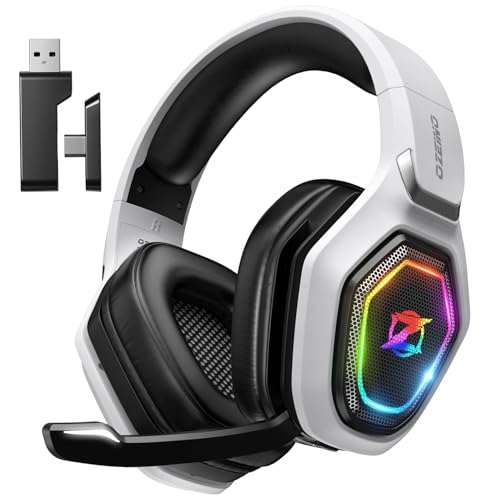
Ozeino Wireless Gaming Headset For PS5
A wireless headset with 2.4GHz USB and Bluetooth, a flip mic, 50mm drivers and a 3-year warranty.
View on Amazon
HyperX Cloud III S Wireless Gaming Headset
A wireless headset with 2.4GHz and Bluetooth, a detachable mic, 53mm drivers, up to 120 hours of battery on 2.4GHz and a 2-year warranty.
View on Amazon
WESEARY Wireless Gaming Headset for PS5
A wireless headset with 2.4GHz and Bluetooth 5.4, 50mm drivers, up to 50 hours of battery and a 1-year warranty.
View on Amazon
Razer BlackShark V3 Wireless PC Gaming Headset
A wireless headset with 2.4GHz, Bluetooth 5.3 and USB wired modes, 50mm drivers, up to 70 hours of battery and a 2-year warranty.
View on AmazonThese come from our ranked list Best Bluetooth Gaming Headset, which compares them spec by spec.
FAQ
Can I use a Bluetooth headset with a PS5?
It depends on the headset. The Ozeino and WESEARY headsets say Bluetooth does not work with PS5 or PS4, so use the 2.4GHz USB dongle for those consoles. The HyperX and Razer headsets list Bluetooth among the ways to connect to a console.
Why does my headset not connect by Bluetooth?
The headset may not be in pairing mode, or it may be paired to another device already. Hold the pairing button until the light flashes, turn off Bluetooth on the other device, and try again. If the headset is on a console, use the 2.4GHz USB dongle instead, since some headsets do not pair by Bluetooth to a console.
How do I mute the mic on a Bluetooth headset?
Press the mute button on the headset or on the mic. The HyperX headset has a detachable mic with an LED mute indicator, and the Razer headset has a detachable mic. Check the mic in your device's sound settings before a call.
How long does the battery last?
It depends on the headset and how you use it. The HyperX headset lists up to 120 hours on 2.4GHz, the WESEARY headset lists up to 50 hours, and the Razer headset lists up to 70 hours. Charge the headset when the battery runs low, and check the maker's notes for your model.