
How to Use a Bluetooth Headset as a Microphone on PC
 By Theo LangUpdated
Yes. Connect the headset to your PC, then set it as the input device in Windows sound settings. Use Bluetooth where your headset supports it on a PC, or use its 2.4GHz dongle or cable. Once it is the selected microphone, video call software picks it up for calls and recording.
Pair the headset with your PC
Put the headset in pairing mode using the button or switch the maker lists in its manual. On the PC, open Settings, then Bluetooth and devices, then Add device, and choose Bluetooth. Select the headset name when it appears, and wait for Windows to finish pairing before you move on. If the headset does not appear, turn Bluetooth off and on, move the headset closer to the PC, and try the scan again.
Set the headset as the input device
Open Settings, then System, then Sound, and look at the Input section. Choose the headset from the input list. Speak and watch the input volume bar move. If the bar does not move, check that Windows shows the headset under Bluetooth and devices and that the headset is turned on and connected. Pick the headset again in the list and check it once more.
Check the mic in the app you use
Windows and each app keep separate input choices, so set the headset in both places. In your call or recording app, open its audio settings and choose the headset as the microphone. Join a call and record a short clip and play it back. If the app still uses another mic, close the app, set the headset in Windows first, then open the app and pick the headset again.
Fix a headset that pairs but shows no input
Remove the headset in Bluetooth and devices, then pair it again from the start. Open Settings, then Privacy and security, then Microphone, and check that microphone access is turned on and that the app you use is allowed to use it. Also check the mute switch or button on the headset and the mute control in the app. If the input volume bar still does not move, restart the PC and pair the headset once more.
Use the dongle or cable when Bluetooth falls short
Some headsets carry the mic over Bluetooth on a PC, and some do not. If your headset pairs for sound but the mic never appears as an input, use the 2.4GHz USB dongle that came with it, or plug it in with its USB-C or 3.5 mm cable. Set the headset as the input device again after you switch the connection, and check it in Windows sound settings before your next call.
What you need
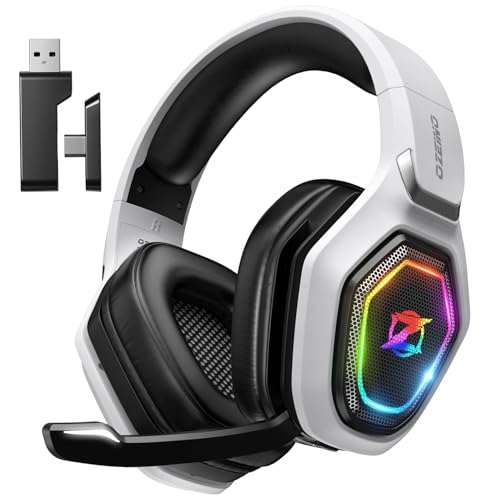
Ozeino Wireless Gaming Headset For PS5
A wireless headset with 50 mm drivers, a flip mic, 2.4GHz USB and Type-C connection, and a 3-year warranty.
View on Amazon
HyperX Cloud III S Wireless Gaming Headset
A wireless headset with 2.4GHz and Bluetooth, a detachable 10 mm boom mic with an LED mute indicator, and 53 mm drivers.
View on Amazon
WESEARY Wireless Gaming Headset for PS5
A wireless headset with 2.4GHz and Bluetooth 5.4, 50 mm drivers, a 360-degree omnidirectional mic, and a 1-year warranty.
View on Amazon
Razer BlackShark V3 Wireless PC Gaming Headset
A wireless headset with 2.4GHz, Bluetooth and wired USB-C, a detachable 9.9 mm mic, 50 mm drivers, and a 2-year warranty.
View on AmazonThese come from our ranked list Best Bluetooth Gaming Headset, which compares them spec by spec.
FAQ
Why does the sound change when the mic turns on?
Bluetooth headsets switch to a hands-free profile when the mic is in use, and that profile carries voice in both directions at lower audio quality. To keep full sound for listening, use the headset's 2.4GHz dongle or wired connection for the mic, or accept the change during calls.
Can I use the headset mic in Zoom or Discord?
Yes. Connect the headset in the way it supports on a PC, set it as the input device in Windows, then open the app's audio settings and choose the headset as its microphone. Check it in a call or a short recording before an important meeting.
Why does Windows list my headset twice?
Windows shows one entry for stereo sound and one for the hands-free profile that carries the mic. Choose the hands-free entry as the input device when you want to use the microphone, and the stereo entry when you only want to listen.


