
How to Turn Your Computer Into a Gaming PC
 By Theo LangUpdated
You turn a computer into a gaming PC by adding a graphics card, checking the rest of the parts against the requirements of the games you want to play, and setting up the display and drivers. Most desktop computers can take this upgrade, while many laptops cannot, because their graphics hardware is fixed in place.
Check what your computer already has
Open your system settings and note the processor, the amount of memory, the storage type and free space, and the ports on the back of the case. Then look up the published requirements for each game you want to play and compare them with what you have. This tells you whether a graphics card alone is enough or whether memory and storage also need attention.
Pick a graphics card that fits
Check that your computer has a free PCIe slot and that the card fits the space inside the case, including its length and the number of slots it covers. Check the power connectors the card lists and that your power supply has matching connectors, and follow the guidance in your computer maker's manual. The cards shown below all carry 16 GB of GDDR6 video memory.
Install the graphics card
Shut the computer down, unplug it, and follow the maker's manual for opening the case. Remove the slot covers for the PCIe slot, seat the card firmly until it clicks into place, and connect the power cables the card lists. If your computer is still under warranty, check the warranty terms before opening it, and contact the maker if you are unsure.
Install drivers and set up the display
Connect your monitor to the new card, not to the motherboard, then install the driver from the graphics card maker's site and restart the computer. Open the display settings and set the resolution your monitor supports, such as 1080p, 1440p or 4K, and the refresh rate it lists, such as 60, 120 or 144 Hz. Then open a game and check its own graphics settings against its published requirements.
What you need

XFX Swift RX 9060
An XFX Swift card with the AMD RX 9060 XT, 16 GB of GDDR6 memory, HDMI and a triple-fan cooling solution, with a 3-year manufacturer warranty.
View on Amazon
XFX Swift RX 9070
An XFX Swift card with the AMD RX 9070 XT, 16 GB of GDDR6 memory, HDMI and a triple-fan cooling solution, with a 3-year manufacturer warranty.
View on Amazon
ASRock Radeon RX 9070 Challenger
An ASRock Challenger card with the Radeon RX 9070, 16 GB of GDDR6 memory, PCIe 5.0 and triple fans, with a 2-year manufacturer warranty.
View on Amazon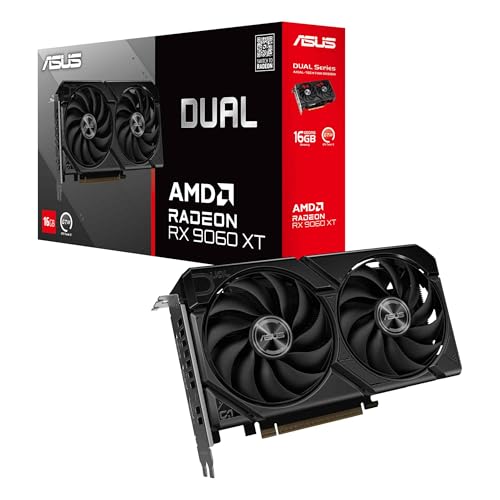
ASUS Dual Radeon RX 9060 XT
An ASUS Dual card with the Radeon RX 9060 XT, 16 GB of GDDR6 memory, HDMI and DisplayPort, PCIe 5.0 and dual fans, with a 3-year warranty.
View on AmazonThese come from our ranked list Best GPU for Gaming, which compares them spec by spec.
FAQ
Can any desktop computer become a gaming PC?
Most desktop computers can, if they have a free PCIe slot, room in the case and a power supply with the connectors the card lists. Some small or older computers do not, so check the maker's manual first.
Can you turn a laptop into a gaming PC?
Most laptops cannot take a new graphics card, because the graphics hardware is built into the board. Some laptops accept an external graphics enclosure over a supported USB-C or Thunderbolt port, so check your laptop's manual for what it supports.
Do you need a new monitor for a gaming PC?
No. Your current monitor works if it connects to the new card and supports the resolution and refresh rate you want. A monitor with a higher refresh rate shows the difference only when the game and card send it that signal.


