
How to Set Up Studio Headphones
 By Theo LangUpdated
Studio headphones turn a computer, console or phone into a listening station for music, editing and calls. The steps below work for wired headsets, and the headset you use decides which cable and port you need.
Plug the headset into the right port
Find the headphone jack, USB port or USB-C port on your device and plug the headset cable in fully until it sits firm. If the headset has more than one cable or adapter, use the one that matches the port on your device. A loose plug can cause sound in one ear only, so push it in and give the cable a gentle tug to check it stays put.
Choose the headset as your sound device
Open the sound settings on your device and set the headset as the output for speakers or headphones, and as the input if it has a microphone. Close other apps that might hold the sound device, then play a short clip and listen for sound in both earcups. If you hear nothing, check the volume on the device and on any inline control on the cable, and try another port.
Check the microphone and adjust the fit
Speak a few sentences while the microphone is in front of your mouth and watch the input level move in the sound settings. Move the microphone closer if your voice is faint, and farther away if it picks up breath sounds. Adjust the headband and earcups so they sit flat and feel even on both sides, then wear the headset for a few minutes to check for pressure before a long session.
Fix common setup problems
If sound comes from the device speakers instead of the headset, open the sound settings again and check the headset is still chosen as the output. If the microphone does not work, check it is chosen as the input and that the app you are using has permission to use it. Restart the app after changing the sound device, since some apps only read the setting when they open.
What you need

Razer BlackShark V2 X Gaming Headset
A Razer headset with 50 mm drivers, 7.1 surround sound, a cardioid microphone and a 3.5mm jack for PC, PS4, PS5 and Switch.
View on Amazon
Razer BlackShark V2 X Gaming Headset for PC
A white Razer headset with 50 mm drivers, 7.1 surround sound, a bendable cardioid microphone and a 3.5mm jack for PC, Mac, PS4, PS5 and Switch.
View on Amazon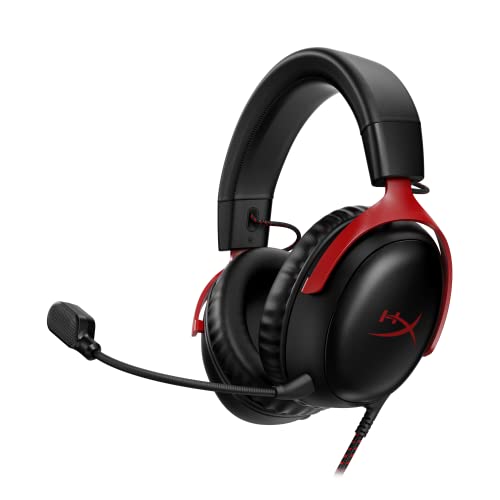
HyperX Cloud III Wired Gaming Headset for PC
A HyperX headset with 53 mm drivers, a noise-cancelling microphone with a mute light, and USB-C, USB-A and 3.5mm connections.
View on Amazon
BENGOO G9000 Stereo Gaming Headset for PS4 PC Xbox One PS5 Controller
A BENGOO headset with 40 mm drivers, 7.1 surround sound, a noise-cancelling microphone and a USB cable with volume and mute controls.
View on AmazonThese come from our ranked list Best PC Headset, which compares them spec by spec.
FAQ
Can I use studio headphones with a phone?
Yes, if the headset cable matches the port on the phone or you use an adapter that fits it. Plug the headset in, set it as the sound output in the phone settings, and play a short clip before a call.
Why does my microphone input level stay low?
The microphone may sit too far from your mouth, or the input level in the sound settings may sit too low. Move the microphone closer, raise the input level, and speak a sentence to check the change.
Do I need to install software for wired headphones?
Wired headsets work as soon as you plug them in, with no software to install. Some features, such as surround sound on certain headsets, need the maker's software, so check the notes that came with your headset.


