
How to Set Up a Noise Cancelling Headset
 By Theo LangUpdated
To set up a noise cancelling headset, charge it, pair it over Bluetooth with your phone or computer, switch on noise cancelling, and set it as the sound device in your system settings. Then use the companion app, if your headset has one, to adjust the sound and the noise cancelling mode.
Charge the headset first
Plug the headset in to charge before the first pairing, and leave it charging until the battery indicator shows a full charge. A charged headset pairs more reliably and holds the connection while you work through the setup steps. If the headset has a digital battery display, check the remaining charge there before you start.
Pair the headset over Bluetooth
Put the headset into pairing mode using the power or Bluetooth button, then open the Bluetooth settings on your phone or computer and select the headset from the list of nearby devices. Confirm the pairing on the device, and wait for the connected sound before you close the settings. If the headset does not appear, turn Bluetooth off and on again on the device and try again.
Switch on noise cancelling and choose a mode
Switch on noise cancelling with the dedicated button or control on the headset, and listen for the change in background sound. Many headsets also offer a normal mode and a transparency mode, which lets outside sound in when you need to hear announcements or colleagues. Choose the mode that fits the room you are in, and change it during the day as the noise around you changes.
Set the headset as the sound device
On a computer, open the sound settings and set the headset as both the output device and the input device, so calls use the headset microphone. Then play a short audio clip and speak a few words to check that sound comes through the headset and the microphone picks up your voice. If sound still comes from the speakers, select the headset again in the sound settings.
Use the companion app to adjust sound
If your headset has a companion app, install it from the app store and pair the headset inside the app. Use the app to change the equaliser presets, switch between noise cancelling, normal and transparency modes, and install software updates when they are offered. Keep the app paired so the settings stay with the headset when you connect it to another device.
What you need

soundcore by Anker Q20i Hybrid Active Noise Cancelling Headphones
Over-ear Bluetooth 5.0 headphones with hybrid active noise cancelling, 40mm drivers, 40 hours of playtime with ANC on, and a companion app with 22 presets.
View on Amazon
Soundcore by Anker Q20i Hybrid Active Noise Cancelling Headphones
Over-ear Bluetooth 5.0 headphones in taupe with hybrid active noise cancelling, 40mm drivers, transparency mode, and 60 hours of playtime in normal mode.
View on Amazon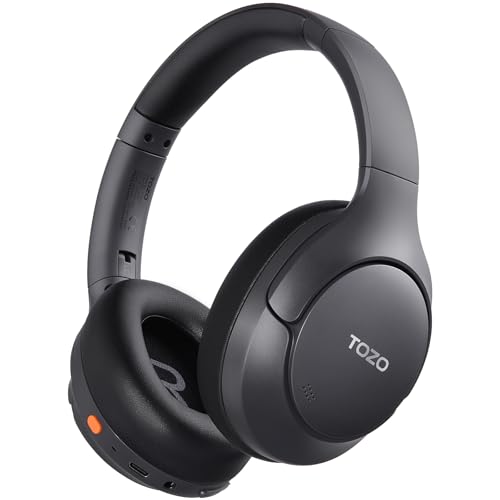
TOZO HT3 Hybrid Noise Cancelling Wireless Headphones
Hybrid noise cancelling wireless headphones with Bluetooth 6.0, 40mm drivers, 90 hours of playtime, 32 custom EQ modes, and a 10-minute quick charge for 9 hours.
View on Amazon
Hybrid Active Noise Cancelling Headphones
Hybrid active noise cancelling headphones with Bluetooth 6.0, 40mm drivers, 120 hours of playtime, 6-mic ENC calls, and a digital battery display.
View on AmazonThese come from our ranked list Best Noise Cancelling Headphones for PC, which compares them spec by spec.
FAQ
Can I use a noise cancelling headset with a cable?
Yes. Connect a 3.5mm AUX cable between the headset and the device, then set the device to play sound through the wired connection. The cable option works when Bluetooth is off, so sound keeps playing through the 3.5mm AUX cable.
How do I switch between two connected devices?
Pair the headset with each device in turn, then keep both connections active. Audio plays from the device that is producing sound, so a call on a phone takes over from music on a computer.
What does Transparency mode do on a headset?
Transparency mode lets outside sound in while music keeps playing, so you can hear announcements, traffic and colleagues. Switch it on when you need to stay aware of your surroundings, and switch back to noise cancelling when you want the background sound lowered again.


