How to Set Up a Bluetooth Headset
 By Theo LangUpdated
To set up a Bluetooth headset, put the headset in pairing mode, open the Bluetooth settings on your phone, tablet or laptop, and pick the headset from the list. On a PlayStation or PC, use the 2.4GHz wireless connection instead, since Bluetooth does not connect to those devices on every model here. Once paired, check that sound and the microphone both work.
Put the headset in pairing mode
Charge the headset first, then switch it on and hold the Bluetooth or mode button until the headset signals it is ready to pair. The signal is often a flashing light or a voice prompt, and the exact button and signal differ by model, so check the quick-start guide that came with your headset. Keep the headset near the device you want to pair while you work through the next steps.
Pair over Bluetooth on phones and laptops
Open the Bluetooth settings on your phone, tablet or laptop and make sure Bluetooth is switched on. Pick the headset name from the list of nearby devices and wait for the paired or connected message. If the headset asks for a code, check the headset manual for the code it uses. Once the device shows the headset as connected, play audio and confirm it comes through the headset.
Use the dongle on PlayStation and PC
Plug the 2.4GHz USB dongle into the console or computer and switch the headset to its 2.4GHz mode. The Ozeino headset needs its 2-in-1 USB transmitter fully assembled before it connects, and its Bluetooth mode does not work directly with PlayStation, Mac or PC. The WESEARY headset also needs the USB and Type-C parts used together on those devices, and its Bluetooth mode does not work with PlayStation. Pick the dongle route on a console even when the headset also lists Bluetooth.
Check the microphone and the wired fallback
After pairing, make a call or record a short voice note and listen back to confirm the microphone works. The HyperX headset has a detachable boom microphone with a mute indicator, and the Razer headset has a detachable microphone too, so check that the mic is firmly attached before you speak. If wireless audio drops out, the Ozeino headset also has a 3.5mm wired mode, though that mode only carries music and calls.
What you need
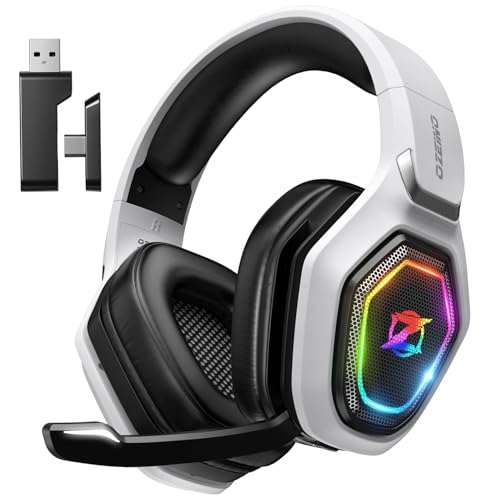
Ozeino Wireless Gaming Headset For PS5
A wireless gaming headset with 2.4GHz USB and Bluetooth modes, a flip microphone, 50mm drivers and a 2.4GHz USB transmitter for PS5, PC and Switch.
View on Amazon
HyperX Cloud III S Wireless Gaming Headset
A wireless headset with 2.4GHz and Bluetooth, a detachable boom microphone with a mute indicator, 53mm drivers and a memory foam headband.
View on Amazon
WESEARY Wireless Gaming Headset for PS5
A wireless headset with 2.4GHz and Bluetooth 5.4 modes, 50mm drivers, an omnidirectional microphone and LED lighting you switch with a button.
View on Amazon
Razer BlackShark V3 Wireless PC Gaming Headset
A wireless headset with 2.4GHz, Bluetooth 5.3 and USB wired modes, 50mm drivers, a detachable microphone and THX Spatial Audio.
View on AmazonThese come from our ranked list Best Bluetooth Gaming Headset, which compares them spec by spec.
FAQ
Why does my headset not show up in Bluetooth?
The headset is probably not in pairing mode yet. Switch it on, hold the Bluetooth or mode button until it signals it is ready to pair, then refresh the Bluetooth list on your device. Keep the headset close to the device while you pair.
Can I use these headsets with an Xbox?
No. The headsets here list PlayStation, PC, Mac, Switch and mobile for their 2.4GHz and Bluetooth connections. Pick a headset that lists Xbox in its compatibility list instead.
Does Bluetooth work on a PS5 with these headsets?
Not directly on every model here. The Ozeino headset needs a separate USB Bluetooth adapter for Bluetooth on a PS5, and the WESEARY headset does not support Bluetooth on a PS5 at all. Use the 2.4GHz dongle for PlayStation with each of these headsets.