
How to Pair a Bluetooth Headset With a PC
 By Theo LangUpdated
To pair a Bluetooth headset with a PC, turn on Bluetooth in Settings, put the headset in pairing mode, and pick its name from the Bluetooth device list. Some headsets also connect through a 2.4GHz USB dongle, which you plug in instead of pairing. Check the headset manual first, since the Ozeino here does not pair with a PC over Bluetooth directly.
Turn on Bluetooth on the PC
Open Settings on the PC, go to Bluetooth and devices, and switch Bluetooth on. Keep the PC near the headset while you pair, and plug the headset in to charge if its battery is low. If the Bluetooth switch does not appear in Settings, plug in the headset's 2.4GHz USB dongle and use that connection instead.
Put the headset in pairing mode
Turn the headset on and put it in pairing mode, following the steps in the maker's manual for that model. The HyperX has a wireless mode selector to switch between 2.4GHz and Bluetooth, and the WESEARY switches modes when you press the mic for 2 seconds. The headset is ready when it shows up in the PC's list of nearby Bluetooth devices.
Pick the headset in Bluetooth settings
In Bluetooth settings, choose Add device, then Bluetooth, and pick the headset name from the list. Wait for the PC to show it as connected, then open sound settings and set the headset as the output device. If you also want the mic, set the headset as the input device too, and check that the mic is not muted.
Use the 2.4GHz dongle instead
If Bluetooth pairing fails, or the headset does not pair with a PC over Bluetooth, plug the 2.4GHz USB dongle into a free USB port and turn the headset on. The Ozeino headset needs its dongle for PC audio, since its Bluetooth does not work directly with a PC and the separate USB Bluetooth adapter is not included. The Razer also works over wired USB if the dongle is not at hand.
Check the sound and mic
Play a short clip and listen through the headset, then speak and watch the input level move in sound settings. The HyperX boom mic works in both 2.4GHz and Bluetooth modes, and the Razer and HyperX mics detach when you only want to listen. If the sound still comes from the speakers, open sound settings and pick the headset again as the output device.
What you need
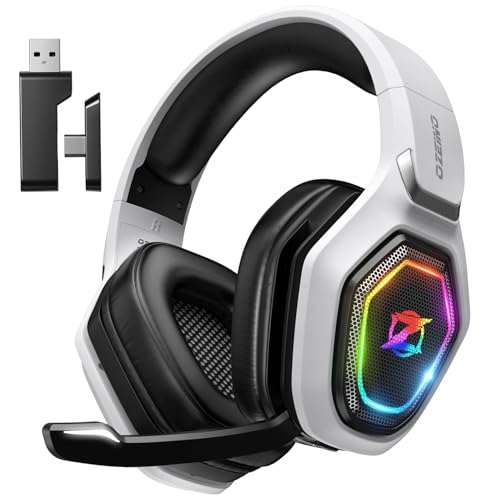
Ozeino Wireless Gaming Headset For PS5
A wireless headset with 50mm drivers and a flip mic that connects to a PC through its 2.4GHz USB dongle.
View on Amazon
HyperX Cloud III S Wireless Gaming Headset
A wireless headset with 2.4GHz and Bluetooth, a detachable mic and 53mm drivers, that pairs with a PC by dongle or Bluetooth.
View on Amazon
WESEARY Wireless Gaming Headset for PS5
A dual-mode headset with 2.4GHz and Bluetooth 5.4, 50mm drivers and a mic, that pairs with a PC in either mode.
View on Amazon
Razer BlackShark V3 Wireless PC Gaming Headset
A triple-mode headset with 2.4GHz, Bluetooth 5.3 and wired USB, a detachable mic and 50mm drivers for PC play.
View on AmazonThese come from our ranked list Best Bluetooth Gaming Headset, which compares them spec by spec.
FAQ
Why won't my headset show up in Bluetooth settings?
Check that the headset is in pairing mode and Bluetooth is on, then try again. The Ozeino headset does not pair with a PC over Bluetooth directly, so use its 2.4GHz USB dongle or a separate USB Bluetooth adapter.
Can I use the microphone over Bluetooth?
Yes, if the headset's mic works in Bluetooth mode. The HyperX boom mic works in both 2.4GHz and Bluetooth modes, and the Razer has a detachable mic. Set the headset as the input device in sound settings.
Do I need the USB dongle to use the headset?
It depends on the headset. The Ozeino needs its 2.4GHz USB dongle for PC audio, while the HyperX, WESEARY and Razer headsets also pair with a PC over Bluetooth.
How do I use a headset with a PC without Bluetooth?
Plug in the headset's 2.4GHz USB dongle and use that connection instead. All four headsets here include a 2.4GHz dongle, so the PC needs a free USB port.


