How to Pair a Bluetooth Headset to a Laptop
 By Theo LangUpdated
Put the headset in Bluetooth pairing mode, then open Bluetooth settings on the laptop and select the headset name to connect. Set the headset as the sound output and microphone input after pairing. If Bluetooth does not connect, check the headset manual for a 2.4 GHz dongle mode or a wired mode.
Put the headset in pairing mode
Turn the headset on and follow the manual for your model to enter Bluetooth pairing mode. Keep the headset near the laptop while you pair it. If the headset is already connected to a phone or another device, disconnect it there first so the laptop can find it. The WESEARY headset toggles modes by pressing the microphone for 2s, as its maker states.
Open Bluetooth settings on the laptop
Open the Bluetooth settings on the laptop and turn Bluetooth on. Choose the option to add a new Bluetooth device, then select the headset name from the list of nearby devices. Wait for the laptop to show the headset as connected before you close the settings. If the name does not appear, put the headset back in pairing mode and search again.
Set sound output and microphone
After pairing, open the sound settings on the laptop and select the headset for sound output. Select the headset microphone for input if you plan to use voice chat or calls. The HyperX Cloud III S boom microphone works in Bluetooth mode, and the Razer BlackShark V3 can mix 2.4 GHz and Bluetooth wireless at the same time. Play sound and speak into the microphone to confirm both paths work.
Use the dongle if Bluetooth fails
Some headsets need a dongle for a laptop connection. The Ozeino headset states that Bluetooth cannot directly work with Mac or PC and that an extra USB Bluetooth adapter, not included, is required for Bluetooth on those devices, with 2.4 GHz mode recommended instead. The WESEARY headset states its 2.4 GHz USB and Type-C parts must be used together for a laptop and cannot be used alone. The HyperX Cloud III S offers Instant Pair with select OMEN laptops, with no dongle required.
What you need
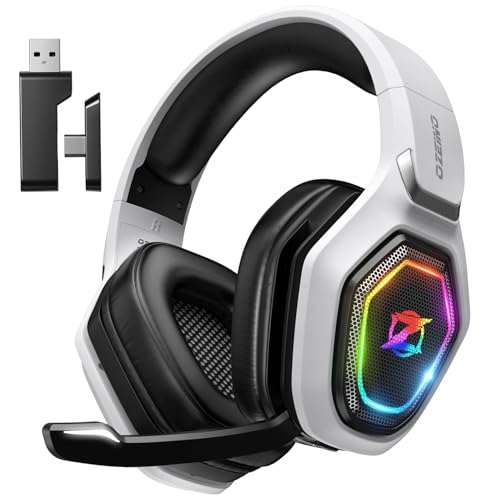
Ozeino Wireless Gaming Headset For PS5
A dual-mode gaming headset with 2.4 GHz USB and Type-C plus Bluetooth, a flip microphone and 50 mm drivers.
View on Amazon
HyperX Cloud III S Wireless Gaming Headset
A wireless headset with 2.4 GHz and Bluetooth modes, Instant Pair for select OMEN laptops and a detachable boom microphone.
View on Amazon
WESEARY Wireless Gaming Headset for PS5
A dual-mode headset with 2.4 GHz and Bluetooth 5.4, a microphone mode toggle and 50 mm dynamic drivers.
View on Amazon
Razer BlackShark V3 Wireless PC Gaming Headset
A triple-mode headset with 2.4 GHz, Bluetooth 5.3 and wired USB-C modes, plus simultaneous wireless mixing for two devices.
View on AmazonThese come from our ranked list Best Bluetooth Gaming Headset, which compares them spec by spec.
FAQ
Why does the headset not appear in Bluetooth settings?
Put the headset in pairing mode again and keep it near the laptop. Turn Bluetooth on in the laptop settings and search for new devices. Disconnect the headset from a phone or another device first if it is already connected there.
Can I use the microphone over Bluetooth?
Select the headset microphone in the laptop sound settings after pairing. The HyperX Cloud III S boom microphone works in Bluetooth mode. Check the manual for your model, since microphone support can differ between Bluetooth mode and dongle mode.
What can I use instead of built-in Bluetooth?
Use a dongle mode if your headset has one. The Ozeino, HyperX Cloud III S, WESEARY and Razer BlackShark V3 headsets each state a 2.4 GHz mode. The Ozeino headset states an extra USB Bluetooth adapter, not included, is required for Bluetooth on Mac or PC.