How to Install an External Graphics Card on a Laptop
 By Theo LangUpdated
You install an external graphics card on a laptop by putting a desktop graphics card into an external enclosure and connecting that enclosure to the laptop through a Thunderbolt or USB4 port. The enclosure supplies power to the card, and you connect your monitor to the card. After installing the drivers, the laptop can use the external card for the connected display.
Check which port your laptop has
An external graphics card connects through a high-speed port, so start by checking what your laptop has. Look in the laptop manual or spec sheet for a Thunderbolt port or a USB4 port with PCIe support. A USB-C port that only carries data will not run an external card, and a USB-C port with video output but no Thunderbolt or USB4 cannot run one either. Check the manual first and buy the enclosure to match the port.
Pick an enclosure that fits the card
An enclosure is the box that holds the graphics card, supplies its power and links it to the laptop. Check the card length and slot width against the enclosure maker's stated fit before you buy, and check that the enclosure takes the card's power connectors. Enclosures differ in size and cooling, so match the enclosure to the card you plan to use. Read the enclosure manual for its install steps.
Install the card in the enclosure
Shut the laptop down and unplug the enclosure from wall power before you open it. Open the enclosure as its manual shows and slide the card into the slot until it seats fully, then fasten the bracket screw and connect the power cables from the enclosure supply to the card. Close the enclosure and check that the card sits straight and that the fan spins clear of every cable. Follow the enclosure manual if a step differs.
Connect the enclosure and install drivers
Connect the enclosure to the laptop with the cable that came with it, then plug the enclosure into wall power. Connect your monitor to the card's HDMI or DisplayPort output, since a monitor plugged into the laptop still runs on the laptop's own graphics. Then install the drivers for the card from the card maker's site and restart the laptop when the installer asks.
Check that the external card is in use
Open the display settings on the laptop and confirm the monitor connected to the card is set as the display you want to use. Open the card maker's control panel or settings app and confirm it lists the external card. If the monitor stays blank, check the cable, the port and the enclosure power, then check the driver install again. A loose cable or a missed driver step is the first thing to rule out.
What you need

ASUS PRIME GeForce RTX 5060 Ti 16GB
A GeForce RTX 5060 Ti card with 16 GB of GDDR7 memory, PCIe 5.0, HDMI and Axial-tech fans in a 2.5-slot design.
View on Amazon
ASUS Prime GeForce RTX 5060 Ti 8GB
A GeForce RTX 5060 Ti card with 8 GB of GDDR7 memory, PCIe 5.0, HDMI and Axial-tech fans in a 2.5-slot design.
View on Amazon
MSI Gaming RTX 3050 LP 6G OC Graphics Card
A low-profile GeForce RTX 3050 card with 6 GB of GDDR6 memory, a 1492 MHz boost clock, HDMI and DisplayPort outputs.
View on Amazon
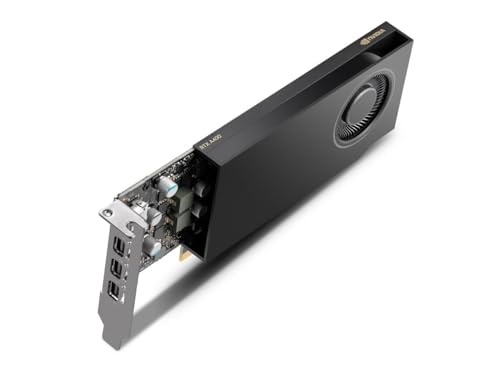
NVIDIA RTX 4000 SFF Ada Generation Workstation Ada Lovelace Architecture Dual Slot Low Profile Professional Graphics Board 900-5G192-2571-000 VD8465
A low-profile workstation card built on the Ada Lovelace architecture with a dual-slot design for small-form-factor builds.
View on AmazonThese come from our ranked list Best Sff GPU, which compares them spec by spec.
FAQ
Do I need a Thunderbolt port for an external graphics card?
The enclosure connects through a Thunderbolt or USB4 port that carries video. Check your laptop manual for the port type before you buy an enclosure, since a data-only USB-C port will not work.
Can I use the laptop screen with an external graphics card?
The card drives the display plugged into it. Connect your monitor to the card's HDMI or DisplayPort output, and use the laptop display settings to pick which screen shows your work.
Does the laptop need to stay plugged in?
The enclosure has its own power supply for the card, so plug the enclosure into wall power and keep the laptop on its charger while you work.
Can I move the enclosure between laptops?
You can move the enclosure to another laptop with a matching port, but install the card drivers on each laptop first. Shut both laptops down and unplug the enclosure before you move it, then connect it and check the display settings again.