
How to Install a Cooling Fan in a PC
 By Theo LangUpdated
To install a cooling fan in a PC, shut the PC down, unplug it, and open the side panel following the case manual. Mount the fan at a free mounting point, with front and bottom fans pulling air in and rear and top fans pushing air out, then connect the fan cable and check that the fan spins.
Shut the PC down and unplug it
Shut the PC down through the operating system, then unplug the power cable from the wall before you open the case. Follow the manual for your case to remove the side panel, and set the screws aside in a tray. Touch a bare metal part of the case to discharge static before you handle parts inside. Work on a clear, flat surface with room to set the panel aside.
Choose the mounting spot and direction
Find a free fan mounting point in the case manual, and check which fan sizes that point takes before you buy or move a fan. Fans at the front and bottom pull cool air into the case, while fans at the rear and top push warm air out. The arrow on the fan frame shows which way the air moves, so point it the way you want the air to go. Keep cables clear of the fan blades.
Mount the fan and connect it
Hold the fan against the mounting point with the arrow facing the way you want the air to go, then line up the screw holes in the fan corners with the holes in the case. Fit the screws that came with the fan and tighten them evenly until the fan sits flat. Plug the fan cable into a fan header on the board, following the board manual, and route the cable away from the blades.
Check the fan spins before closing up
Plug the power cable back in and switch the PC on, then look through the open side to check that the new fan spins and that air moves the way you planned. If the fan does not spin, shut the PC down, unplug it, and check that the cable sits fully in the header. Once the fan runs, shut the PC down, unplug it again, refit the side panel, and plug the PC back in.
What you need
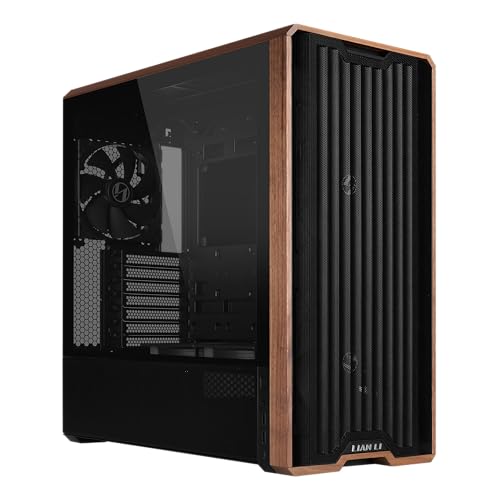
Lian Li LANCOOL 217 ATX Mid-Tower PC Case
An ATX case with five pre-installed fans, two 170mm front fans, two 120mm fans and a 140mm rear fan, with toolless fan mounting.
View on Amazon
Cooler Master HAF II 500 ATX PC Case
An ATX case with two 220mm front intake fans and a 180mm rear exhaust fan, plus a mounting rail for fans and radiators at the front and top.
View on Amazon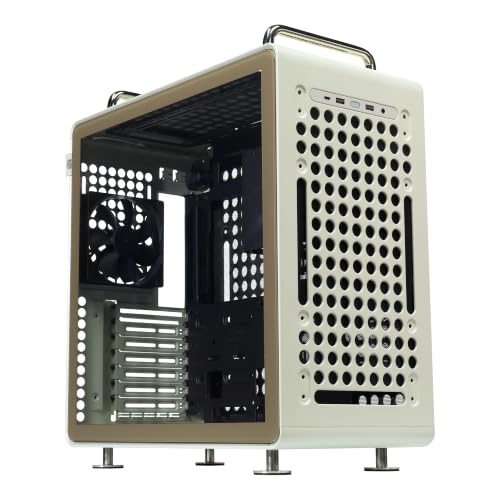
Cooler Master QUBE 540 ATX Mid-Tower PC Case
An ATX mid-tower case with a full front mesh panel and a pre-installed 120mm fan, built for ITX, ATX and E-ATX boards.
View on Amazon
Zalman RAVN Compact ATX Mid-Tower Gaming PC Case
A compact ATX case with a pre-installed 120mm rear fan and room for a 240mm radiator at the front.
View on AmazonThese come from our ranked list Best PC Case for Cooling, which compares them spec by spec.
FAQ
Which way should a case fan face?
Face front and bottom fans into the case to pull air in, and rear and top fans out of the case to push air out. The arrow on the fan frame shows the airflow direction, so check it before you fit the screws.
Can I add a fan to a case with fans already fitted?
Yes, if the case has a free mounting point. Check the case manual for the fan sizes and spots it supports, then fit the extra fan the same way, with its airflow matching the rest of the case.
Do I need to remove the motherboard to fit a fan?
No. Case fans mount to the case itself, so you can fit one with the board in place. Open the side panel, reach the mounting point, and follow the case manual if the spot sits behind a panel or drive cage.


