
How to Connect Case Cables to a Motherboard
 By Theo LangUpdated
Case cables connect the buttons and ports on the front of your PC case to headers on the motherboard. The front-panel header takes the power switch, reset switch and LEDs, while separate headers take front USB, front audio and case fans. Each cable plugs into a labeled header, and your motherboard manual shows the exact pin layout for your board.
Shut down and open the case
Shut the PC down and unplug it from the wall before you touch anything inside. Remove the side panel so you can reach the motherboard, and follow the maker's manual for your case and board. Keep the case on a flat surface with good light so you can read the small labels printed beside the headers.
Find the front-panel header
Look for the front-panel header along the bottom edge of the motherboard. It is a small set of pins, often labeled F_PANEL, JFP1 or FRONT PANEL, with tiny text beside each pin naming its job: power switch, reset switch, power LED and hard drive LED. Your motherboard manual has a diagram of the pin layout, so check it before you plug anything in.
Connect the power and reset switches
Take the two-pin connectors labeled PWR SW and RESET SW from the case and push each one onto the matching pins. The labels on the connectors face out so you can read them, and the switch cables work in either orientation. Push the RESET SW connector onto the matching pins only when your case includes a reset button. Press each connector down until it sits flat on the pins.
Connect the LEDs and front USB and audio
Push the PWR LED and HDD LED connectors onto their pins, matching the plus and minus marks on the connector to the marks on the board, since an LED wired backwards stays dark. Then plug the front USB cable into the USB header and the HD Audio cable into the audio header. Both are keyed with a blocked pin, so they only fit one way.
Connect the fans and check your work
Plug each case fan cable into a fan header on the motherboard, such as CHA_FAN or SYS_FAN, and route the cables so they stay clear of the fan blades. Read through the labels once more and compare them with the manual diagram. Then close the case, plug the PC in, and press the power button to see the fans spin and the LEDs light.
What you need

Lian Li A3-mATX PC Case
A compact 26.3L mATX case with mesh panels and room for a 360mm radiator, giving front-panel cables a short run to the motherboard headers.
View on Amazon
Lian Li A4-H2OX5 Mini-ITX Case-SFX Layout-PCIe 5.0 Riser-Black-A4H2OX5
An 11-liter Mini-ITX case with a sandwich layout and a pre-routed power cord extension that keeps the area around the motherboard headers clear.
View on Amazon
Fractal Design Terra Jade
A 10.4L Mini ITX case with a walnut front panel and front-facing USB Type-C, so the front I/O cables connect straight to the board.
View on Amazon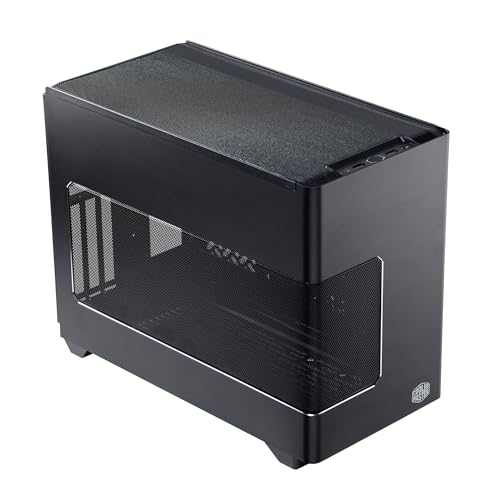
Cooler Master NR200P V3 Mini-ITX PC Case
An 18.6L Mini-ITX case with a mesh panel and room for a 280mm radiator, leaving the motherboard headers easy to reach.
View on AmazonThese come from our ranked list Best ITX Case, which compares them spec by spec.
FAQ
What if the power switch cable is plugged in backwards?
It still works. The power and reset switches only close a circuit, so either orientation on the pins is fine. LEDs are different: a power LED wired backwards stays dark, so swap its connector around.
Why does my power LED not light up?
The LED connector is most likely on the wrong pins or reversed. Check the plus and minus marks against the manual diagram, move the connector to the power LED pins, and press the power button again.
Where does the front USB cable plug in?
It plugs into a USB header on the motherboard, along the bottom or right edge. The connector is keyed, so it only fits one way, and the manual shows which header is USB 3.2 and which is USB-C.
Do I need to connect every cable from the case?
No. Connect the cables for the buttons, ports and fans your build uses. A cable for a feature your case or board does not have can stay unplugged, tucked out of the way of the fans.


