
How to Install a 3-Pin Fan on a 4-Pin Header
 By Theo LangUpdated
Yes. A 3-pin fan plugs onto a 4-pin motherboard header: line up the plastic guide on the plug with the tab on the header so the three wires sit on the first three pins and the fourth pin stays empty. The fan spins, and you control its speed by voltage instead of PWM. Shut the PC down and unplug it before you open the case.
Shut down and open the case
Shut the PC down, unplug the power cable, and press the power button once to drain the remaining charge. Remove the side panel and find a spare 4-pin fan header on the motherboard; the manual shows where each header sits. Keep the screws in a small tray so none roll away.
Line up the plug with the header
A 3-pin plug has a plastic guide that fits only one way on a 4-pin header. Slide it on so the guide meets the tab on the header and the three wires cover the first three pins, leaving the fourth pin empty. Push the plug down until it seats fully, and check that no pin bends to the side.
Set the header to voltage control
A 3-pin fan changes speed when the board varies the voltage, so the header must run in DC or voltage mode. Open the BIOS or the board's fan software, find the header you used, and switch its mode from PWM to DC or voltage. Save the setting and let the PC start, then listen as the fan speeds up and slows down with load.
Mount the fan and route the cable
Screw the fan to a vent or a radiator mount with the airflow arrow pointing the way you want air to move. Keep the cable clear of the fan blades and away from sharp edges, and use a cable tie to hold slack against the case. A loose cable that touches a blade makes noise and can stop the fan.
Check the speed after startup
Start the PC and open the BIOS or fan software to read the fan speed. A 3-pin fan on DC mode should rise and fall as the system warms up and cools down. If the fan does not spin, shut down, unplug the PC, and reseat the plug on the header.
What you need

Lian Li A3-mATX PC Case
A compact mATX case with steel mesh panels for airflow that holds up to 10 120mm fans and a 360mm radiator.
View on Amazon
Lian Li A4-H2OX5 Mini-ITX Case-SFX Layout-PCIe 5.0 Riser-Black-A4H2OX5
A small Mini-ITX case with mesh panels on the bottom, sides and top that fits a 240mm AIO and a triple-slot GPU.
View on Amazon
Fractal Design Terra Jade
A small form factor Mini ITX case with a walnut front panel, an 8 mm-thick aluminum front and a USB Type-C port.
View on Amazon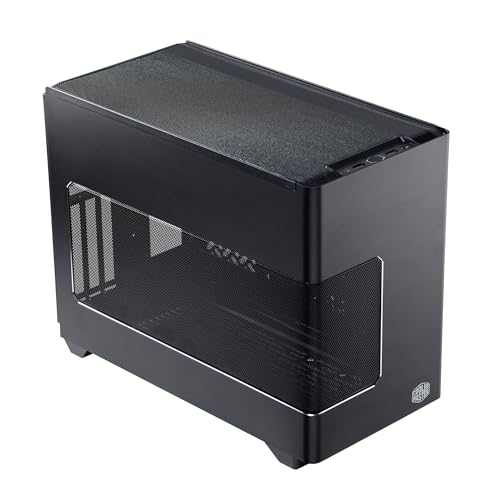
Cooler Master NR200P V3 Mini-ITX PC Case
A Mini-ITX case with mesh panels and support for top-mounted 240mm or 280mm radiators and a 361.5mm GPU.
View on AmazonThese come from our ranked list Best ITX Case, which compares them spec by spec.
FAQ
Can a 3-pin fan plug into a 4-pin header?
Yes. The plug lines up with the guide on the header and covers the first three pins, leaving the fourth pin empty. Set the header to DC or voltage mode so the board can change the fan speed.
Will a 3-pin fan run at full speed?
It can if the header stays in PWM mode, since the fan follows voltage only. Switch the header to DC or voltage mode in the BIOS so the speed follows the system temperature.
Which way should the fan blow?
Point the airflow arrow toward the exhaust side of the case, so hot air leaves instead of circling inside. Intake fans pull cool air in from the front or bottom, and exhaust fans push warm air out the back or top.


