
How to Do Cable Management in a PC
 By Theo LangUpdated
Cable management in a PC means routing each cable behind the motherboard tray or through the case's cutouts, then securing it so it stays clear of fans and airflow paths. Plan the route for each cable before you connect it, group cables that run in the same direction, and fasten them with ties or straps. The result is a tidy interior that is easier to clean.
Shut down and plan the routes
Shut down the PC and unplug it, then follow the maker's manual for removing the side panels. Look at the motherboard tray, the cutouts and the space behind it before you connect anything. Decide which cutout each cable will pass through, and keep power cables and data cables on separate paths where the case allows it. A short plan on paper helps you avoid crossing cables later.
Route cables behind the tray
Pass each cable through the cutout nearest to where it connects, then run it behind the motherboard tray to the other end. Keep cables flat against the tray and avoid pulling them tight around sharp edges. Leave a little slack at each connector so a cable can be unplugged without tugging on the board. If a cable is too long, fold the extra length in a loop behind the tray.
Group and fasten cables together
Group cables that run in the same direction and fasten them together with cable ties or hook-and-loop straps. Space the fasteners along the run so the bundle holds its shape without pinching any single cable. Keep the bundle clear of fan blades and away from any moving part. Trim the ends of cable ties so no sharp point sticks out into the case.
Check airflow and close the case
Before you close the case, check that no cable rests on a fan or covers a vent. Spin each fan by hand to confirm it turns freely, then look for any cable that hangs across the path of air through the case. Refit the side panels, plug the PC back in and switch it on. If a fan makes a noise, shut the PC down, unplug it and move the cable that touches it.
What you need

Lian Li A3-mATX PC Case
An mATX case with steel mesh side and top panels, a walnut wood front panel, and flexible front or side power supply installation that leaves room for cable routing.
View on Amazon
Lian Li A4-H2OX5 Mini-ITX Case-SFX Layout-PCIe 5.0 Riser-Black-A4H2OX5
A Mini-ITX case with a sandwich layout, a PCIe 5.0 riser cable, and a pre-routed power cord extension that keeps the power cable clear of other parts.
View on Amazon
Fractal Design Terra Jade
A Mini-ITX case with a walnut front panel, anodized aluminum panels, and a slidable central wall that lets you shift space inside the case for cables and parts.
View on Amazon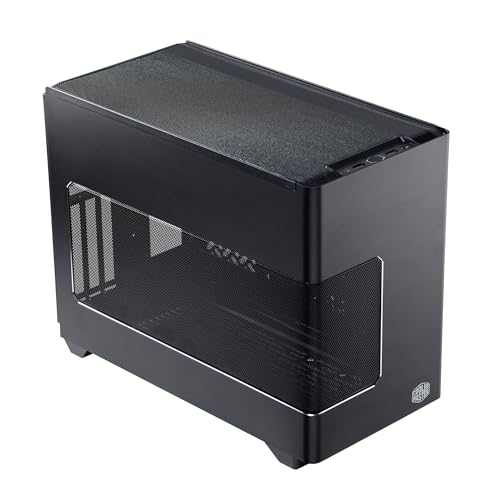
Cooler Master NR200P V3 Mini-ITX PC Case
A Mini-ITX case with a mesh side panel, vertical GPU mounting with a PCIe 5.0 riser cable, and tool-free panels that make it easy to reach cables for routing.
View on AmazonThese come from our ranked list Best ITX Case, which compares them spec by spec.
FAQ
Do cables affect airflow inside a PC?
Cables can get in the way of air if they hang across a vent or rest on a fan. Routing them behind the motherboard tray keeps the main chamber clear so air can move through the case.
Should I use cable ties or hook-and-loop straps?
Both work. Hook-and-loop straps are easy to open again when you change a part, while cable ties hold a bundle firmly once you trim the ends.
How do I manage cables in a small case?
Plan each route before you connect anything, and use the cutouts and the space behind the motherboard tray. Fold extra length behind the tray and keep each bundle flat so the side panel fits.


