
How to Connect PC Fans to a Motherboard
 By Theo LangUpdated
Plug each fan cable into a fan header on the motherboard, with the CPU fan on the CPU fan header, then set the speed in the BIOS. Shut the PC down and unplug it first. Check the header layout in your motherboard manual, since header names and positions vary by board.
Shut down and unplug the PC
Shut the PC down, switch off the power supply and unplug the power cable before you open the case. Follow the maker's manual for your case and motherboard. Do not open a power supply or touch parts inside it; contact the maker if the power supply needs work.
Find the fan headers on the motherboard
Look for the small headers on the motherboard, marked with names such as CPU fan, system fan or chassis fan. Check your motherboard manual for the header layout, since the number and position of headers vary by board. Note which headers sit near each fan mount, so the cables reach without stretching across the board.
Plug each fan into a header
Line up the tab on the fan plug with the notch on the header and push it on straight. Plug the cooler fan into the header marked for the CPU, and the case fans into the system or chassis headers. If you have more fans than headers, use a splitter or a fan hub, and check the hub manual for how it connects to the board.
Set the fan direction
Set each fan so air moves in one direction through the case, in through the mesh panels at the front or bottom and out through the top or rear. Check the arrow printed on the fan frame, which shows the airflow direction. The Lian Li A3-mATX lists room for up to 10 120 mm fans, so plan the layout before you plug the cables in.
Check the fans and set the speed
Plug the power cable back in, switch the power supply on and start the PC. Check that each fan spins and listen for a cable touching a blade. Open the BIOS or the fan software and set the speed for each header, then check the fans again after you close the case.
What you need

Lian Li A3-mATX PC Case
A compact mATX case with steel mesh side and top panels that lists room for up to 10 120 mm fans and a 360 mm radiator.
View on Amazon
Lian Li A4-H2OX5 Mini-ITX Case-SFX Layout-PCIe 5.0 Riser-Black-A4H2OX5
A Mini-ITX case with mesh panels on the bottom, sides and top that lists room for a 240 mm AIO.
View on Amazon
Fractal Design Terra Jade
A small form factor Mini ITX case in 10.4 L with a walnut front panel, anodized aluminum panels and a USB Type-C 20Gbps port.
View on Amazon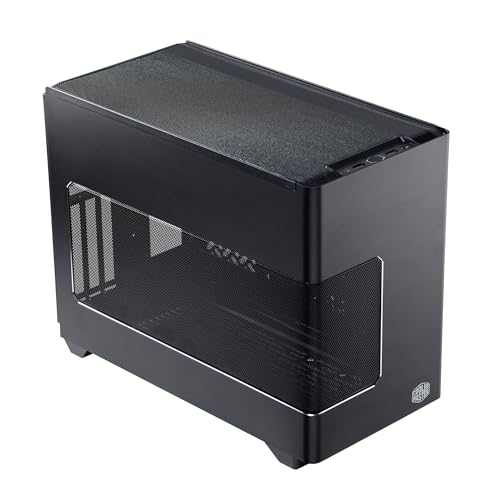
Cooler Master NR200P V3 Mini-ITX PC Case
A Mini-ITX case with a vented mesh side panel that lists room for top-mounted 240 mm and 280 mm radiators.
View on AmazonThese come from our ranked list Best ITX Case, which compares them spec by spec.
FAQ
Can you plug a case fan into any fan header?
Case fans plug into the system or chassis fan headers on your motherboard. The cooler fan belongs on the CPU fan header, since the board watches that header for the cooler. Check your motherboard manual for the header names on your board.
How do you tell which way a fan blows?
Look for the arrow printed on the fan frame, which shows the airflow direction. The open side, where you can see the blades, is where air goes in, and the side with the support arms is where air comes out.
Do you need a fan hub for more fans?
Only if you have more fans than fan headers on your motherboard. A hub or splitter lets several fans share one header, but check the hub manual for how it draws power and connects to the board.


