
How to Connect PC Case Fans to a Motherboard
 By Theo LangUpdated
To connect a PC case fan to a motherboard, mount the fan in the case, route its cable to a fan header on the board, and push the connector on until it sits flat. The header then powers the fan and lets the board control its speed.
Shut down and unplug the PC
Shut the PC down, switch the power supply off if it has a switch, and unplug the power cable from the wall. Follow the maker's manual for your case and motherboard before you open the side panel. Work on a clear surface and keep the fan screws together so you can refit the panel and check the fan position before you power the system on again.
Find the fan headers on the board
Open the motherboard manual to the board diagram and find the headers marked for case fans. Match each fan cable to the nearest header so the cable reaches without pulling tight. If a header is hard to reach, connect the fan before you fit larger parts that sit in front of it, and check the diagram again before you push any connector on.
Mount the fan and check airflow direction
Hold the fan against the mount points in the case and line up the screw holes. Check the arrows on the fan frame that show airflow direction, then fit the screws so the fan faces the way you want air to move. Tighten each screw a little at a time until the fan sits flat and does not wobble when you touch the frame.
Plug the fan cable onto the header
Line up the plug on the fan cable with the pins on the header and push it straight on until it sits flat. Do not force it at an angle, and do not plug a fan into a header marked for a pump or for lighting. Give the cable a light pull to check it stays in place, then route the cable along the case edge so it stays clear of the blades.
Power on and set fan control
Refit the side panel, plug the power cable back in, and switch the PC on. Watch each fan start and listen for rubbing or rattling that means a cable is touching the blades. Open the motherboard setup screen or the maker's fan software and check that each header shows the fan, then set the control mode the manual lists for that header.
What you need

Lian Li A3-mATX PC Case
A mesh case for mATX and ITX boards that holds up to 10 x 120mm fans and a 360mm radiator, so plan header use before you mount fans.
View on Amazon
Lian Li A4-H2OX5 Mini-ITX Case-SFX Layout-PCIe 5.0 Riser-Black-A4H2OX5
An 11-liter Mini-ITX case with a sandwich layout and mesh panels that supports 240mm AIO cooling, so route fan cables to clear the riser and panels.
View on Amazon
Fractal Design Terra Jade
A 10.4 L Mini ITX case with a walnut front panel and a slidable central wall, so check fan cable reach before you set the wall position.
View on Amazon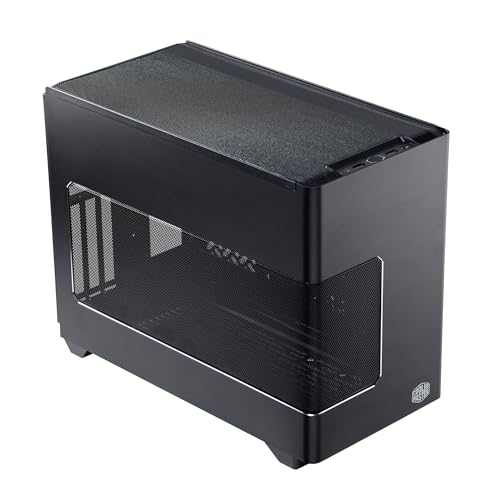
Cooler Master NR200P V3 Mini-ITX PC Case
An 18.6L Mini-ITX case with a mesh side panel and support for top-mounted 240mm and 280mm radiators, so connect top fans before you fit the panel.
View on AmazonThese come from our ranked list Best ITX Case, which compares them spec by spec.
FAQ
Can I connect more than one fan to one header?
Check the motherboard manual for the limit the maker lists for each header before you use a splitter cable. A splitter lets two fans share one header, but both fans then follow the same control setting from that header.
Why does my case fan not spin at startup?
Check that the plug sits flat on the correct header and that the cable is not caught in the blades. Some fans stay still until the system warms up and the board calls for cooling, so check the fan setting in the setup screen before you replace the fan.
Should a case fan blow air in or out?
Fit intake fans so they draw air into the case and exhaust fans so they push air out, following the arrows on the fan frame. Keep a clear path through the case so air moves across the board and out, instead of trapping warm air around the parts.


