
How to Install a Motherboard in a PC Case
 By Theo LangUpdated
Installing a motherboard in a PC case means mounting the board on the case standoffs, then connecting the case cables and power cables to the board. Shut the PC down and unplug it first, and follow the manuals for your case and motherboard. The case must match the board size, so check the form factor the case lists before you start.
Check the case fits your motherboard
Cases list the board sizes they take, such as mATX, Mini-ITX or ITX, and the board must match one of those sizes. Read the form factor in your motherboard manual and compare it with the form factor the case lists. A board that is larger than the case supports will not line up with the standoffs or the rear slots, so confirm the match before you fit anything.
Fit the standoffs and the rear shield
Shut the PC down, unplug it, and follow the manuals for your case and motherboard. Fit the standoffs in the case holes that match your board size, then set the rear I/O shield in the case opening if your board uses one. Lower the board onto the standoffs so the rear ports sit in the shield and the mounting holes line up, then fasten the board screws.
Connect the case cables to the board
Find the front panel header on the motherboard using the board manual, since the pin layout differs between boards. Plug in the power switch, reset switch, power LED and drive LED cables, plus the USB and audio cables from the front of the case, matching each plug to the header the manual names. Check that each plug sits fully on its pins before you move on.
Connect power and check the build
Connect the power supply cables to the board headers the motherboard manual names, including the main board power cable and the CPU power cable. Connect the case fans to the fan headers on the board, then check that no cable touches a fan blade. Plug the PC back in, switch it on, and check that the fans spin and the screen shows the startup display.
What you need

Lian Li A3-mATX PC Case
An mATX case with room for GPUs up to 415mm, a 360mm radiator and up to 10 120mm fans, with steel mesh panels and a walnut wood front panel.
View on Amazon
Lian Li A4-H2OX5 Mini-ITX Case-SFX Layout-PCIe 5.0 Riser-Black-A4H2OX5
A Mini-ITX case of 11 liters with a sandwich layout, a PCIe 5.0 riser cable and room for a triple-slot GPU and a 240mm AIO.
View on Amazon
Fractal Design Terra Jade
A Mini-ITX case of 10.4 liters with a walnut front panel, room for a GPU up to 322mm long and a USB Type-C port.
View on Amazon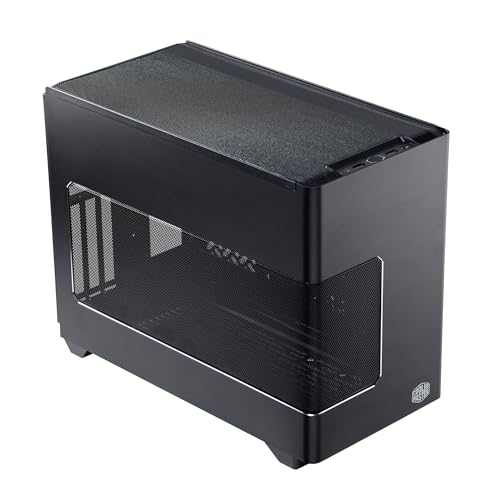
Cooler Master NR200P V3 Mini-ITX PC Case
A Mini-ITX case of 18.6 liters with a vertical GPU mount, a PCIe 5.0 riser cable, room for GPUs up to 361.5mm and 280mm AIO support.
View on AmazonThese come from our ranked list Best ITX Case, which compares them spec by spec.
FAQ
Do I need to remove the side panels first?
Yes. Take the side panels off before you fit the board, so you can reach the standoffs, the rear opening and the cable headers from both sides. Put the panels back on only after you check the build powers on.
Can any motherboard fit in any case?
No. A case lists the board sizes it takes, such as mATX or Mini-ITX, and a board must match one of those sizes. Check the form factor in your motherboard manual against the form factor the case lists before you buy.
Why does the PC not start after the install?
Check the front panel cables first, since a loose power switch plug stops the PC from starting. Then check that the power cables sit fully in the board headers and that the power supply switch is on.


