
How to Connect Headphones to a PC
 By Theo LangUpdated
Plug normal headphones into the headphone port on the PC, a 3.5mm jack on the front or back of a desktop or the side of a laptop. Push the plug in until it sits fully in the port, then check that the PC is sending sound to the headphones. If the headset uses USB instead, plug it into a USB port and pick it as the sound output.
Find the headphone port on the PC
Look for a round 3.5mm port on the front or back of a desktop PC, or on the side of a laptop. It often sits beside a headphone icon or a green ring, and on many laptops one port carries both sound and the microphone. If the PC has separate pink and green ports, the green one is for the headphones and the pink one is for the microphone.
Plug in a 3.5mm headset
Push the 3.5mm plug straight into the headphone port until it stops, with no metal showing. A plug that sits halfway in gives sound in one ear only or no sound at all, so push it in firmly. If the headset has two plugs, one for sound and one for the microphone, match each plug to the port of the same color or icon.
Plug in a USB headset
Push the USB plug into a free USB port on the PC and wait a few seconds while the PC recognizes the headset. A headset with a USB-C plug goes into a USB-C port, and one with a USB-A plug goes into a USB-A port. If the PC does not react, try another USB port on the PC itself rather than a port on a monitor or keyboard.
Pick the headphones in sound settings
Click the speaker icon in the taskbar and open the sound output list, then pick the headphones from the list. If they do not appear, check that the plug is fully seated or try another port. Play a video or a song and raise the volume, and if the sound still comes from the speakers, open the sound settings and set the headphones as the default output device.
Fix no sound or microphone input
Check the volume on the PC and on the headset cable, and check that nothing is muted. If the microphone does not work, open the sound settings, look under input devices, and pick the headset microphone. A headset that works on a phone but not on a PC often sits in the wrong port, so move the plug to the headphone port and check the sound settings again.
What you need

Razer BlackShark V2 X Gaming Headset
A wired gaming headset with a 3.5mm jack, 50mm drivers, software-enabled 7.1 surround sound, and a cardioid mic.
View on Amazon
Razer BlackShark V2 X Gaming Headset for PC
A white wired gaming headset with a 3.5mm jack, 50mm drivers, 7.1 surround sound, and a bendable cardioid mic.
View on Amazon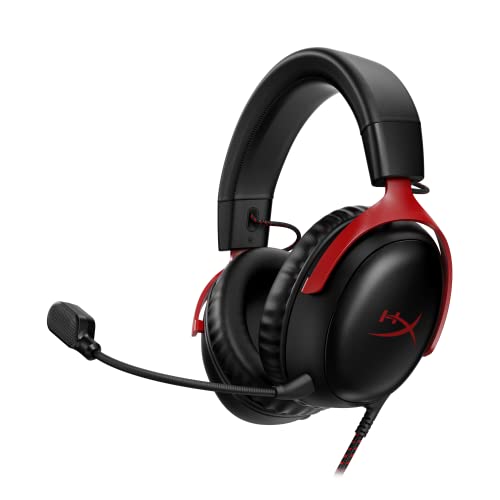
HyperX Cloud III Wired Gaming Headset for PC
A wired gaming headset with USB-C, USB-A, and 3.5mm connections, 53mm drivers, and a noise-cancelling 10mm mic.
View on Amazon
BENGOO G9000 Stereo Gaming Headset for PS4 PC Xbox One PS5 Controller
A stereo gaming headset with a USB connection, 40mm drivers, a noise-isolating mic, and LED lights on the earcups.
View on AmazonThese come from our ranked list Best PC Headset, which compares them spec by spec.
FAQ
Why do my headphones work on my phone but not my PC?
A phone has one port for sound and microphone together, while some PCs have separate ports. Plug the headphones into the headphone port, not the microphone port, and pick the headphones in the sound settings.
Can I use a headset with a microphone on a PC?
Yes. A headset with a 3.5mm plug uses the port that carries sound and microphone together, or the separate microphone port. A USB headset carries sound and microphone through the one USB plug, and it shows up as an input device in sound settings.
Do I need software for a wired headset?
No. A plain wired headset plays sound as soon as it is plugged in and picked as the output. Extra features such as surround sound may need the maker's software, so check the maker's notes if you want those features.


