
How to Connect Wired Headphones to a Computer
 By Theo LangUpdated
Plug the 3.5 mm plug on your wired headphones into the headphone jack on your computer, then choose the headphones as the sound output in your sound settings. If your computer has separate jacks for headphones and a microphone, use a splitter cable so one plug reaches both jacks. Play some audio to check that sound comes through the headphones.
Check which ports your computer has
Look for a headphone jack on the side or front of a laptop, or on the front or back of a desktop. The jack often has a small headphone symbol next to it. Some computers have one combined jack for headphones and a microphone, while others have two separate jacks, one for headphones and one for a microphone. Note which type your computer has before you plug anything in, because it decides whether you need a splitter cable.
Plug in the headphones
Push the 3.5 mm plug into the headphone jack until it sits fully in place. A plug that is only partly inserted can give sound in one ear or no sound at all. If your headset has one plug and your computer has separate headphone and microphone jacks, connect the splitter cable to both jacks first, then plug the headset into the splitter. If your headset has a USB plug, plug it into a USB port instead.
Choose headphones as the sound output
Open the sound settings on your computer and look at the output device list. Select your headphones from that list so audio goes to them instead of the built-in speakers. On some computers the headphones appear by name, and on others they appear as the headphone jack. If the headphones do not appear, unplug them, plug them in again, and check the list a second time.
Check the sound and microphone
Play a song or a video and listen through the headphones. Turn the volume up from the keyboard, the taskbar, or the in-line controls on the cable if your headset has them. If your headset has a microphone, open the sound settings, find the input device list, select the headset microphone, and speak to see the input level move. Move the microphone mute switch to the on position if you hear nothing from it.
Fix no sound or a loose connection
If you hear no sound, check that the plug is fully inserted and that the headphones are still selected as the output device. Try the other headphone jack on a desktop, or a different USB port if you use a USB connection. Check that the volume is turned up and that nothing is muted in the sound settings. If the sound cuts out when the cable moves, try a different jack and check the plug for dirt or damage.
What you need

Turtle Beach Atlas 200 Wired Multiplatform Gaming Headset for Xbox
A wired headset with 50 mm drivers, a flip-to-mute microphone and a 3.5 mm connection for PC and consoles.
View on Amazon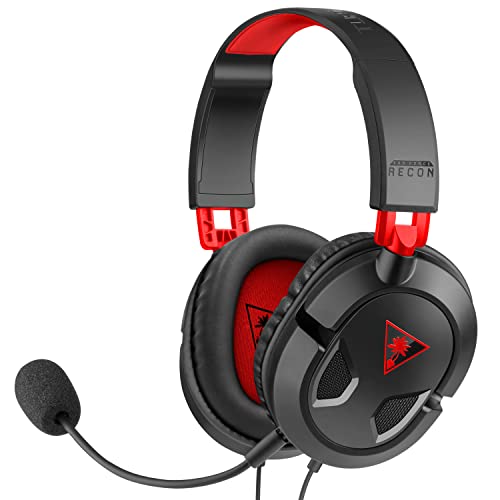
Turtle Beach Recon 50 Wired Multiplatform Gaming Headset for PC
A wired headset with 40 mm speakers, a removable microphone and a PC splitter cable, plus in-line volume and mic mute controls.
View on Amazon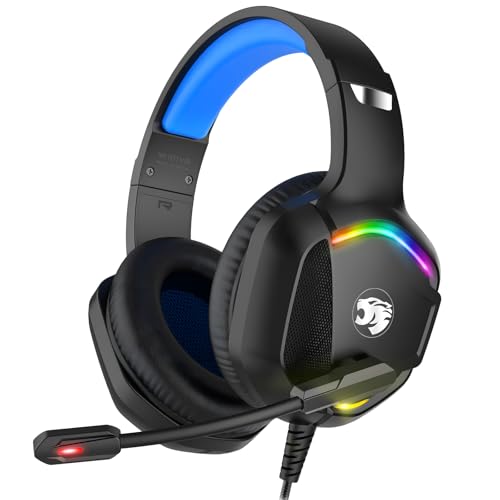
IMYB A36 Gaming Headset
A wired headset with 50 mm drivers and a noise isolating microphone, with rotary volume control and a button to mute the microphone.
View on Amazon
FIFINE H9 Wired Gaming Headset
A wired headset with 50 mm drivers, 7.1 surround sound and 3.5 mm and USB connections, plus a detachable boom microphone and USB control box.
View on AmazonThese come from our ranked list Best Wired Headset for PC, which compares them spec by spec.
FAQ
Why is there no sound from my headphones after I plug them in?
Check that the 3.5 mm plug is fully inserted and that the headphones are selected as the output device in the sound settings. Also check that the volume is turned up and that the output is not muted.
Do I need a splitter for my headset?
You need one when your headset has a single plug and your computer has separate jacks for headphones and a microphone. The splitter sends the headphone signal to one jack and the microphone signal to the other.
Can I use wired headphones through a USB port?
Yes, if the headset has a USB plug. Plug it into a USB port, then select the headset as the output device in the sound settings, the same way you would for a headphone jack connection.
What if my laptop has only one jack?
A single combined jack carries both the headphone and the microphone signals through one plug. Plug the headset straight into that jack and select it as the output and input device in the sound settings.


