How to Connect a Bluetooth Headset to a Laptop
 By Theo LangUpdated
Turn on Bluetooth on the laptop, put the headset into pairing mode, then pick the headset from the laptop's list of Bluetooth devices and set it as the sound output. Once it connects, the laptop sends audio to the headset, and the headset mic handles voice input when the laptop is set to use it. Some headsets need a dongle or an adapter instead.
Turn on Bluetooth on the laptop
Open the Bluetooth settings on the laptop and switch Bluetooth on. The laptop then scans for nearby devices. Keep the laptop awake and the settings page open while you pair, so the headset appears in the list. If Bluetooth is off, the headset never shows up, and no pairing step can start.
Put the headset into pairing mode
Pairing mode makes the headset visible to the laptop, and each headset enters it in its own way, so follow the headset manual for the exact button and light signal. Charge the headset first if it has been sitting unused, and keep it close to the laptop while pairing. A headset that is already connected to a phone may stay linked to the phone, so disconnect it from other devices first.
Select the headset on the laptop
Pick the headset name from the list of found devices and confirm the pairing prompt if one appears. The laptop may take a moment to finish connecting, and the headset gives a sound or light signal when it joins, as its manual describes. If the name does not appear, turn the headset off and back on, put it into pairing mode again and refresh the laptop list.
Set the headset as sound output and input
Pairing alone does not always move the sound. Open the laptop sound settings, set the headset as the output device for media and calls, and set its mic as the input device. Play a short clip and speak a few words to check the sound and the mic. If sound still comes from the laptop speakers, the output is still set to the laptop, so change it to the headset.
When Bluetooth is not the way in
Some headsets pair with a laptop over Bluetooth, and some need their 2.4GHz USB dongle instead. The Ozeino headset needs an extra USB Bluetooth adapter for Bluetooth on a PC or Mac, since its Bluetooth mode works with laptops, phones and Switch. The WESEARY headset pairs over Bluetooth with laptops, and its mic does not work with Switch over Bluetooth. If a headset will not appear in the laptop list at all, try its dongle mode, then check the headset manual for the mode that fits the laptop.
What you need
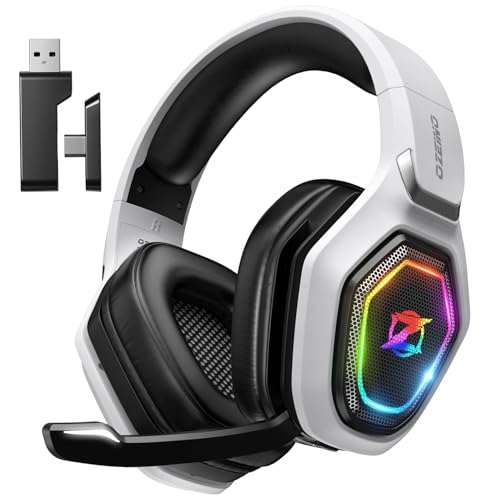
Ozeino Wireless Gaming Headset For PS5
Bluetooth mode works with laptops, phones and Switch, while a PC or Mac needs an extra USB Bluetooth adapter, not included. It also works over its 2.4GHz USB dongle.
View on Amazon
HyperX Cloud III S Wireless Gaming Headset
Bluetooth and 2.4GHz wireless connect to a laptop, with up to 200 hours in Bluetooth mode and a detachable mic that works in both modes.
View on Amazon
WESEARY Wireless Gaming Headset for PS5
Bluetooth 5.4 pairs with laptops, and its mic does not work with Switch over Bluetooth. Battery runs up to 50 hours without lighting.
View on Amazon
Razer BlackShark V3 Wireless PC Gaming Headset
Bluetooth 5.3, 2.4GHz wireless and USB wired modes connect to a laptop, with up to 70 hours of battery and a detachable mic.
View on AmazonThese come from our ranked list Best Bluetooth Gaming Headset, which compares them spec by spec.
FAQ
Why does the headset not show up in Bluetooth?
Bluetooth may be off on the laptop, the headset may not be in pairing mode, or it may still be linked to another device. Check each of them, then put the headset into pairing mode again and refresh the laptop list.
Can I use the headset mic on a laptop call?
Yes, once the headset is paired and its mic is set as the input device in the laptop sound settings. The HyperX headset has a detachable mic that works in both 2.4GHz and Bluetooth modes, and the WESEARY mic does not work with Switch over Bluetooth.
Do I need a dongle to connect a headset to a laptop?
Not always. Headsets with Bluetooth pair directly when the laptop has Bluetooth. The Ozeino headset needs an extra USB Bluetooth adapter for Bluetooth on a PC or Mac, and headsets with a 2.4GHz mode can also connect through the dongle.