How to Use Headphones as a Microphone on a PC
 By Theo LangUpdated
Yes. Plug your headphones into the mic jack on your PC, or into the combo jack on a laptop, then pick them as the input device in your sound settings. Headphones with a built-in mic, like the headsets below, work right away. Plain headphones also work: the speaker driver in one earcup acts as a microphone when you speak into it.
Check the plug on your headphones
Look at the plug. A single plug carries both sound and mic signals, while two plugs split them into a headphone plug and a mic plug. A laptop has one combo jack that takes the single plug. A desktop PC has two separate jacks, one for headphones and one pink jack for the mic. Match the plug to the jack before you connect anything.
Plug the headphones into the mic jack
On a desktop, plug the mic plug into the pink jack. If your headphones have a single plug and the desktop has separate jacks, add a splitter cable that divides the plug into a mic plug and a headphone plug. On a laptop, plug the single plug straight into the combo jack. USB headsets plug into a USB port instead. Push each plug in fully until it sits flat, since a half-seated plug gives a faint signal.
Select the headphones as the input
Open the sound settings on your PC and look for the input section. Pick your headphones from the input device list. Speak and watch the input level bar move. If the bar stays flat, check that the plug sits fully in the jack and that the right input is picked. Raise the input volume in the same settings page until your voice registers clearly.
Speak into the earcup to be heard
Speak close to one earcup. The driver inside the earcup picks up your voice and sends it to the PC as a mic signal. Keep the earcup near your mouth and speak at a normal volume. For calls and voice chat, a headset with a built-in mic puts the mic near your mouth.
What you need

Razer BlackShark V2 X Gaming Headset
A wired headset with a HyperClear cardioid mic, 50mm drivers and a 3.5mm jack for PC, PS4, PS5 and Switch.
View on Amazon
Razer BlackShark V2 X Wired PlayStation Gaming Headset
A wired headset with a bendable HyperClear cardioid mic, 50mm drivers, a volume wheel and a 3.5mm jack.
View on Amazon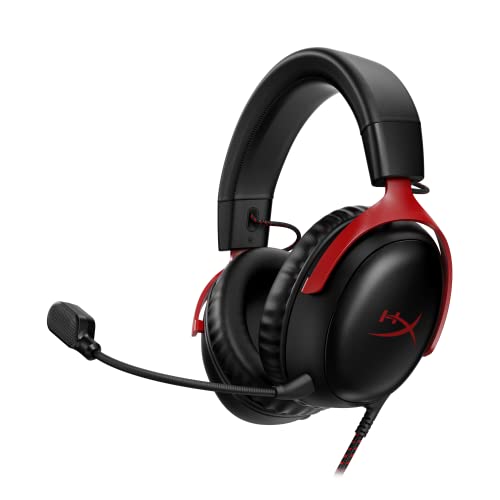
HyperX Cloud III Wired Gaming Headset for PC
A wired headset with a 10mm noise-cancelling mic, 53mm drivers and USB-C, USB-A and 3.5mm connections.
View on Amazon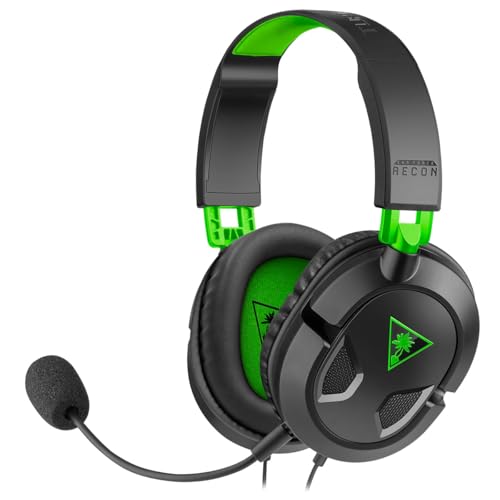
Turtle Beach Recon 50 Wired Multiplatform Gaming Headset for Xbox
A wired multiplatform headset with a removable high-sensitivity mic, 40mm speakers and in-line controls.
View on AmazonThese come from our ranked list Best Headset with Mic, which compares them spec by spec.
FAQ
Can any headphones work as a microphone?
Headphones with a speaker driver work as a mic when plugged into a mic jack, since the driver sends sound both ways. A headset with a built-in mic is the simpler pick for calls, since its mic sits near your mouth.
Why does my PC not hear my headphones?
Check the plug first. A single plug needs a combo jack or a splitter on a desktop with separate jacks. Then open the sound settings and pick the headphones as the input device. If the input level bar stays flat, push the plug in fully and check the input choice again.
Do I need a splitter to use headphones as a mic?
Only when the plugs and jacks do not match. A headset with two plugs needs a splitter on a laptop with one combo jack, and a headset with one plug needs a splitter on a desktop with separate jacks. USB headsets need no splitter.