
How to Connect Earphones as Mic and Speaker
 By Theo LangUpdated
Plug your earphones into the PC's headset jack and Windows will use them for sound and for the microphone. If the PC has separate headphone and microphone jacks, a headset splitter connects the single earphone plug to both. Then pick the earphones as the output and the headset mic as the input in sound settings.
Check the plug on your earphones
Most earphones end in a single 3.5mm plug that carries both sound and the microphone. If your earphones have two separate plugs, one is for sound and one is for the mic, and each goes into its matching jack. Knowing which plug you have decides whether you plug straight in or need a splitter.
Plug into the headset jack
Look for the jack on your PC marked with a headset icon. Push the earphone plug in all the way until it sits firmly. Open the sound settings on your PC and set the output to the earphones and the input to the headset microphone. Speak and watch the input level move to confirm the mic is live.
Use a splitter for separate jacks
Some desktop PCs have two jacks, one for headphones and one for a microphone, and a single earphone plug cannot serve both. A headset splitter takes the one earphone plug and gives you two plugs, one for sound and one for the mic. Plug the sound plug into the headphone jack and the mic plug into the microphone jack, then set the input to the headset mic in sound settings.
Set the input and output
Open sound settings and check the output device and the input device separately. The output should be the earphones or headset, and the input should be the headset microphone rather than a built-in mic or webcam mic. If a call or recording app has its own audio settings, pick the same devices there too.
Fix a mic with no input level
If the mic hears nothing, pull the plug out and push it back in firmly, then check that the mic is not muted in sound settings or in the app. Make sure the app has permission to use the microphone. If the PC still hears nothing, try the other audio jack or another pair of earphones to find whether the plug or the jack is at fault.
What you need

Razer BlackShark V2 X Gaming Headset
A wired headset with 50mm drivers, a HyperClear cardioid mic and a 3.5mm jack for PC, PS4, PS5 and Switch.
View on Amazon
Razer BlackShark V2 X Wired PlayStation Gaming Headset
A wired headset with 50mm drivers, a HyperClear cardioid mic, a volume wheel and a 3.5mm jack for PS5, Xbox Series X, PC and Switch.
View on Amazon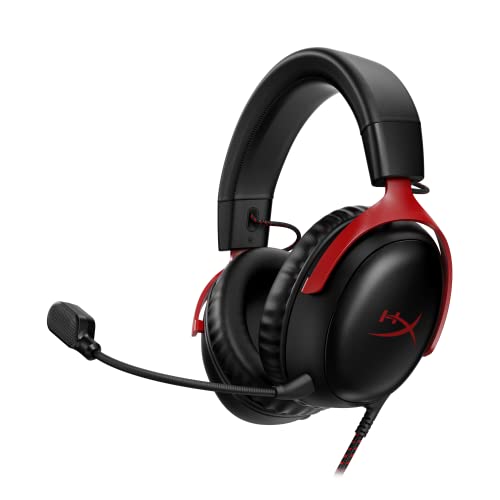
HyperX Cloud III Wired Gaming Headset for PC
A wired headset with 53mm drivers, a 10mm noise-cancelling mic and USB-C, USB-A and 3.5mm connections for PC.
View on Amazon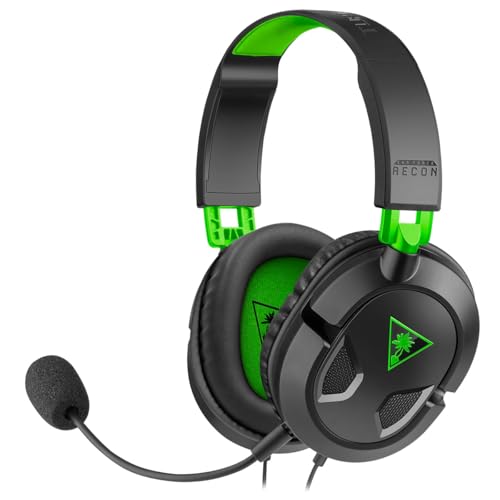
Turtle Beach Recon 50 Wired Multiplatform Gaming Headset for Xbox
A wired headset with 40mm speakers, a removable high-sensitivity mic and in-line controls for Xbox, PS5 and PC.
View on AmazonThese come from our ranked list Best Headset with Mic, which compares them spec by spec.
FAQ
Can I use phone earphones as a PC mic?
Yes, if they have a built-in mic and a single plug. Plug them into the headset jack, or use a splitter when the PC has separate headphone and microphone jacks.
Why does my PC play sound but not hear me?
The plug may sit in the headphone-only jack, or the input may point at another mic. Move the plug to the headset jack or use a splitter, then set the input to the headset mic in sound settings.
Do I need a USB headset for a PC mic?
No. A 3.5mm headset with a mic works through the PC audio jack. A USB headset is another way to connect, and it plugs into a USB port instead.

