
How to Connect Earbuds to a Computer
 By Theo LangUpdated
Plug wired earbuds into the 3.5mm audio jack on your computer, or into a USB port if they use USB. For wireless earbuds, turn on Bluetooth on the computer, put the earbuds in pairing mode, and select them from the Bluetooth list. Then set the earbuds as the sound output so audio plays through them.
Plug in wired earbuds
Find the 3.5mm audio jack on your computer and push the plug in fully until it sits flat. If your headset uses USB, plug it into a USB port instead; the HyperX Cloud III connects through USB-C, USB-A or 3.5mm, while the BENGOO G9000 connects through USB. A loose plug can leave sound in one ear only, so check the fit before you change any setting.
Pair wireless earbuds over Bluetooth
Open the Bluetooth settings on your computer and switch Bluetooth on. Put the earbuds in pairing mode, using the method in the earbuds' manual, then pick the earbuds from the list of devices and confirm the pairing. Keep the earbuds near the computer while they pair, and leave Bluetooth on so the computer finds them again next time.
Set the earbuds as the sound output
Open the sound settings on your computer and look for the output device list. Pick the earbuds from that list so calls, music and video play through them instead of the built-in speakers. If the earbuds have a mic, pick them in the input list too, so the computer records your voice through the headset mic. All four headsets in this guide have a mic, including the Razer BlackShark V2 X and the HyperX Cloud III.
Fix sound and mic problems
If the earbuds connect but you hear nothing, check the output device first, then the volume and the mute switch. Push the plug in fully, or try a different USB port for a USB headset. The HyperX Cloud III has a 10mm mic with a mute indicator, and the Razer BlackShark V2 X has a cardioid mic. Check the input list in the sound settings, raise the input level, and move the mic closer to your mouth.
What you need

Razer BlackShark V2 X Gaming Headset
A wired headset with a 3.5mm jack, 50mm drivers, 7.1 surround sound and a cardioid mic, for PC, Mac, PS4, PS5 and Switch.
View on Amazon
Razer BlackShark V2 X Gaming Headset for PC
The same wired headset in White, with a 3.5mm jack, 50mm drivers, 7.1 surround sound and a bendable cardioid mic.
View on Amazon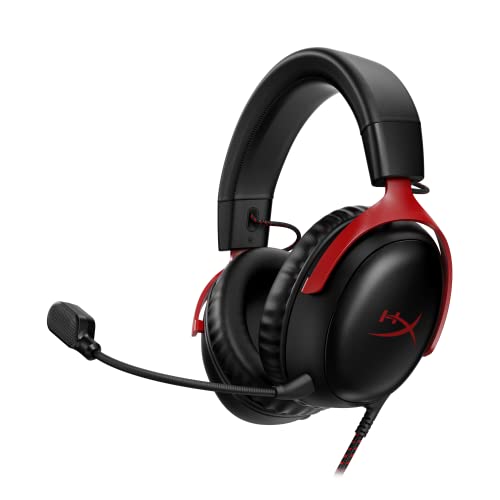
HyperX Cloud III Wired Gaming Headset for PC
A wired headset with USB-C, USB-A and 3.5mm connections, 53mm drivers, memory foam and a 10mm mic with a mute indicator.
View on Amazon
BENGOO G9000 Stereo Gaming Headset for PS4 PC Xbox One PS5 Controller
A wired headset with a USB connection, 40mm drivers, 7.1 surround sound, a noise cancelling mic and LED lights on the earcups.
View on AmazonThese come from our ranked list Best PC Headset, which compares them spec by spec.
FAQ
Do I need Bluetooth to connect wireless earbuds?
Yes, for wireless earbuds. Bluetooth carries the sound between the earbuds and the computer, so both must have Bluetooth switched on. Wired earbuds need no Bluetooth; they plug into the 3.5mm jack or a USB port.
Why do my earbuds connect without audio?
The computer may be sending audio to another output, such as its built-in speakers. Open the sound settings, pick the earbuds in the output list, and check the volume and mute. Push the plug in fully if the earbuds are wired.
Can I use the earbuds' mic on a computer?
Yes, if the earbuds have a mic and the connection carries it. A 3.5mm headset with a mic works through the audio jack, and a USB headset works through its USB port. All four headsets in this guide have a mic, so pick them in the input list in the sound settings.


