
How to Connect Two Monitors With One HDMI Port
 By Theo LangUpdated
One HDMI port sends one video signal, so it cannot run two separate monitors on its own. Connect a USB-C docking station with two HDMI ports to your laptop instead, and plug one monitor into each HDMI port. Check that your laptop's USB-C port supports video output, through Thunderbolt or DisplayPort Alt Mode, before you buy the dock.
Check your laptop's USB-C port
A USB-C port does not always carry video. Look in your laptop's manual or spec sheet for DisplayPort Alt Mode or USB4 on that port. The Selore docks need a full-featured USB-C port, the TobenONE dock needs a full-featured USB-C port, and the Dell WD25 connects through USB-C. If the port only carries data, monitors attached to the dock stay blank even though the USB ports work.
Connect the dock and both monitors
Plug the dock into your laptop's video-capable USB-C port. Plug one monitor into each HDMI port on the dock, then plug the monitors into power and switch each one to its HDMI input. The Selore 8-in-1 dock has two 4K at 60 Hz HDMI ports, the Selore 14-in-1 adds a VGA port for a third display, and the TobenONE dock has two 4K HDMI ports. The Dell WD25 has HDMI and DisplayPort for up to four displays.
Extend the display in Windows
On Windows, open display settings and choose Extend for each monitor so each screen shows its own desktop. The Selore docks support MST mode under Windows for extending two monitors at once, and the Selore 14-in-1 can show three different screens at once. If both monitors show the same picture, the display is set to Duplicate, so switch it to Extend.
Know the macOS limit
On macOS, the two Selore docks mirror the same picture instead of extending it. The Selore 8-in-1 supports mirroring only on macOS, and the Selore 14-in-1 shows three identical screens on M1 and M2 chips. The TobenONE dock is built for Windows and Chrome OS and is not recommended for Mac users. Check the dock's notes for macOS before buying it for two screens.
Check the charging power
All four docks list 100 W power delivery. The Selore 8-in-1 takes 100 W in and puts 85 W out to the laptop, the Selore 14-in-1 puts 87 W out, and the TobenONE needs a 65 W or higher power adapter, which is not included. Compare the output figure with the charger that came with your laptop, and confirm your charger reaches 100 W before relying on the dock to charge it.
What you need

Selore USB C Docking Station Dual Monitor
An 8-in-1 USB-C dock with two 4K at 60 Hz HDMI ports, 100 W power delivery with 85 W out, and SD and microSD card slots.
View on Amazon
Selore USB C Docking Station Dual Monitor
A 14-in-1 USB-C dock with two 4K HDMI ports, a VGA port, 1000M Ethernet and 100 W power delivery with 87 W out.
View on Amazon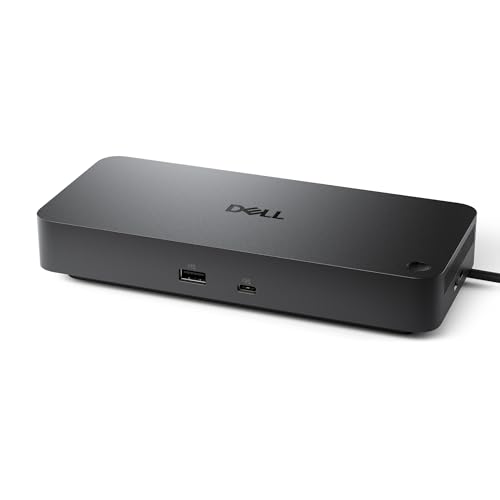
Dell Pro Laptop Docking Station WD25
A USB-C dock with HDMI, DisplayPort, Ethernet and 100 W power delivery, listed with support for up to four displays.
View on Amazon
TobenONE 19-in-1 Laptop Docking Station Dual Monitor
A 19-in-1 USB-C dock with two 4K HDMI ports, 10 USB ports, Gigabit Ethernet and 100 W pass-through charging.
View on AmazonThese come from our ranked list Best Docking Station for Laptop and 2 Monitors, which compares them spec by spec.
FAQ
Can one HDMI port run two monitors?
No. One HDMI port sends one video signal, so it runs one monitor. Use a USB-C dock with two HDMI ports, or a dock with HDMI and DisplayPort, to run two monitors from one laptop port.
Why do both monitors show the same picture?
The display is set to Duplicate, or the dock mirrors on macOS. On Windows, open display settings and switch to Extend. On macOS, the Selore docks mirror only, so two separate screens need a different setup.
Does the dock charge the laptop?
All four docks list 100 W power delivery. The Selore 8-in-1 puts 85 W out and the Selore 14-in-1 puts 87 W out, so check the output against your laptop's charger. The TobenONE dock needs a 65 W or higher adapter, which is not included.


