How to Connect Two Monitors to a Docking Station
 By Theo LangUpdated
Plug each monitor into a video port on the dock, plug the dock into your laptop with one USB-C cable, and set the displays to Extend. The dock needs a Thunderbolt or full-featured USB-C port on the laptop, and the monitors need HDMI or DisplayPort inputs that match the dock. On Windows the two screens extend, while on macOS some USB-C docks mirror the same picture to both.
Check the laptop port first
A USB-C port on a laptop does not always carry video, so check the laptop manual for Thunderbolt, DisplayPort Alt Mode or USB4 on that port. The Selore docks state that they need a Thunderbolt or full-featured USB-C port, and a port with data or charging only leaves the monitors blank. The TobenONE dock is built for Windows and Chrome OS laptops with full-featured USB-C ports and is not recommended for Mac users.
Plug in the two monitors
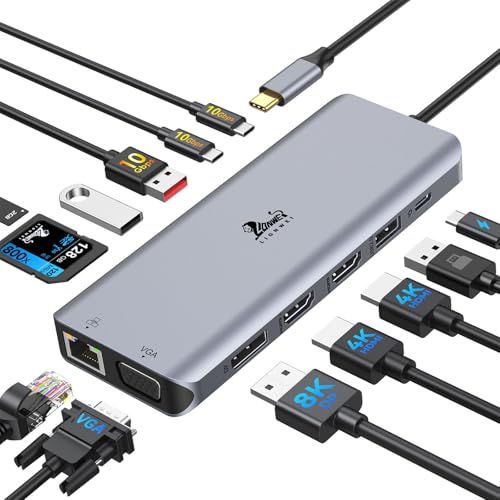
Plug one monitor into each HDMI port on the dock with an HDMI cable, and use the DisplayPort or VGA port when the dock has one and the monitor needs it. The Selore 8-in-1 has dual 4K@60Hz HDMI ports, the Selore 14-in-1 adds a VGA port for a third screen, and the Dell WD25 has HDMI and DisplayPort with support for up to four displays. The TobenONE has two 4K HDMI ports for two displays. Keep the laptop lid open or closed as your display settings allow.
Connect power and set the displays
Plug the dock into the laptop with one USB-C cable, then plug the dock power adapter into the wall when the dock takes one. All four docks in this guide list 100W power delivery, with the Selore 8-in-1 passing 85W to the laptop and the Selore 14-in-1 passing 87W. The TobenONE needs a 65W or higher power adapter, which is not included, and the Selore 8-in-1 charger and charging cable are not included either. Then open display settings and pick Extend so each monitor shows its own picture.
If a monitor stays blank
Check the cable first, then check that the monitor input matches the port you used on the dock. The USB ports on the Selore 14-in-1 do not support video output, so a monitor plugged into a USB port stays blank. On a Mac, the Selore docks mirror the same picture to both monitors instead of extending, since they do not support dual-screen extension on macOS. If one monitor shows a picture and the second stays blank, swap the cables to find the faulty one.
What you need

Selore USB C Docking Station Dual Monitor
An 8-in-1 USB-C dock with dual 4K@60Hz HDMI ports, 100W power delivery, an SD/microSD card reader and two USB 3.0 ports.
View on Amazon
Selore USB C Docking Station Dual Monitor
A 14-in-1 USB-C dock with two 4K HDMI ports, a VGA port, 1000M Ethernet, 100W power delivery and a 3.5mm audio port.
View on Amazon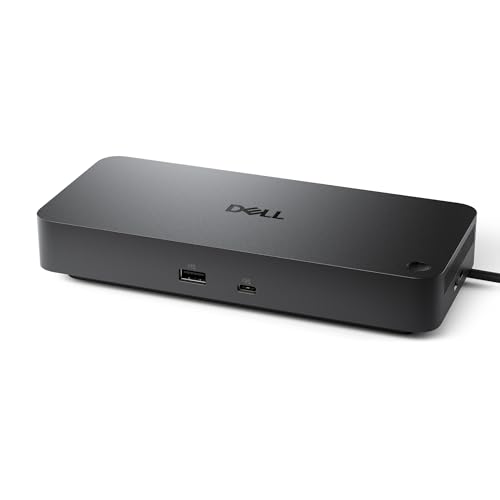
Dell Pro Laptop Docking Station WD25
A USB-C dock with HDMI, DisplayPort, Ethernet and 100W power delivery, listed with support for up to four displays.
View on Amazon
TobenONE 19-in-1 Laptop Docking Station Dual Monitor
A 19-in-1 USB-C dock with two 4K HDMI ports, 10 USB ports, Gigabit Ethernet and 100W power delivery for Windows and Chrome OS.
View on AmazonThese come from our ranked list Best Docking Station for Laptop and 2 Monitors, which compares them spec by spec.
FAQ
Will a docking station work with a MacBook?
Many work, but the Selore docks mirror the same picture to two monitors on macOS instead of extending. The TobenONE is not recommended for Mac users. Check the dock notes for macOS before buying it for two screens.
Do I need a docking station for one monitor?
No. If your laptop has an HDMI port or a USB-C port with video output, a single cable runs one monitor. A dock helps when you also want Ethernet, more USB ports and charging through one cable.
Why does only one monitor show a picture?
The USB ports on a dock do not always carry video, so plug each monitor into an HDMI, DisplayPort or VGA port. On macOS, some docks mirror instead of extending, so check the dock notes for your laptop.