
How to Clean a Headphone Jack on a PC
 By Theo LangUpdated
Turn the PC off, then clean the headphone jack with short bursts of compressed air and a dry wooden toothpick to lift out lint. If dirt stays stuck, dampen a cotton swab with isopropyl alcohol, wipe inside the jack, and let it dry before you plug anything back in. A clean jack restores the connection between the plug and the contacts inside.
Shut the PC down first
Shut the PC down and unplug it before you touch the jack, so no signal runs through the contacts while you clean. Remove the headphone plug and look into the jack with a light to see lint or dirt. Work on a clear desk so small parts stay in view.
Blow out loose dust
Hold a can of compressed air upright and give the jack short bursts to push loose dust out. Keep the nozzle a short distance from the jack so the air does not drive dirt deeper. Plug the headphones back in and listen: if the sound is clear, the job is done.
Lift out packed lint
If lint stays packed inside, slide a dry wooden toothpick into the jack and lift the lint out gently. Work around the inside wall of the jack and pull the debris out instead of pushing it deeper. Never use a metal pin or a needle: metal can scratch the contacts and short the jack.
Wipe the contacts with alcohol
For grime that air and a toothpick leave behind, dampen a cotton swab with isopropyl alcohol and wipe the inside of the jack. Use only a small amount so no liquid pools inside, and let the jack dry fully before you plug headphones back in. Do not pour alcohol into the jack or use a dripping swab.
Check the plug and the sound
Plug the headset in firmly and play audio to check both ears. If sound comes from one ear only, rotate the 3.5mm plug slowly and listen for the sound to return, which points to a worn plug or a loose jack. Try a second headset with a 3.5mm plug: if it sounds fine, the first headset is the problem, not the jack.
What you need

Razer BlackShark V2 X Gaming Headset
A 3.5mm headset with 50mm drivers, 7.1 surround sound and a cardioid mic for PC gaming.
View on Amazon
Razer BlackShark V2 X Gaming Headset for PC
The same 3.5mm headset in white, with 50mm drivers, 7.1 surround sound and a bendable cardioid mic.
View on Amazon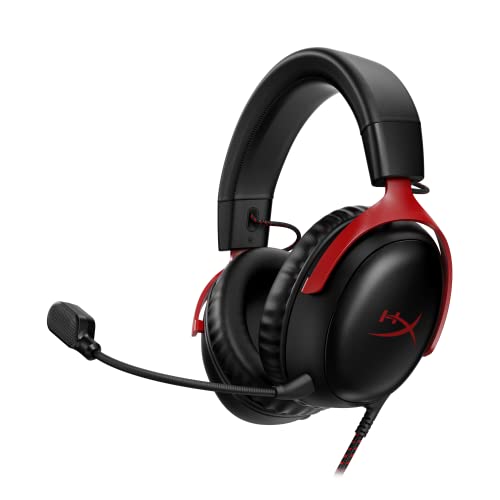
HyperX Cloud III Wired Gaming Headset for PC
A headset with 53mm drivers and USB-C, USB-A and 3.5mm connections, plus a 10mm noise-cancelling mic.
View on Amazon
BENGOO G9000 Stereo Gaming Headset for PS4 PC Xbox One PS5 Controller
A USB headset with 40mm drivers, 7.1 surround sound and LED lights on the earcups.
View on AmazonThese come from our ranked list Best PC Headset, which compares them spec by spec.
FAQ
Can I use water to clean a headphone jack?
No. Water leaves moisture inside the jack and can corrode the contacts. Use compressed air, a dry wooden toothpick, or a cotton swab dampened with isopropyl alcohol, and let the jack dry before plugging anything in.
Why does only one side of my headset play sound?
A loose plug, a worn cable, or dirt left on one contact can cut one channel. Push the plug in firmly and rotate it slowly. If a second headset with a 3.5mm plug plays both sides, the first headset is at fault.
How often should I clean the headphone jack?
Clean it when the sound crackles, cuts out, or only plays in one ear, or when you can see lint inside the jack. A jack that sounds clear and holds the plug firmly needs no cleaning.


