
How to Clean Greasy Headphones
 By Theo LangUpdated
Unplug the headphones, then wipe the ear cushions and headband with a dry cloth to lift surface grease. For stubborn grease, dampen a cloth with water and a drop of mild soap, wipe the cushions and headband, then wipe again with a clean damp cloth and let them air-dry before use. Keep liquid out of the drivers, mic and ports.
Unplug and power off first
Unplug the headset from your PC, console or phone, and switch it off if it has a power switch. Cleaning a connected headset risks a short if liquid reaches the plug or the USB port, and it keeps the mic live while you work. Set the headset on a clean, dry surface with the ear cushions facing up so you can reach every part without pulling the cable.
Wipe off loose grease with a dry cloth
Take a soft, dry cloth and wipe the ear cushions, the headband and the outside of the earcups. Grease from skin and hair sits on the surface, and a dry wipe lifts much of it before any damp cleaning. Work around the cushion seams and the headband padding, where grease collects, and shake the cloth out before you move on to damp cleaning.
Clean the cushions with mild soap
Dampen a clean cloth with water and add a drop of mild soap, then wring the cloth out so it is barely damp. Wipe the ear cushions in slow circles, then wipe the headband the same way. Follow with another cloth dampened with water alone to lift the soap away, since soap left on leatherette or memory foam can leave a film. Never soak the cushions or hold them under running water, because liquid can reach the drivers inside the earcups.
Clean the headband, mic and cable
Wipe the headband, the outer earcups and the mic boom with the same barely damp cloth, then dry each part with a dry cloth. Clean the cable by running the damp cloth along its length, and wipe around the plug without pushing liquid into it. Keep the damp cloth away from mic openings and any port on the headset, since liquid in those openings can damage the mic or the connection.
Let them dry before use
Leave the headphones out in open air until every part feels dry to the touch, with the ear cushions facing up. Do not use a hair dryer or set them near a heater, since heat can warp the cushions and the headband. Once dry, plug the headset back in and check that the sound and mic work before your next call or game.
What you need

Razer BlackShark V2 X Gaming Headset
A headset with breathable memory foam ear cushions in closed earcups, 50mm drivers and a 3.5mm audio jack.
View on Amazon
Razer BlackShark V2 X Gaming Headset for PC
A headset with leatherette and memory foam ear cushions, thicker headband padding and a bendable cardioid mic.
View on Amazon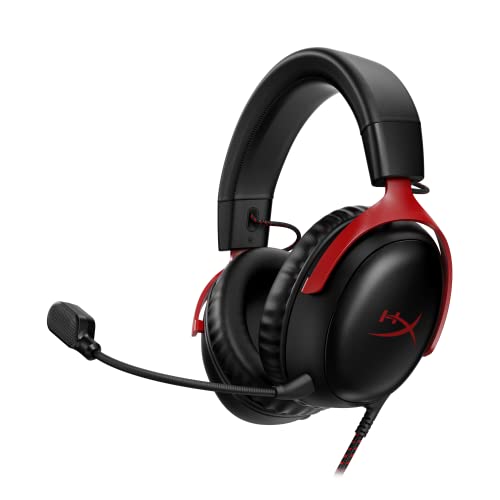
HyperX Cloud III Wired Gaming Headset for PC
A headset with memory foam ear cushions, a durable aluminum frame and a 10mm mic with a mesh filter.
View on Amazon
BENGOO G9000 Stereo Gaming Headset for PS4 PC Xbox One PS5 Controller
A headset with soft memory earmuffs in skin-friendly leather, a multi-point headband and a braided USB cable.
View on AmazonThese come from our ranked list Best PC Headset, which compares them spec by spec.
FAQ
Can I use soap and water on headphone cushions?
Yes, with a cloth that is barely damp. Add a drop of mild soap to the cloth, wipe the cushions, then wipe again with a cloth dampened with water alone. Never soak the cushions or hold them under running water.
How do I clean greasy leatherette ear cushions?
Start with a dry cloth, then use a barely damp cloth with a drop of mild soap. Wipe the soap away with a clean damp cloth and let the cushions air-dry. Keep liquid out of the drivers and mic openings.
How often should I clean my headphones?
Clean them when the cushions look shiny or feel slick, and after long sessions or workouts. Watch for a greasy film on the cushions, a stale smell, or earcups that feel sticky. A quick dry wipe after use keeps grease from building up.


