
How to Clean a Headset Microphone
 By Theo LangUpdated
Unplug the headset, then wipe the microphone with a dry, soft cloth and brush dust from the mic mesh with a soft brush. If the mic detaches, take it off the headset before you clean it. Let the mic dry fully before you plug the headset back in and speak into it. These steps fit the headsets shown on this page.
Unplug the headset first
Unplug the headset from your PC, console, or controller before you touch the mic. A headset that stays connected can pick up handling noise and send it to a call or recording. If the headset has an in-line mute switch, set it to mute as well. Work on a clean, flat surface so small parts and the mic do not roll away.
Remove the mic if it detaches
Check whether your mic detaches before you clean it. The Turtle Beach Recon 50 has a removable mic, so pull it free from the headset and clean it on its own. The Razer BlackShark V2 X PlayStation has a bendable mic, so move it away from the earcup to reach it. If the mic does not detach, leave it attached and clean it in place.
Wipe the mic and brush the mesh
Wipe the outside of the mic with a dry, soft cloth to lift dust and skin oils from the surface. Then brush the mic mesh gently with a soft brush to clear dust caught in the holes. Brush away from the mic so dust falls off instead of pushing deeper into the mesh. Do not press hard on the mesh, and do not poke anything into the mic holes.
Clean the windscreen and earcups
If your mic has a foam windscreen, slide it off and brush dust from it, then slide it back on once it is dry. Wipe the earcups and headband with the same dry cloth to clear dust from the surfaces that touch your skin. Check your headset manual for the maker's own cleaning notes before you use any liquid or cleaner on any part of the headset.
Let it dry, then speak into it
Let the mic dry fully before you plug the headset back in. Then plug it in, open your voice settings or a voice call, and speak at your normal distance from the mic. If the sound is still muffled, repeat the wipe and brush, and check the mic position and the mute switch. If the problem stays after cleaning, check the headset manual or contact the maker.
What you need

Razer BlackShark V2 X Gaming Headset
A headset with a Razer HyperClear cardioid mic, custom-tuned 50 mm drivers, and a 3.5 mm jack for PC, PS4, PS5, and Switch.
View on Amazon
Razer BlackShark V2 X Wired PlayStation Gaming Headset
A headset with a bendable HyperClear cardioid mic, 50 mm drivers, and a 3.5 mm jack for PS5, Xbox Series X, PC, and Switch.
View on Amazon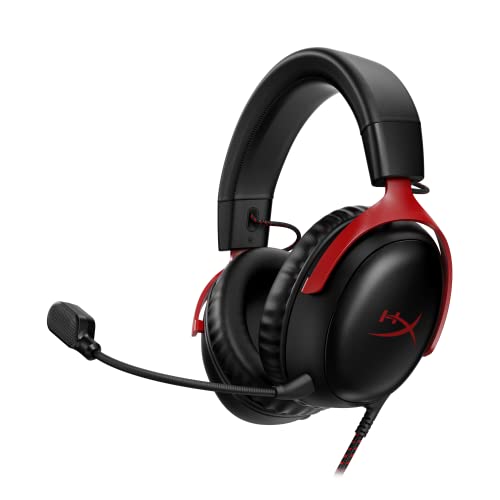
HyperX Cloud III Wired Gaming Headset for PC
A headset with a noise-cancelling 10 mm mic, a built-in mesh filter, an LED mic mute indicator, and USB-C, USB-A, and 3.5 mm connections.
View on Amazon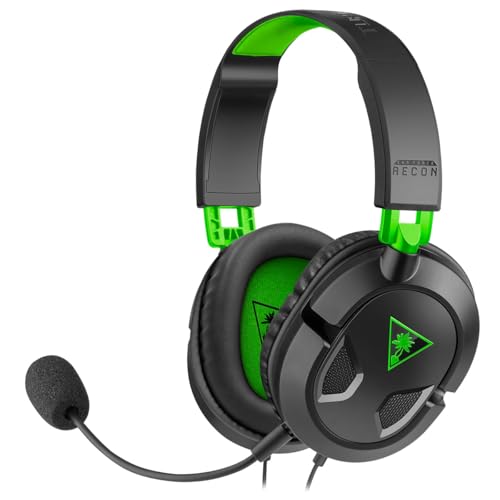
Turtle Beach Recon 50 Wired Multiplatform Gaming Headset for Xbox
A headset with a removable high-sensitivity mic, 40 mm speakers, and in-line controls for Xbox, PlayStation, PC, and mobile.
View on AmazonThese come from our ranked list Best Headset with Mic, which compares them spec by spec.
FAQ
Can I use water to clean a headset mic?
Wipe the mic with a dry, soft cloth first. Check your headset manual before you use any liquid or cleaner, and let the mic dry fully before you plug the headset back in.
How do I know the mic is clean?
Speak in a voice call after cleaning. If your voice sounds clear at your normal distance from the mic, the mesh is clear. If it still sounds muffled, brush the mesh again and check the mic position.
Should I remove the mic before cleaning it?
Yes, if it detaches. The Turtle Beach Recon 50 has a removable mic, so take it off and clean it on its own. If your mic does not detach, leave it attached and clean it in place.


