
How to Build a PC Inside a Case
 By Theo LangUpdated
Building a PC inside a case means fitting the motherboard, power supply, graphics card, storage and cooling into the case in an order that leaves room to work. Start by checking that each part fits the case: motherboard size, graphics card length, radiator size and power supply type. Then install the parts, connect the cables, and check the build powers on before closing the panels.
Check that the parts fit the case
Open the case manual and list what the case accepts: motherboard size, graphics card length, radiator size and power supply type. Compare each part against that list before buying or building, since a part that is longer or wider than the case allows will not fit. Check the fan mounts and the space behind the motherboard tray for cables, and confirm the case has the front ports you want. A short check at this stage saves taking the build apart later.
Install the power supply and motherboard
Shut down and unplug the PC first if you are working on a machine that has run before, and follow the maker's manual for your case. Mount the power supply in its bay and route its cables toward the motherboard and the graphics card before the board goes in. Set the motherboard on its standoffs, line up the rear ports with the opening in the case, and fasten the board with the screws the case provides. Connect the front panel cables for the power button and the front USB ports, checking each plug against the motherboard manual.
Fit the graphics card and cooling
Slide the graphics card into its slot on the motherboard and fasten its bracket to the case, then connect the power cables from the power supply. If the card is long, check that it clears the front fans and any drive mounts before you push it fully home. Mount the radiator or fans on the mounts the case provides, with the cables routed away from the fan blades. Leave space around the card and the radiator so air can move through the case.
Connect the cables and check the build
Connect the power supply cables to the motherboard, the graphics card and the storage drives, and check each plug is fully seated. Tidy the cables behind the motherboard tray so they stay clear of the fans and the side panel. Plug in a monitor, keyboard and mouse, then switch on the power supply and press the power button. If the fans spin and a picture appears, shut the PC down, unplug it, and close the side panels.
What you need

Lian Li A3-mATX PC Case
An mATX case with steel mesh panels, room for graphics cards up to 415mm and a 360mm radiator, plus front or side power supply mounting.
View on Amazon
Lian Li A4-H2OX5 Mini-ITX Case-SFX Layout-PCIe 5.0 Riser-Black-A4H2OX5
An 11 liter Mini-ITX case with a sandwich layout, triple-slot graphics card mounting, a PCIe 5.0 riser cable and room for a 240mm AIO.
View on Amazon
Fractal Design Terra Jade
A 10.4 liter Mini-ITX case with a walnut front panel, room for graphics cards up to 322mm and a slidable central wall.
View on Amazon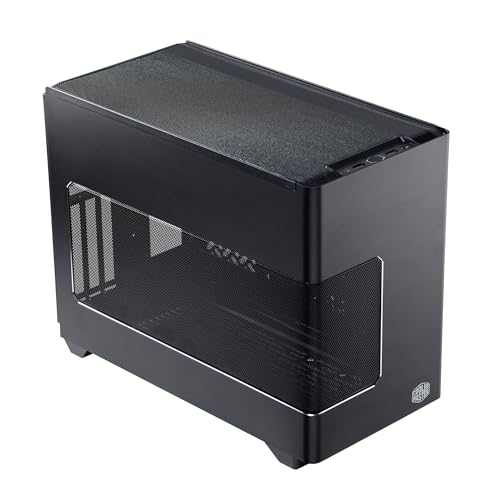
Cooler Master NR200P V3 Mini-ITX PC Case
A Mini-ITX case with mesh panels, vertical graphics card mounting for cards up to 361.5mm and support for a 280mm radiator.
View on AmazonThese come from our ranked list Best ITX Case, which compares them spec by spec.
FAQ
What order should I install PC parts in a case?
Fit the power supply and motherboard first, then the graphics card and cooling, and connect the cables last. This order leaves room to work and keeps cables clear of the fan blades.
How do I know if my graphics card fits the case?
Compare the card length with the graphics card length the case lists, and check that it clears the front fans and drive mounts before you buy.
What should I check before I switch the PC on?
Check that every power cable is fully seated, the fans and radiator are clear of cables, and the side panels are off so you can see the first start. If the fans spin and a picture appears, shut the PC down and unplug it before closing the case.


