How to Add a Graphics Card to a Laptop
 By Theo LangUpdated
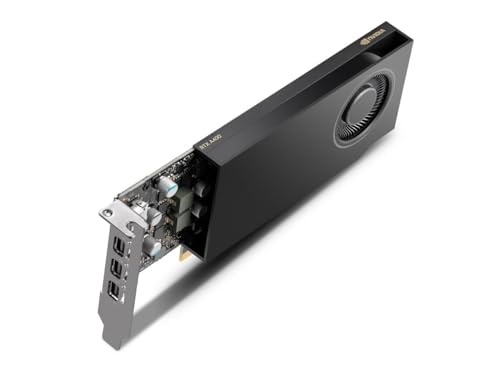
A desktop graphics card goes in a PCIe slot in a desktop case or in an external graphics enclosure, and a laptop uses graphics built on its main board. For a laptop, check the manual for Thunderbolt or USB4 support for external graphics, then connect an enclosure with a desktop card and install the driver.
Check the graphics in your laptop
Open the manual or spec sheet for your laptop and find the graphics entry for your exact model. Note the graphics model and the ports on the side of the laptop, since the next steps depend on those details. Shut the laptop down and unplug it before you open any cover, and follow the maker manual for your model. Contact the maker for work on a laptop under warranty, and keep the manual open while you check the port notes.
Match desktop cards to the right slot
Desktop graphics cards in this guide use a PCIe connector for a desktop case or an external graphics enclosure. A laptop main board holds its graphics in place, so the internal route for a desktop card is a desktop case with a PCIe slot. Keep the desktop card in its box until you have a case or enclosure with a PCIe slot and power leads for the card. Check the card length and slot width in the card manual against the case or enclosure manual before you buy parts.
Check the port for external graphics
Look in the laptop manual for Thunderbolt or USB4 on the USB-C port you plan to use. The USB-C shape alone does not prove support for external graphics, video output, or charging. Check that the manual ties that port to Thunderbolt or USB4 and to external graphics use. For a port with data-only notes in the manual, keep the laptop graphics as built and use a desktop case for the card. Write down which port the manual ties to Thunderbolt or USB4 before you order an enclosure.
Connect the enclosure and card
Shut down the laptop and the enclosure, unplug the power leads, and follow the enclosure manual and the card manual for the install steps. Seat the desktop card in the PCIe slot in the enclosure, connect the power leads in the card manual, and close the enclosure cover. Connect the enclosure to the laptop port from the manual check with the cable in the enclosure manual. Plug in power, turn on the enclosure, then turn on the laptop and install the graphics driver from the card maker.
Pick the graphics in your software
Open the graphics settings on the laptop and pick the external graphics option for the app you plan to use. Check the requirements published for your software or game against the graphics model and video memory figure for the card. Keep the laptop display cable choice in mind, since the enclosure manual and laptop manual state where to plug in a monitor. If the app still uses the built-in graphics, close the app, check the cable and port choice, and open the settings again.
What you need

PNY NVIDIA GeForce RTX 5070 Ti OC
A desktop GeForce RTX 5070 Ti card with 16 GB GDDR7, PCIe 5.0, and HDMI output for a desktop case or external enclosure.
View on Amazon
PowerColor Reaper
A desktop Radeon RX 9070 XT card with 16 GB GDDR6 and HDMI and DisplayPort outputs for a desktop case or external enclosure.
View on Amazon
ASUS Dual
A desktop GeForce RTX 5060 Ti card with 8 GB GDDR7, PCIe 5.0, and HDMI and DisplayPort outputs for a desktop case or external enclosure.
View on Amazon
GIGABYTE GeForce RTX 3050 WINDFORCE OC V2
A desktop GeForce RTX 3050 card with 6 GB GDDR6 on a 96-bit interface and dual fans for a desktop case or external enclosure.
View on AmazonThese come from our ranked list Best New Graphics Cards, which compares them spec by spec.
FAQ
Can I put a desktop card inside my laptop?
No. Laptops use graphics built on the main board, and desktop cards use a PCIe slot in a desktop case or an external graphics enclosure. For a laptop, use the external enclosure route with a port the manual ties to Thunderbolt or USB4.
What port do I need for external graphics?
Check the laptop manual for Thunderbolt or USB4 on the USB-C port you plan to use. The USB-C shape alone does not prove support for external graphics. Use the port the manual ties to Thunderbolt or USB4, and follow the enclosure manual for the cable choice.
How do I know if a card suits my software?
Check the requirements published for your software or game against the graphics model and video memory figure for the card. The PNY and PowerColor cards in this guide carry 16 GB, the ASUS card carries 8 GB, and the GIGABYTE card carries 6 GB.