
How Do Wireless Headphones Work on a PC?
 By Theo LangUpdated
Wireless headphones work on a PC in two ways: over Bluetooth, using the radio built into many PCs, or over a 2.4 GHz wireless link, using a USB dongle that plugs into the PC. In both cases the PC sends audio as a signal, and the headphones turn it back into sound. You pick the headset in your sound settings, and the microphone sends your voice back the same way.
Two ways headphones connect
Bluetooth is built into many laptops and some desktops, so a Bluetooth headset pairs with the PC directly and needs no extra hardware. A 2.4 GHz headset instead uses a small USB dongle that plugs into the PC and appears as a USB audio device. Both methods carry sound through the air instead of a cable, and the drivers inside the earcups turn the signal into the sound you hear.
Connect over Bluetooth
Turn the headset on and put it into pairing mode, following the button or switch the headset uses for pairing. On the PC, open Settings, go to Bluetooth and devices, choose Add device, then Bluetooth, and pick the headset from the list. A USB Bluetooth adapter adds Bluetooth to a PC for pairing with a Bluetooth headset. Once paired, the PC remembers the headset and connects to it again when it is on and nearby.
Connect with a USB dongle
Plug the dongle into a free USB port on the PC, then turn the headset on. The PC treats the dongle as an audio device, so there is no pairing step before you select the headset in sound settings. Keep the dongle in a port with a clear path to the headset and avoid plugging it into a hub buried behind the desk. If the headset has a switch for wireless and Bluetooth, set it to the wireless mode that uses the dongle.
Pick the headset in sound settings
Connecting the headset is only half the job: the PC may still send sound to its speakers. Open Settings, go to System and then Sound, and set the headset as the output device and, if you want to use its microphone, as the input device too. Play something and check the volume on the PC and on the headset. In the same Sound page you can check the microphone and see its level move as you speak.
Fix dropouts and low volume
If the sound cuts out, move closer to the PC, move the dongle to a front USB port, and keep large metal objects and other wireless devices away from the path between the headset and the PC. Charge the headset, since a low battery can cause dropouts. Check that the headset is still the selected output device, and try switching between Bluetooth and the dongle if the headset offers both, to see which link holds up better in your room.
What you need
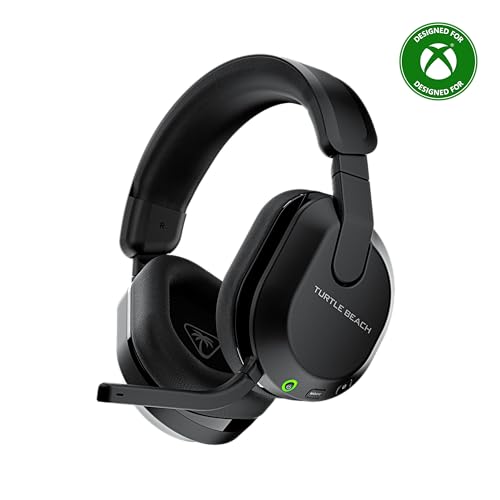
Turtle Beach Stealth 600 Wireless Gaming Headset for Xbox
A multiplatform headset with 50 mm drivers, a flip-to-mute mic, low-latency 2.4 GHz wireless plus Bluetooth 5.4, and memory foam cushions.
View on Amazon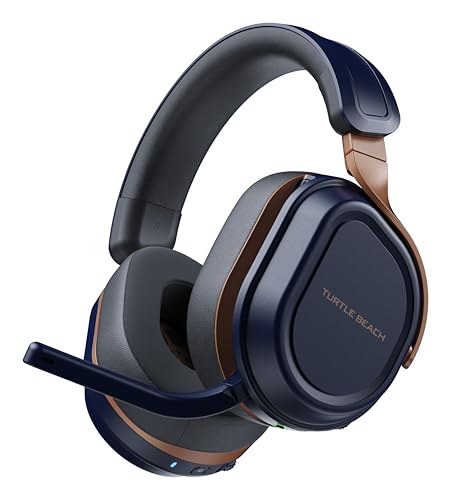
Turtle Beach Stealth 700 Wireless Gaming Headset for Xbox
A headset with 60 mm dual drivers, a flip-to-mute mic, simultaneous 2.4 GHz wireless plus Bluetooth 5.2, and a steel-reinforced lay-flat design.
View on Amazon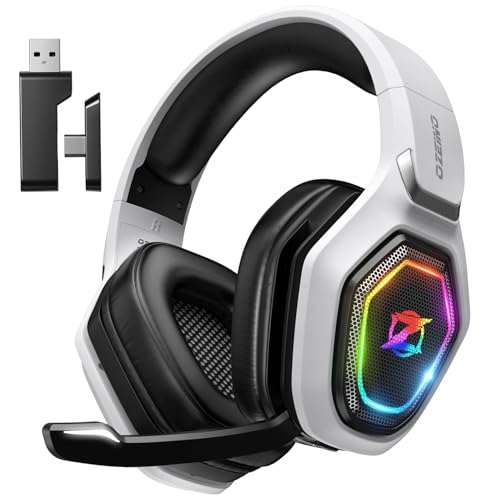
Ozeino Wireless Gaming Headset For PS5
A headset with 50 mm drivers, a flip mic, and 2.4 GHz USB and Type-C wireless, with Bluetooth for phones, laptops and Switch.
View on Amazon
AOC 2.4GHz Wireless Gaming Headset for PS5
A headset with 50 mm drivers, a detachable noise-canceling mic, a low-latency USB dongle, Bluetooth 6.0, and a 3.5 mm cable.
View on AmazonThese come from our ranked list Best Wireless Gaming Headset, which compares them spec by spec.
FAQ
Do I need Bluetooth on my PC for wireless headphones?
No. A headset with a USB dongle works on a PC without Bluetooth, since the dongle carries the audio. A Bluetooth headset needs Bluetooth built into the PC or added with a USB adapter.
Why is there no sound after I connect my headphones?
The PC may still send audio to its speakers. Open sound settings and set the headset as the output device, then check the volume on both the PC and the headset.
Can I use the headset microphone on a PC?
Yes. Set the headset as the input device in sound settings and check it there. Some headsets use a flip-to-mute mic, so check that the mic is flipped down and unmuted before a call.


