
Where Is the SD Card Reader on a Computer?
 By Theo LangUpdated
On a laptop, the SD card reader is a thin slot on the side of the case, near the front edge and marked with an SD card symbol. On a desktop, it sits on the front panel or the top edge of the case, sometimes behind a cover.
Look along the sides of a laptop
Start with the left and right edges of the laptop, near the front corners. The reader is a narrow slot about as wide as an SD card, sometimes with a small SD symbol beside it. On some laptops it sits at the front edge, and on others it hides behind a small cover that you press to open. If the slot holds a blank plastic filler, pull it out and keep it, then slide the card in until it sits flush.
Check the front of a desktop case
On a desktop, look at the front panel and the top edge of the case. The slot may sit beside the USB ports and the headphone jack, or behind a small flap that keeps dust out. Some cases place it on a front panel hub or a drive bay cover, so run your eye along the whole front of the case. A USB card reader works in any free USB port and adds a slot.
Confirm the card shows up
After you insert the card, open File Explorer on Windows and look under This PC, or open Finder on a Mac and look in the sidebar. The card shows as a removable drive, and you can open it to see your photos and files. If nothing appears, push the card in again until it sits flat, then try a different card to rule out a faulty one.
Use a USB card reader instead
A USB card reader plugs into a spare USB port and adds a full-size SD slot. Pick a reader with a full-size SD slot, plug it in, then insert the card the same way you would into a built-in reader. The card shows in File Explorer or Finder as a removable drive. Keep the reader in your bag if you move SD cards between a camera and a computer often.
Eject the card before you remove it
Eject the card before you pull it out, or you can corrupt files that are still being written. On Windows, right-click the drive in File Explorer and choose Eject. On a Mac, drag the card icon to the Trash or click the eject button beside it in Finder. On spring-loaded slots, push the card in once to release it, then pull it out.
What you need

32GB SD Card (3 Pack)
A 3-pack of 32 GB SD cards rated UHS-I V30 with read speeds up to 90 MB/s, listed for full HD video recording in cameras and PCs.
View on Amazon
GIGASTONE 32GB SD Card 5-Pack UHS-I U1
A 5-pack of 32 GB SD cards rated UHS-I U1 Class 10 with read speeds up to 80 MB/s, with 5 mini cases for storage.
View on Amazon
GIGASTONE 32GB SD Card 2-Pack
A 2-pack of 32 GB SD cards rated UHS-I U1 Class 10 with read speeds up to 100 MB/s, with 2 mini cases for storage.
View on Amazon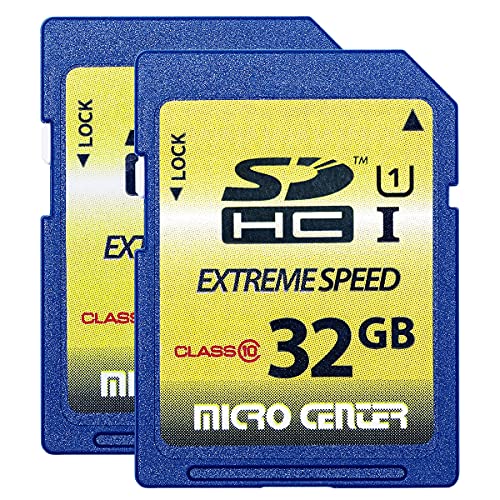
INLAND 32GB SDHC Flash Memory Card Standard
A 2-pack of full-size 32 GB SDHC cards rated Class 10 with 60 MB/s read and 10 MB/s write speeds, for trail cameras and DSLRs.
View on AmazonThese come from our ranked list Best Sdhc, which compares them spec by spec.
FAQ
Why does my SD card not show up?
Push the card in again until it sits flat, then check File Explorer or Finder for a removable drive. Try a different card, and restart the computer if the slot still shows nothing.
Can I use a microSD card in an SD card reader?
Yes, with a microSD to SD adapter. The adapter is the size of a full SD card, so it fits the slot, and the microSD card sits inside it.
Does every laptop have an SD card reader?
No. Some laptops leave the slot out to save space, so check the spec sheet for your model. A USB card reader adds one through a spare USB port.


