
Monitor Setup Types Explained
 By Theo LangUpdated
A monitor setup describes how many screens you use and how they are arranged: one monitor, two side by side, one stacked above another, or a wide screen in place of two. The setup you choose changes how much space your windows have and how you move between tasks. Match the number of screens and the desk space you have to the ports and size you need.
One monitor on the desk
A single monitor is the simplest setup and works well when your work fits on one screen, such as writing, email and video calls. Place it at arm's length with the top of the screen near eye level, and leave room on the desk for a keyboard and mouse. A 24-inch or 27-inch screen gives room for two windows side by side without a second display.
Two monitors side by side
Two monitors side by side give you a screen for your main task and a screen for reference material, chat or email. Put the monitor you look at most directly in front of you and the second one angled beside it, so you turn your head instead of your whole body. Check that your computer has two video outputs, such as HDMI and DisplayPort, or a USB-C port that supports video output.
Stacked and portrait screens
Stacking one monitor above another saves desk width and suits a screen you glance at, such as email or a chat window, while you work on the lower screen. Turning a monitor on its side into portrait mode gives a tall, narrow view that suits long documents and code. A stand with height, tilt, pivot and swivel adjustment, or a VESA mount, makes either arrangement easier to set up.
One wide screen instead of two
A single wide or curved screen can take the place of two monitors, with no gap in the middle and one cable to the computer. It works well for a timeline, a large spreadsheet or several windows arranged across one surface. Check the resolution, such as 1440p or 2160p, and the refresh rate, such as 60 Hz or 144 Hz, so the screen matches the work you plan to do on it.
Check the ports and the stand
Before you buy, list the video ports on your computer and on each monitor, such as HDMI, DisplayPort and USB-C, and confirm they match. A USB-C port is not proof of video output, so check that your laptop's USB-C port supports video output before you rely on one cable. Also check the stand: height, tilt, pivot and swivel adjustment let you set the screen at a comfortable angle.
What you need
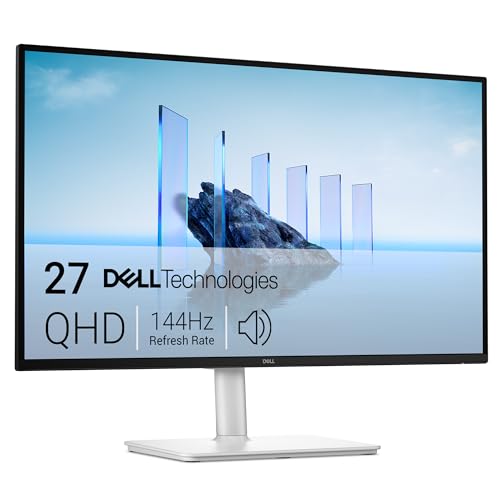
Dell 27 Plus USB-C Monitor S2725DC
A 27-inch QHD monitor with a 144 Hz refresh rate, USB-C with up to 65 W power delivery, HDMI and DisplayPort, plus built-in 3 W speakers.
View on Amazon
Samsung 32-inch Flat Computer Monitor LS32B304NWNXGO
A 32-inch monitor with HDMI and DisplayPort, a three-sided borderless design, AMD FreeSync and a 75 Hz refresh rate.
View on Amazon
YOTETION 19-inch Small Thin Monitor for laptops
A 19-inch monitor with 1440 x 900 resolution, HDMI and VGA ports and a 75 Hz refresh rate for a laptop or desktop.
View on Amazon
24-inch Touchscreen Monitor VA 3000
A 24-inch touchscreen monitor with Full HD 1920 x 1080 resolution, 10-point touch, HDMI and VGA, and a height and tilt adjustable stand.
View on AmazonThese come from our ranked list Best Monitor Type, which compares them spec by spec.
FAQ
How many monitors do I need for office work?
One monitor is enough for writing, email and video calls. Two monitors help when you keep reference material open beside your main task, such as a document beside a spreadsheet.
Can I mix monitors of different sizes?
Yes. A 27-inch monitor beside a 24-inch monitor works, and the screens do not need to match. Set the screen you use most directly in front of you and adjust the height of each one so their tops line up.
Do I need a docking station for two monitors?
Not always. If your laptop has two video outputs, or a USB-C port with video output and a monitor with USB-C, you can connect two screens without a dock. A dock helps when you also want Ethernet, extra USB ports and charging through one cable.


