
Monitor Cable Types Explained
 By Theo LangUpdated
Monitors connect through HDMI, DisplayPort, USB-C or VGA, and the cable you need depends on the ports on your monitor and your computer. HDMI and DisplayPort carry video and audio, USB-C can carry video, audio, data and charging through one cable, and VGA carries video only on older equipment. Match the ports on both ends before you buy a cable.
HDMI and DisplayPort
HDMI is the common video port on monitors, laptops and desktops, and it carries video and audio on one cable. DisplayPort is common on desktop graphics cards and monitors, and it also carries video and audio. When your computer and monitor both have the same port, use a cable that matches it on both ends. When they differ, check whether an adapter or a cable with different ends fits your setup, and confirm the monitor input you plan to use.
USB-C for video and charging
A USB-C port can carry video, audio, data and power through one cable, but not every USB-C port does all of these. Check your laptop manual or spec sheet for DisplayPort Alt Mode, Thunderbolt or USB4 on that port before you buy a USB-C cable for a monitor. If the port only carries data, a monitor connected through it stays blank even though USB devices on the same cable still work. When the port supports video, one cable can run the monitor and charge the laptop at the same time.
VGA and older connections
VGA is an older video port that carries video only, with no audio, and it still appears on some older monitors and desktops. If your monitor has VGA and your computer does not, you need an adapter or a different monitor input, since a plain VGA cable has nothing to plug into on the computer side. VGA uses an analog signal, so the picture can look softer than a digital connection on the same screen. For a new setup, pick a monitor input that matches a digital port on your computer.
Match the ports and the cable
Look at the back of your monitor and the side or back of your computer and write down which video ports each one has. Then buy a cable with matching ends, or an adapter when the two sides differ. Plug the cable into the monitor first, then the computer, and select the matching input on the monitor menu. If the screen stays blank, check the cable is seated on both ends, try another input on the monitor, and confirm the computer sends video through that port.
What you need
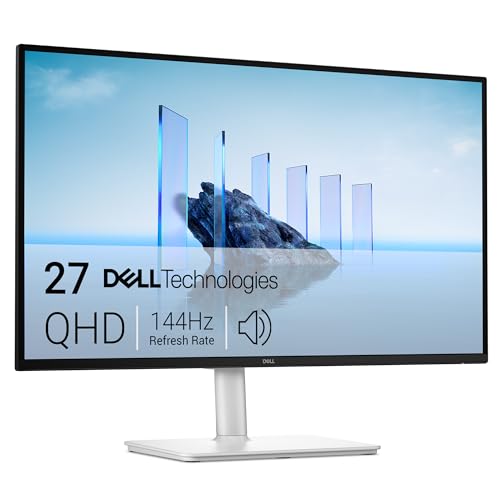
Dell 27 Plus USB-C Monitor S2725DC
A 27-inch QHD monitor with USB-C, HDMI and DisplayPort inputs, so one screen covers the three cable types in this guide.
View on Amazon
Samsung 32-inch Flat Computer Monitor LS32B304NWNXGO
A 32-inch monitor with HDMI and DisplayPort inputs for a setup that uses either of the two common digital cables.
View on Amazon
YOTETION 19-inch Small Thin Monitor for laptops
A 19-inch monitor with HDMI and VGA ports, for a setup that still needs the older VGA connection beside HDMI.
View on Amazon
24-inch Touchscreen Monitor VA 3000
A 24-inch touchscreen monitor with HDMI, VGA and Type-B ports, where the Type-B cable carries touch input to a Windows PC.
View on AmazonThese come from our ranked list Best Monitor Type, which compares them spec by spec.
FAQ
Can I use any HDMI cable with a monitor?
A standard HDMI cable fits the HDMI port on a monitor and a computer, and it carries video and audio. Check that both ends have HDMI ports, since a cable cannot change the port type. For a second monitor, check that your computer has another video output.
Why does my monitor stay blank with a USB-C cable?
Some USB-C ports carry data only and do not send video. Check your laptop manual for DisplayPort Alt Mode, Thunderbolt or USB4 on that port. Use an HDMI or DisplayPort cable when both the monitor and the computer have those ports.
Do I need a special cable for a touchscreen monitor?
Touch needs its own connection beside the video cable on some monitors. The Dragolftie touchscreen monitor takes a Type-A to Type-B cable for touch, and touch does not work on Apple devices.



