How to Use a Gaming Mouse
 By Theo LangUpdated
Plug the mouse in or connect it wirelessly, then install the maker's software to set sensitivity, button assignments and lighting. Use the DPI button to change how far the pointer moves per inch of mouse movement, and assign extra buttons to game actions you use often. Try the settings in a game and adjust them until the pointer feels right.
Connect the mouse to your computer
Plug a wired mouse into a free USB port on your computer. For a wireless mouse, plug its receiver into a USB port and switch the mouse on. The pointer should move right away. If it does not, try another USB port and check that the mouse is switched on and charged or has a battery fitted.
Install the maker's software
Download the software from the maker's site and install it. The software lets you change sensitivity, reassign buttons, set lighting and save profiles to the mouse. Keep the software running while you change settings, then close it when you are done. Check the maker's manual for which version fits your system.
Set the sensitivity with DPI
DPI sets how far the pointer moves for each inch you move the mouse. A higher setting moves the pointer further with less hand movement, while a lower setting gives finer control. Start in the middle of the range, then use the DPI button or the software to step it up or down. Change one step at a time and give each setting a short session before you judge it.
Assign the extra buttons
Gaming mice have extra buttons beside the usual left and right click. Open the software, pick a button, and assign it an action such as reload, crouch, a weapon slot or push-to-talk. Keep the assignments you use most on the buttons your thumb and index finger reach without looking. Leave buttons you do not use unassigned so a stray press does nothing.
Adjust the grip and the surface
Hold the mouse the way that feels steady for you, with your palm resting on it or your fingers arched over it. Use a flat mouse pad so the sensor tracks cleanly, and keep the pad and the sensor window free of dust and crumbs. If the pointer jumps or skips, clean the sensor window with a dry cloth and check the pad for wear.
What you need

Logitech G305 LIGHTSPEED Wireless Gaming Mouse
A LIGHTSPEED wireless mouse with a HERO sensor, up to 12,000 DPI, 6 programmable buttons and on-board memory, with 250 hours of play on one AA battery.
View on Amazon
Logitech G305 LIGHTSPEED Wireless Gaming Mouse
A LIGHTSPEED wireless mouse with a HERO sensor, up to 12,000 DPI, 6 programmable buttons and on-board memory, in blue with a 1-year warranty.
View on Amazon
Redragon M908 Wired MMO RGB Gaming Mouse 12400 DPI Remapping Keys
A wired MMO mouse with up to 12400 DPI, 18 programmable buttons including 12 side buttons, 5 memory profiles and an 8-piece weight tuning set.
View on Amazon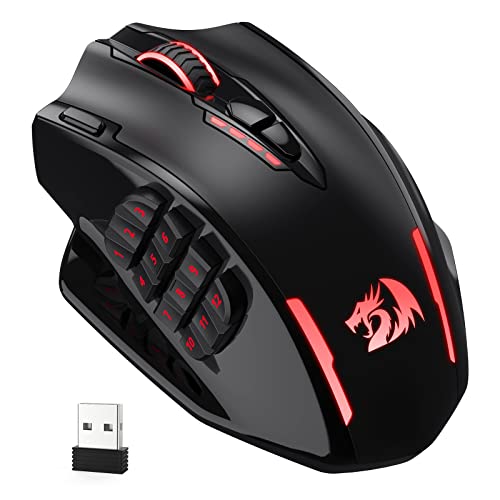
Redragon M913 Wireless RGB MMO Gaming Mouse 16000 DPI Remapping Keys
A wireless MMO mouse with 2.4GHz wireless and USB-C wired modes, up to 16000 DPI, 12 side buttons and 5 onboard DPI levels.
View on AmazonThese come from our ranked list Best Gaming Mouse, which compares them spec by spec.
FAQ
Do I need software to use a gaming mouse?
No. The mouse works as a normal pointer as soon as you connect it. The software only adds control over sensitivity, button assignments, lighting and saved profiles.
Why does my pointer move too fast or too slow?
The sensitivity setting is too high or too low for how you move your hand. Lower the DPI for finer control or raise it to cross the screen with less movement, then adjust one step at a time.
Can I use a gaming mouse for everyday work?
Yes. It works like any other mouse for browsing, documents and email. The extra buttons can hold shortcuts for copy, paste or switching windows, and the sensitivity controls still apply.