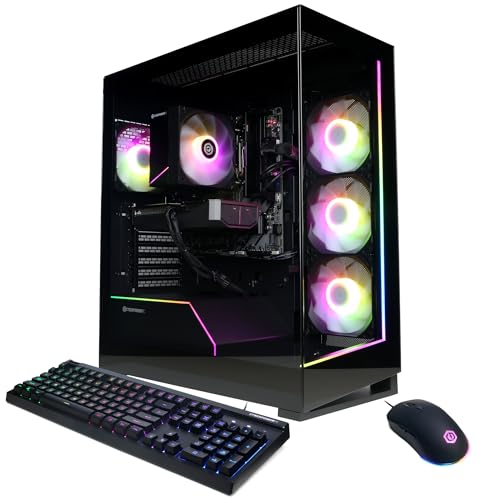
How to Set Up a Gaming PC
 By Theo LangUpdated
To set up a gaming PC, place it on a desk with clear space around it, connect the monitor to the graphics card, plug in the keyboard and mouse, and connect power and the internet. Then switch it on, finish the Windows setup on screen, and install your games. Check the requirements published for each game before you install it.
Place the PC and connect power
Put the PC on a desk or a stand with clear space around the vents, so air can move in and out of the case. Plug the power cable into the back of the PC and into a wall outlet, and leave the PC switched off while you connect the rest. Keep cables clear of the floor where they can be pulled, and keep drinks away from the desk.
Connect the monitor to the graphics card
Connect the monitor cable to a port on the graphics card at the back of the PC, as shown in the manual for your PC, and connect the other end to the monitor. Use the cable type the monitor and the PC share, such as HDMI or DisplayPort. If the screen stays blank when you switch on, check that the cable is in the graphics card port and that the monitor is set to the right input.
Connect the keyboard, mouse and internet
Plug the keyboard and mouse into USB ports on the back or front of the PC, and plug in any headset or speakers you use. For the internet, plug an Ethernet cable into the network port on the PC, or connect to Wi-Fi after the first start. A wired connection suits a desk that sits near the router, while Wi-Fi suits a PC placed farther away.
Finish the first start and updates
Switch on the monitor first, then switch on the PC, and follow the Windows setup screens for language, region, network and a user account. Once you reach the desktop, open Windows Update and install the updates it offers, then restart the PC when it asks. Check the PC maker's support page for drivers and software for your model, and install only the items listed there.
Install games and check their requirements
Open the store or launcher for your games, sign in, and install one game at a time. Before you install a game, read the requirements published for that game and compare them with the parts in your PC, including memory, storage and graphics. If a game asks for more storage than the PC has free, remove a game or file you no longer use before you install it.
What you need

iBUYPOWER Element Gaming PC
A desktop with an AMD Ryzen 9 7900X, NVIDIA GeForce RTX 5070 12GB, 32GB DDR5 RAM, 1TB NVMe SSD and Windows 11 Home.
View on Amazon
KOTIN Prebuilt Gaming PC RTX
A desktop with an AMD Ryzen 7 9700X, GeForce RTX 5070 12GB, 32GB DDR5, 1TB SSD, an 11.3-inch smart display and Windows 11 Home.
View on Amazon
KOTIN Gaming PC
A desktop with an AMD Ryzen 7 8700F, GeForce RTX 5060 Ti 8GB, 16GB DDR5, 1TB SSD, WiFi 7 and Windows 11 Home.
View on Amazon
CyberPowerPC Gaming PC
A desktop with an AMD Ryzen 5 5500, AMD Radeon RX 6500 XT 4GB, 8GB DDR4, 500GB PCIe 4.0 SSD and Windows 11 Home.
View on AmazonThese come from our ranked list Best Gaming PC Setup, which compares them spec by spec.
FAQ
Do I plug the monitor into the motherboard or the graphics card?
Plug it into the graphics card. The graphics card ports sit lower on the back of the PC, while the motherboard ports sit higher up. A monitor plugged into the motherboard ports can stay blank, so check the manual for your PC.
What do I do on the first start of a gaming PC?
Follow the Windows setup screens, connect to the internet, and install the Windows updates it offers. Then check the PC maker's support page for drivers for your model, and install your games one at a time.
Can I use Wi-Fi instead of an Ethernet cable?
Yes, the PCs shown here list Wi-Fi, and you can connect to your home Wi-Fi during setup. An Ethernet cable gives a wired link to the router, which suits a PC placed near the router.