How to Choose Parts for a Gaming PC
 By Theo LangUpdated
Choose parts for a gaming PC by starting with the games you plan to play and the screen you plan to use. Check the requirements published for each game, then compare the processor, graphics card, memory and storage on offer. Here, memory comes as 16 GB or 32 GB of DDR5, storage as 1 TB or 2 TB, and graphics as RTX 5060 Ti or RTX 5070.
Start with the games and the screen
Each game publishes its own requirements for the processor, graphics card, memory and storage, so read those before you compare machines. Note the resolution and refresh rate you want from the screen, such as 1080p at 60 Hz or 1440p at 144 Hz, since a higher resolution and refresh rate ask more of the graphics card. Write down the requirements for the games you play most, then use them as the yardstick for every machine you compare.
Compare the processor and graphics card
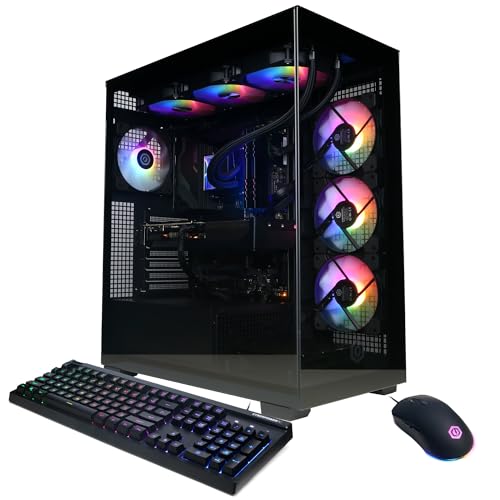
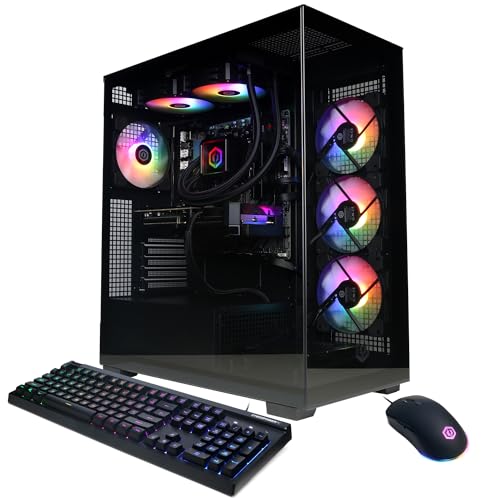
The processor runs the game logic and the background tasks, while the graphics card draws the picture on the screen. The CyberPowerPC has an AMD Ryzen 7 8700F processor with 8 cores and an NVIDIA GeForce RTX 5060 Ti graphics card with 8 GB. The Alienware Aurora has an Intel Core Ultra 7 265F processor and an NVIDIA GeForce RTX 5070 graphics card, and the Alienware Gaming Desktop has the same processor with an NVIDIA GeForce RTX 5060 Ti graphics card. The msi Codex Z2 has an AMD Ryzen 7 8700F processor with 16 threads, boosting up to 5.0 GHz, and an NVIDIA GeForce RTX 5070 graphics card. Compare these figures with the requirements published for your games.
Match memory and storage to your library
Memory holds the game and the programs running beside it, while storage holds the games themselves. The CyberPowerPC and the Alienware Gaming Desktop have 16 GB of DDR5 memory, and the Alienware Aurora and the msi Codex Z2 have 32 GB of DDR5 memory. Storage is 1 TB on the CyberPowerPC and both Alienware machines, and 2 TB on the msi Codex Z2, with the CyberPowerPC fitted with a PCIe 4.0 SSD. Check the storage figure your games publish and leave room for the ones you add later.
Check the ports and the connection
Match the monitor to the video outputs on the machine. The CyberPowerPC has 1 HDMI port and 2 DisplayPort outputs, so check that your monitor takes one of those inputs. For the network, the CyberPowerPC has WiFi 6 and the Alienware machines have Wi-Fi 7, and the Alienware machines have Killer 2.5Gb Ethernet for a wired connection. The CyberPowerPC and the msi Codex Z2 have a USB-C port; check that the port supports the video output or charging you plan to use.
Check the warranty and what comes in the box
The CyberPowerPC comes with a 1 Year Parts and Labor Warranty with free lifetime tech support, and the msi Codex Z2 comes with a 1 Year Manufacturer Limited warranty. The Alienware machines come with 1 Year Onsite Service, with Dell coming to your location when an issue covered by the Limited Hardware Warranty cannot be resolved remotely. The CyberPowerPC comes with a keyboard and mouse in the box, and the Alienware Aurora comes with a wired keyboard.
What you need
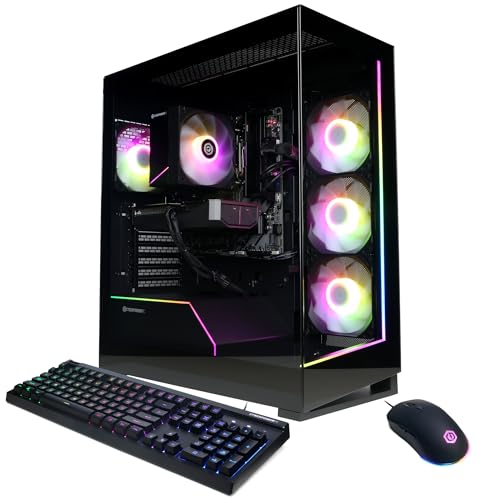
CyberPowerPC Gaming PC
An AMD Ryzen 7 8700F machine with 16 GB of DDR5 memory, a 1 TB PCIe 4.0 SSD and an RTX 5060 Ti graphics card with 8 GB.
View on Amazon
Alienware Aurora Gaming Desktop
An Intel Core Ultra 7 265F machine with 32 GB of DDR5 memory, a 1 TB SSD, RTX 5070 graphics and Wi-Fi 7.
View on AmazonAlienware Gaming Desktop
An Intel Core Ultra 7 265F machine with 16 GB of DDR5 memory, a 1 TB SSD, RTX 5060 Ti graphics and Wi-Fi 7.
View on Amazon
MSI Codex Z2 Gaming Desktop
An AMD Ryzen 7 8700F machine with 32 GB of DDR5 memory, a 2 TB SSD, RTX 5070 graphics and a USB Type-C port.
View on AmazonThese come from our ranked list Best Gaming PC, which compares them spec by spec.
FAQ
Should I build a PC or buy a finished machine?
A finished machine arrives with the parts fitted and Windows 11 Home installed. Building your own means choosing each part and fitting it yourself, so follow the manual for each part and shut the machine down and unplug it before you open it.
What should I check before I buy a monitor for it?
Check the video outputs on the machine, such as HDMI or DisplayPort, and match them to the inputs on the monitor. Also check the resolution and refresh rate you want, such as 1080p at 60 Hz or 1440p at 144 Hz, since those figures shape what the graphics card is asked to do.
Does more memory make games run better?
Memory holds the game and the programs running beside it, so a machine with little memory left can slow down when you open more programs. The machines here have 16 GB or 32 GB of DDR5 memory. Check the memory figure the requirements for your games publish before you choose.