How to Set Up a Power Supply for a PC
 By Theo LangUpdated
To set up a power supply for a PC, mount the unit in the case, connect the cables to the motherboard, graphics card and drives, then switch it on and check that the system boots. Match the supply's wattage and connectors to the parts in your build before you start. The four supplies below are fully modular ATX 3.1 units with PCIe 5.1 support.
Check the wattage and connectors first
Add up the power draw of the parts in your build, then pick a supply rated for that total with room to spare. Check the connectors your parts take: the motherboard takes a main power cable, the graphics card takes its own power cable, and drives take power cables too. The supplies here are 1000 W or 850 W, all fully modular, so you connect only the cables your build uses. Check the maker's notes for your graphics card before you rely on a single cable.
Mount the supply in the case
Shut the computer down, unplug it from the wall, and follow the steps in the maker's manual for your case and your supply. Set the supply in its bay with the fan facing the vent the case manual points to, and fasten it with the screws that came with the case. Do not open the power supply itself, and if the computer is still under warranty, check the warranty terms before you open it.
Connect the cables to the board and drives
Connect the main power cable to the motherboard, the processor power cable to its socket on the board, and the drive cables to each drive. Connect the graphics card with its power cable: the supplies here include a native 12V-2x6 cable or connector for current graphics cards, so use that cable where the card takes it. Push each connector in until it sits flat, and check that the clips catch before you close the case.
Switch on and check the system boots
Plug the computer in, switch the supply on, and press the power button. Watch for the boot screen, and check that the fans spin and the drives show up in the BIOS. If nothing happens, switch off, unplug the computer, and check that each cable is fully seated and that the supply switch is on. If the supply still does not start the system, contact the maker instead of opening the supply.
What you need

CORSAIR RM1000e ATX 3.1 PCIe 5.1 Ready 1000W Power Supply
A 1000 W fully modular supply with ATX 3.1 and PCIe 5.1 support, a native 12V-2x6 cable and a 7-year warranty.
View on Amazon
CORSAIR RM1000x ATX 3.1 PCIe 5.1 1000W Power Supply
A 1000 W fully modular supply with ATX 3.1 and PCIe 5.1 support, a native 12V-2x6 connector, Cybenetics Gold efficiency and a 10-year warranty.
View on Amazon
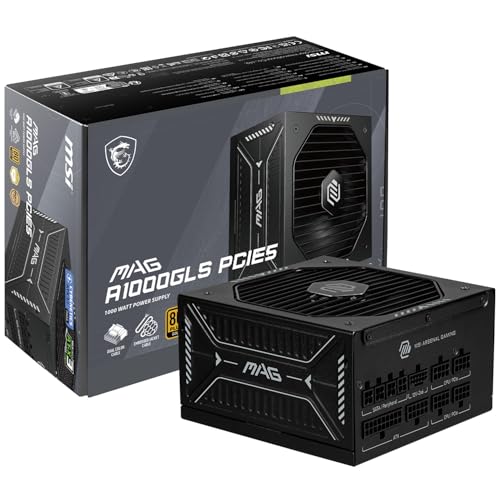
MSI MAG A850GL PCIE5
An 850 W fully modular supply with 80 Plus Gold efficiency, ATX 3.1 and PCIe 5.1 support, a native 12V-2x6 cable and a 10-year warranty.
View on Amazon
Thermaltake Toughpower GT 850W ATX 3.1 Standard Power Supply
An 850 W fully modular supply with 80 Plus Gold efficiency, ATX 3.1 and PCIe 5.1 support, native 12V-2x6 connectors and a 5-year warranty.
View on AmazonThese come from our ranked list Best Power Supply, which compares them spec by spec.
FAQ
Do I need a modular power supply?
No. A fully modular supply lets you connect only the cables your build uses, which keeps spare cables out of the case. A non-modular supply works the same way, but you must find room for the cables you do not use.
What is the 12V-2x6 connector for?
It powers current graphics cards with a direct connection from the supply, with no adapter in between. Check your graphics card's notes to see which power connector it takes before you buy a supply.
Why does my new PC not turn on?
Check that the supply switch is on, the power cable is seated at the wall and at the supply, and each cable inside the case is fully seated. If the cables are seated and the system still does not start, contact the maker of the supply or the board.