
How to Put an SD Card Into a PC
 By Theo LangUpdated
Slide a full-size SD card into the SD slot on your laptop or PC, angled corner first, until it sits flush or clicks. Windows then shows the card as a removable drive in File Explorer.
Find the SD card slot
Look for a narrow slot on the side or front of your laptop or PC case, often marked with an SD symbol or the letters SD. Many laptops have the slot on the side, and some desktops have it on the front panel or on a monitor. If you cannot find a slot, your PC may not have one, and a USB card reader is the way to connect the card.
Check the card size and direction
The cards in this guide are full-size SD cards, so they fit a standard SD slot without an adapter. Hold the card with the contacts facing down and slide it in, angled corner first. Push gently until it sits flush or clicks into place. If it will not go in, pull it out and turn it over. Never force it.
Open the card in File Explorer
On Windows, open File Explorer and look for the card under This PC, where it appears as a removable drive. Double-click the drive to open it and see the files on the card. Copy files to the card by dragging them onto the drive, or copy files from the card to a folder on your PC.
Eject the card before you remove it
Always eject the card before you pull it out, so Windows finishes writing files first. Right-click the card drive in File Explorer and choose Eject, then wait until Windows says the device can be removed. On many laptops you then press the card in gently to release it, and on others you pull it straight out.
Use a USB card reader
Use a USB card reader. Plug the reader into a USB port on the PC, then slide the card into the reader the same way, angled corner first. Windows shows the card as a removable drive, just as it does for a built-in slot. Check that the reader supports SDHC cards, since the cards in this guide are SDHC.
What you need

32GB SD Card (3 Pack)
A 3-pack of 32 GB SDHC cards rated up to 90 MB/s with a V30 speed rating and a 1 year warranty.
View on Amazon
GIGASTONE 32GB SD Card 5-Pack UHS-I U1
A 5-pack of 32 GB SDHC cards rated up to 80 MB/s, Class 10 and U1, with 5 mini cases and a 5 year limited warranty.
View on Amazon
GIGASTONE 32GB SD Card 2-Pack
A 2-pack of 32 GB SDHC cards rated up to 100 MB/s, Class 10 and U1, with 2 mini cases and a 5 year warranty.
View on Amazon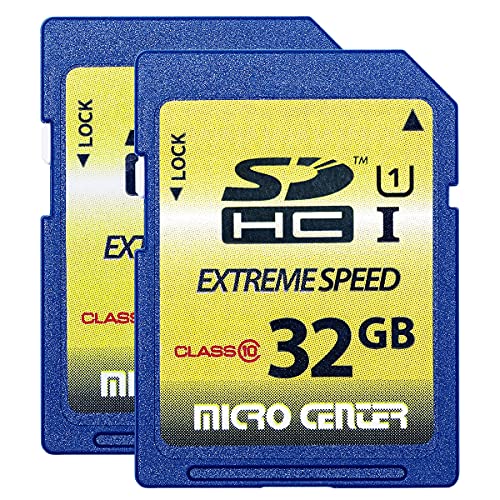
INLAND 32GB SDHC Flash Memory Card Standard
A 2-pack of 32 GB SDHC cards with 60 MB/s read and 10 MB/s write speeds, Class 10 and U1, for SDHC host devices, with a 3 year warranty.
View on AmazonThese come from our ranked list Best Sdhc, which compares them spec by spec.
FAQ
Can I put a microSD card into a PC SD slot?
Not on its own. A microSD card needs a microSD to SD adapter, which is shaped like a full-size SD card. Put the microSD card in the adapter, then slide the adapter into the slot.
Why does my PC not show the SD card?
First check that the card is fully seated in the slot and that the slot is an SD slot, not a different card slot. If the PC still does not show it, try a USB card reader, and check that the PC supports SDHC cards.
Do I need to eject the SD card before removing it?
Yes. Right-click the card drive in File Explorer and choose Eject, then wait until Windows says you can remove it. Pulling the card out during a file transfer can corrupt the files on it.


