
How to Connect an Arcade Stick to PC
 By Theo LangUpdated
Most arcade sticks connect to a PC through a USB cable and work without extra software, since Windows installs a driver for the stick on its own. Plug the stick in, set its mode switch to PC or XInput if it has one, and check that its buttons register in Windows. Then open your game or Steam and map the buttons to your liking.
Set the mode switch first
Many arcade sticks have a small switch on the case that selects the system they talk to, such as PC, Xbox or PlayStation. Before you plug the stick in, move the switch to the PC or XInput position. The stick may not show up in Windows at all if the switch sits on a console setting, so check the maker's manual for the right position for your model.
Plug the stick into a USB port
Connect the stick to a USB port on your PC with its own cable. Windows installs a driver for most sticks on its own, and you should see a short notice once the stick is ready. If nothing happens, try a different USB port on the back of the case and check that the cable is fully seated at both ends.
Check the inputs in Windows
Press the Windows key and R, type joy.cpl, and press Enter to open the game controller settings. Select your stick from the list and open its properties to see the buttons and stick light up as you press them. If a button does not register here, it will not register in a game either, so fix the connection or the driver before you move on.
Set the stick up in Steam
Open Steam, go to Settings and then Controller, and check that your stick appears in the list of detected controllers. Turn on the controller support for the kind of game you play, then open a game and remap the buttons in its controller settings. Steam lets you save a layout per game, so each game can use the button layout that suits it.
Fix a stick Windows does not see
If the stick does not show up in Windows, work through the connection again. Check the mode switch, try another USB port and another cable, and restart the PC. Some sticks need a driver from the maker's website, so look there for your model and install it before plugging the stick in again. If the stick still does not appear, try it on another PC to find out whether the stick or the PC is at fault.
What you need
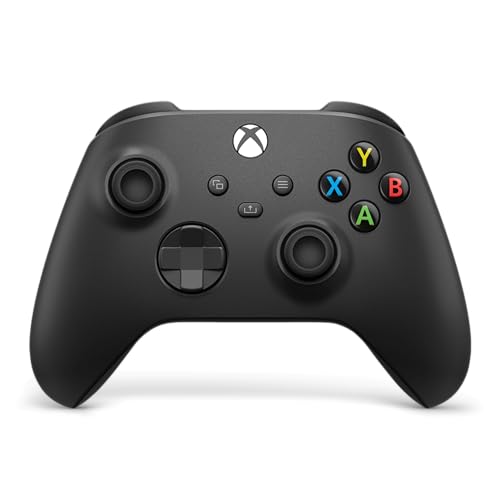
XBOX Wireless Gaming Controller
A wireless controller with a hybrid D-pad, textured triggers and bumpers, and USB-C, Bluetooth and Xbox Wireless connections for PC.
View on Amazon
GameSir G7 Pro Wired Controller for Xbox X
A wired and 2.4G controller for PC with TMR sticks, Hall Effect triggers, a 1000Hz polling rate on PC and four extra buttons.
View on Amazon
GameSir G7 SE Wired Controller for Xbox X
A USB wired controller with Hall Effect joysticks and triggers, two custom back keys and a 3.5mm audio jack, listed for Windows 10 and 11.
View on Amazon
8Bitdo Ultimate 2C Wireless Controller for
A wireless controller for Windows PC and Android with a 1000Hz polling rate, Hall Effect joysticks and triggers, and remappable L4 and R4 bumpers.
View on AmazonThese come from our ranked list Best Gamepad, which compares them spec by spec.
FAQ
Do I need a driver for an arcade stick on PC?
Many sticks work without one, since Windows installs a driver when you plug them in. Some need a driver from the maker's website, so check the manual for your model.
Why does my stick work in Steam but not in my game?
The game may not read the input mode the stick uses. Open the game's controller settings, check that it accepts XInput devices, and try Steam's controller support settings.
Can I use a console arcade stick on PC?
Many console sticks work on PC over USB, but some only work in a console mode. Set the mode switch to PC or XInput and check the maker's notes for PC support.


